所有的物体,不管是网格模型 Mesh、点模型 Points、还是线模型 Line,都是由几何体和材质构成。
前面讲过几何体 Geometry,这节来学下材质 Material。
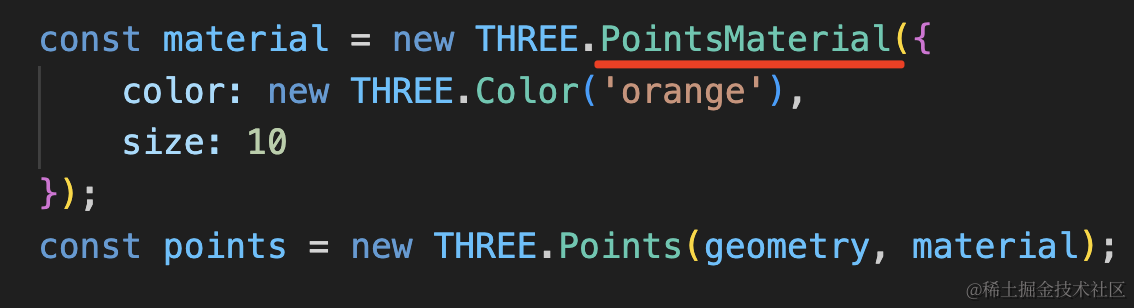
点模型 Points 有专门的材质 PointsMaterial:
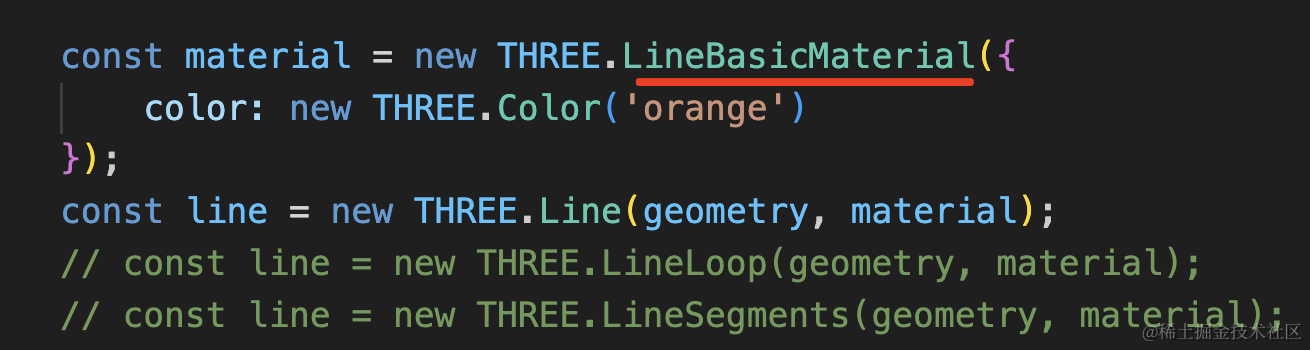
线模型 Line 有专门的材质 LineBasicMaterial、LineDashedMaterial (画虚线用的):
网格模型 Mesh 也有很多材质 MeshBasicMaterial(不受光照影响)、MeshLambertMaterial(支持漫反射)、MeshPhongMaterial(镜面反射)等

同一种几何体,加上不同的材质,就可以渲染出不同的质感。
这节我们来学下 Material 的通用属性,color 颜色、map 颜色贴图 。
创建项目:
mkdir material-color-texture
cd material-color-texture
npm init -y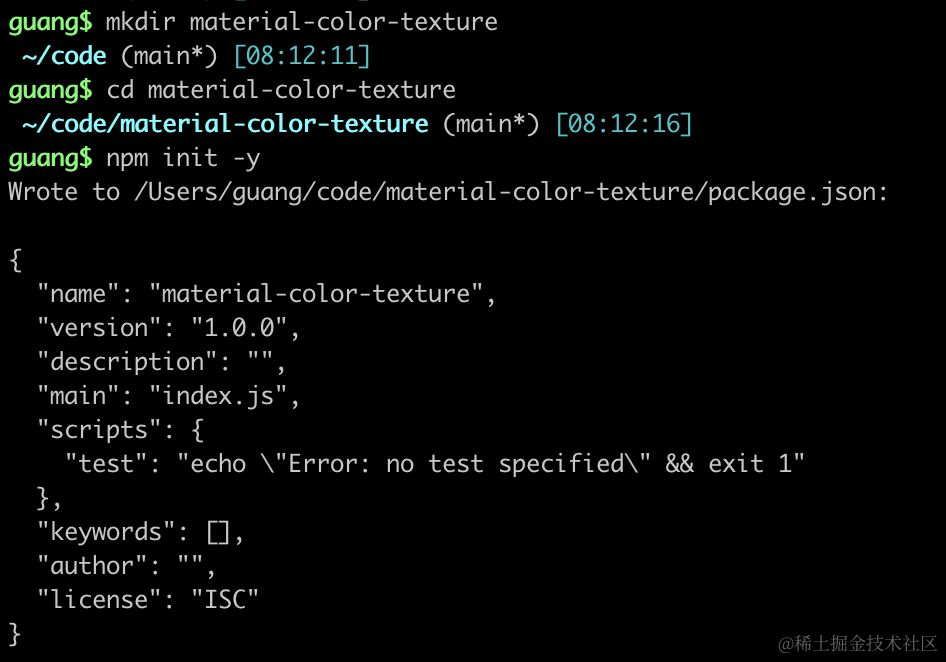
安装 ts 类型:
npm install --save-dev @types/three创建 index.html
<!DOCTYPE html>
<html lang="en">
<head>
    <meta charset="UTF-8">
    <meta name="viewport" content="width=device-width, initial-scale=1.0">
    <title>Document</title>
    <style>
        body {
            margin: 0;
        }
    </style>
</head>
<body>
    <script type="importmap">
    {
        "imports": {
            "three": "https://esm.sh/three@0.174.0/build/three.module.js",
            "three/addons/": "https://esm.sh/three@0.174.0/examples/jsm/"
        }
    }
    </script>
    <script type="module" src="./index.js"></script>
</body>
</html>
创建 index.js
import * as THREE from 'three';
import {
    OrbitControls
} from 'three/addons/controls/OrbitControls.js';
import mesh from './mesh.js';

const scene = new THREE.Scene();

scene.add(mesh);

const pointLight = new THREE.PointLight(0xffffff, 10000);
pointLight.position.set(80, 80, 80);
scene.add(pointLight);

const axesHelper = new THREE.AxesHelper(200);
scene.add(axesHelper);

const width = window.innerWidth;
const height = window.innerHeight;

const camera = new THREE.PerspectiveCamera(60, width / height, 1, 1000);
camera.position.set(200, 200, 200);
camera.lookAt(0, 0, 0);

const renderer = new THREE.WebGLRenderer();
renderer.setSize(width, height)

function render() {
    renderer.render(scene, camera);
    requestAnimationFrame(render);
}

render();

document.body.append(renderer.domElement);

const controls = new OrbitControls(camera, renderer.domElement);
引入 Three.js,创建 Scene、Light、Camera、Renderer,这些和前面一样。
虚线材质 LineDashedMaterial
然后写下 mesh.js
import * as THREE from 'three';

const boxGeometry = new THREE.BoxGeometry(100, 100, 100);

const geometry = new THREE.EdgesGeometry(boxGeometry);

const material = new THREE.LineDashedMaterial(({
    color: new THREE.Color('orange'),
    dashSize: 10,
    gapSize: 10
}));

const line = new THREE.Line(geometry, material);
line.computeLineDistances();

console.log(line);

export default line;
BoxGeometry 想渲染线模型,不能直接用,要用 EdgesGeometry 转换成线框模型才行。
用 LineDashedMaterial 虚线材质,设置虚线的大小。
调用下 computeLineDistances 方法来计算虚线。
看下效果:
npx live-server
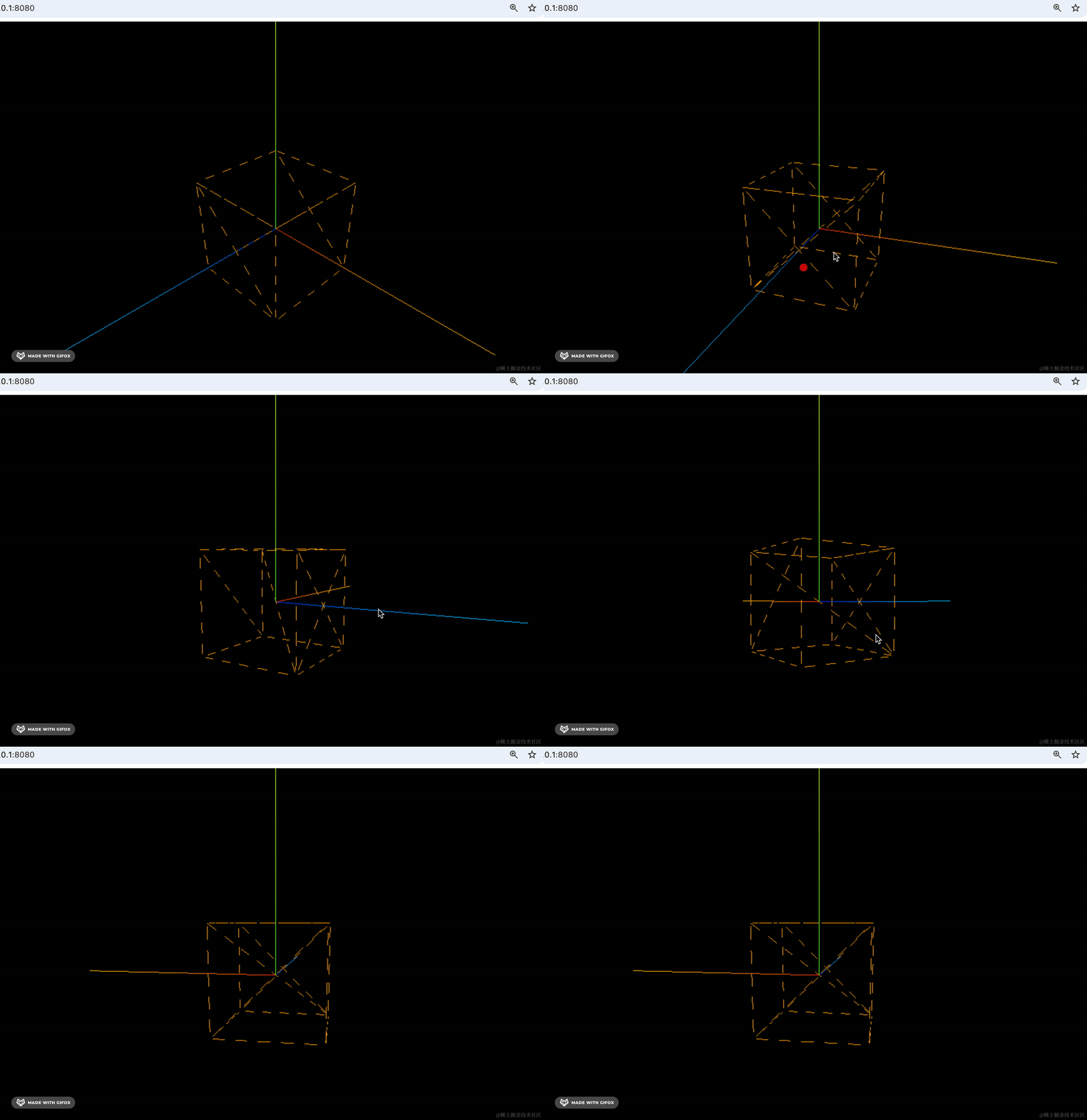
可以看到,画出的是虚线材质的 BoxGeometry 的线模型。
为啥不能直接用 BoxGeometry 而是要转换为 EdgesGeometry 才行呢?
看下顶点数据就知道了:
先看下 EdgesGeometry 画出的线模型的顶点数据:
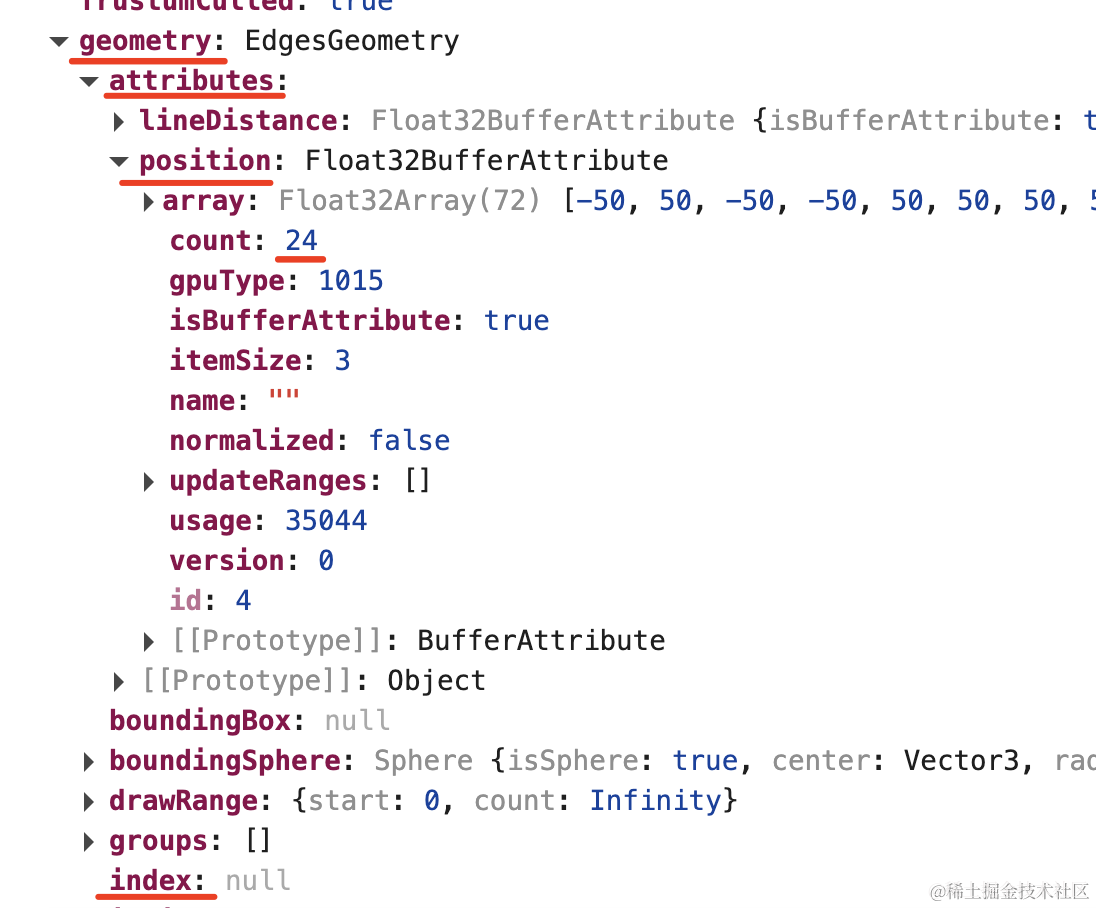
geometry.attributes.position 有 24 个顶点,每两个连接成一条线。
没有 geometry.index 顶点索引数据。
而 BoxGeometry 呢?
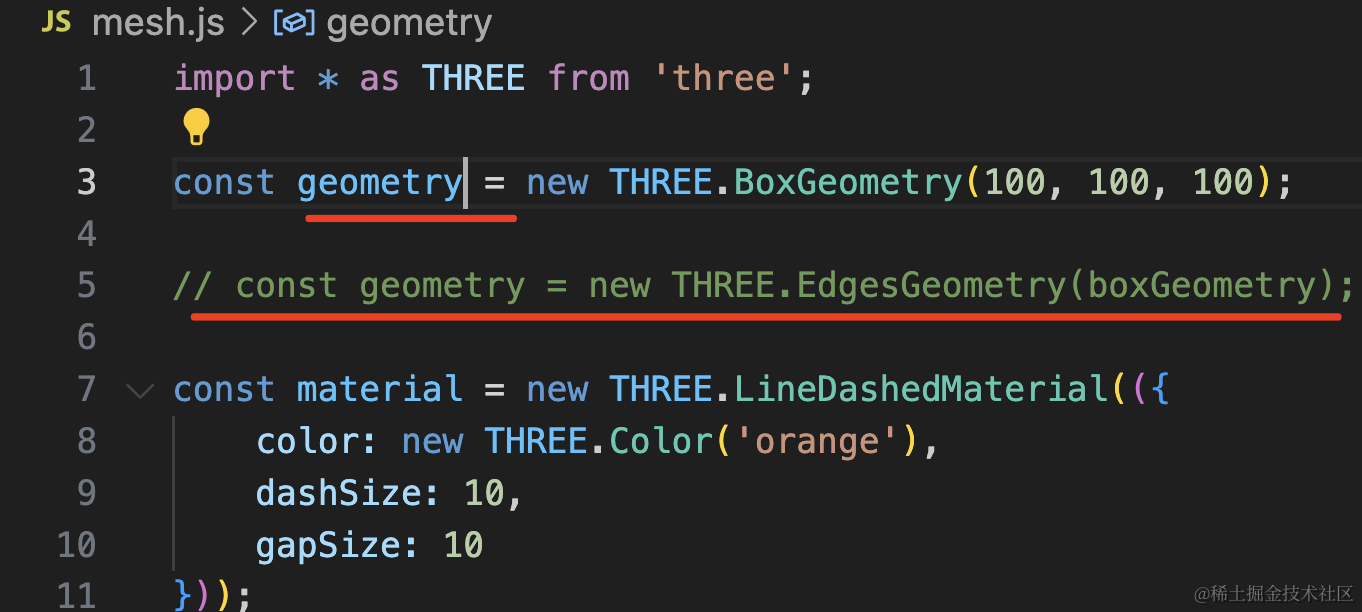
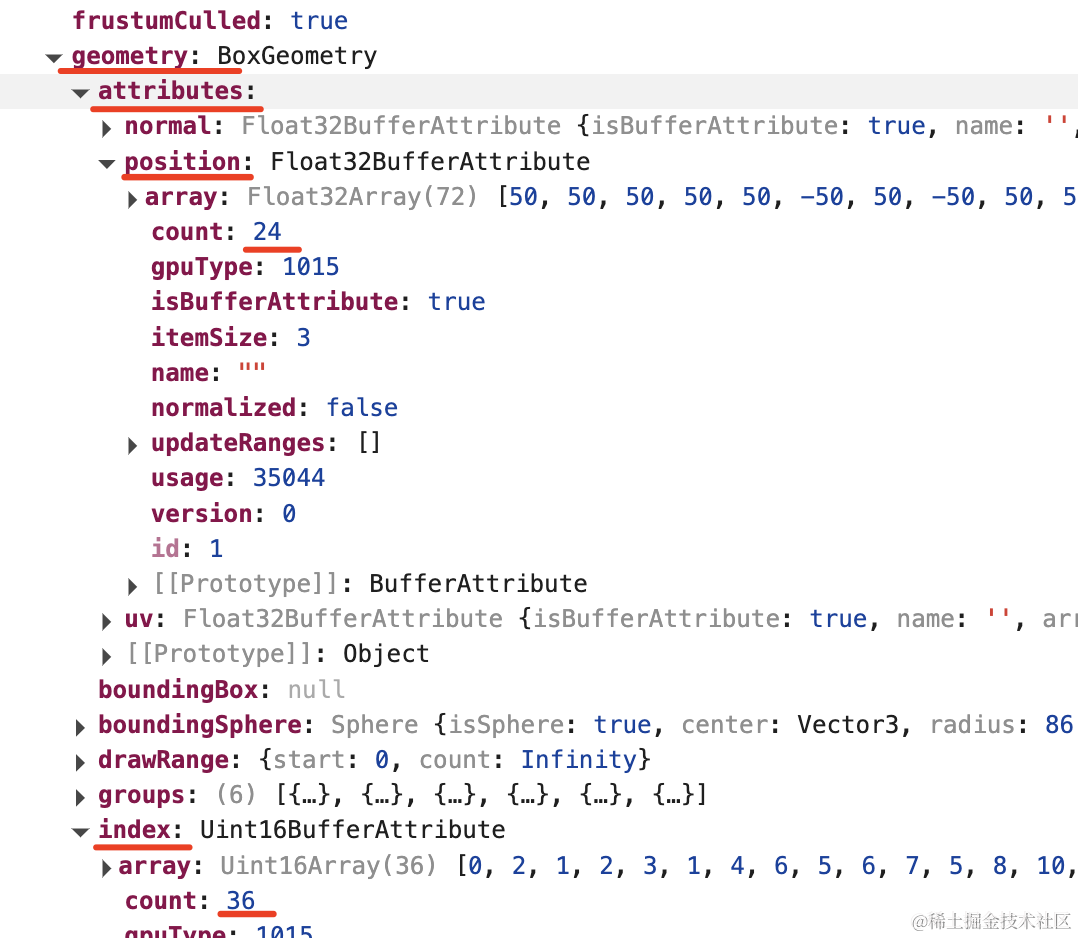
虽然它也是 24 个顶点,但它有 36 个顶点索引来每三个构成一个三角形。
也就是说 BoxGeometry 是为了网格模型 Mesh 准备的,要渲染线模型的话,需要转换下顶点数据,换成 EdgesGeometry。
网格模型材质颜色 Color
线模型的材质讲完了,我们继续来看网格模型的。
创建 mesh2.js
import * as THREE from 'three';

const geometry = new THREE.PlaneGeometry(100, 100);

const material = new THREE.MeshBasicMaterial(({
    color: new THREE.Color('orange')
}));

const mesh = new THREE.Mesh(geometry, material);

console.log(mesh);

export default mesh;
我们用 MeshBasicMaterial 基础网格材质,设置了 color
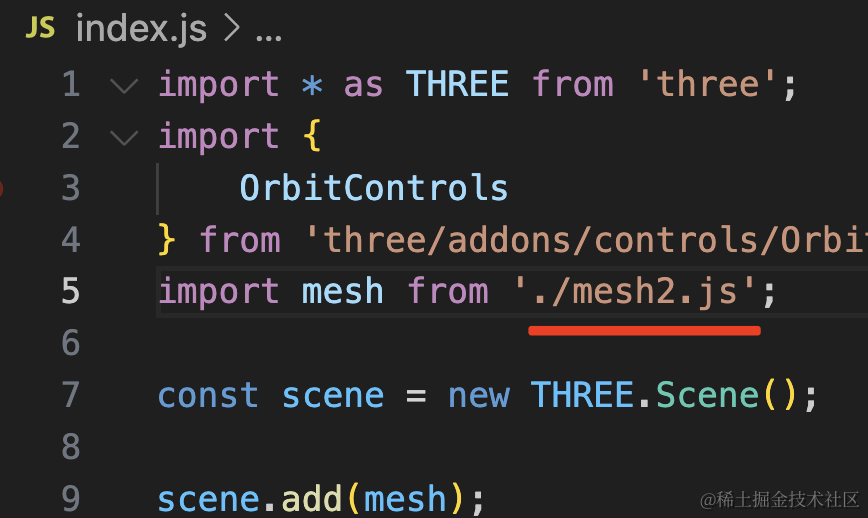
引入 mesh2.js,在浏览器看下效果
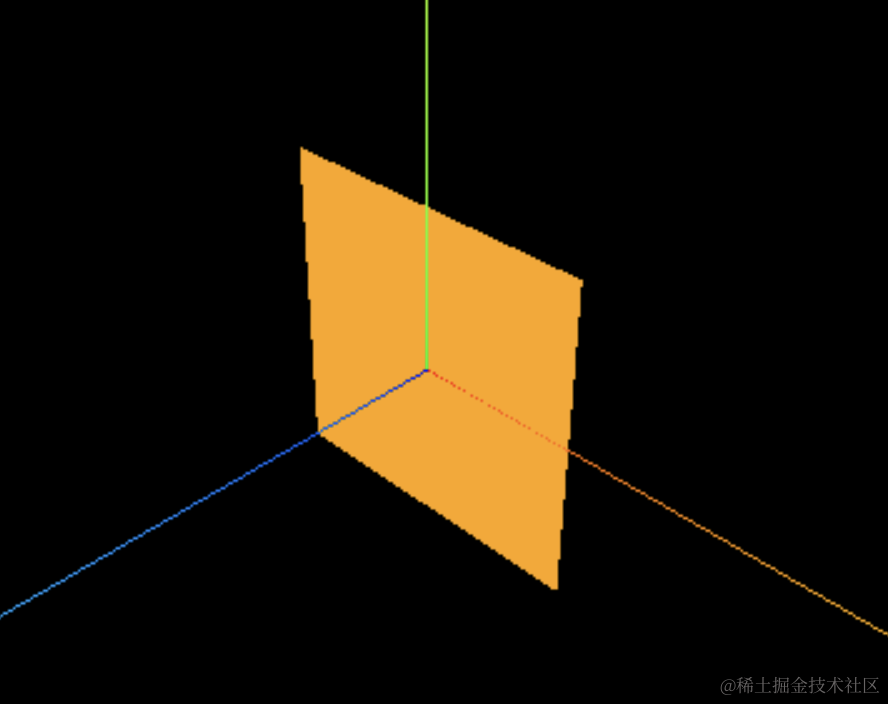
打开 devtools 看下:
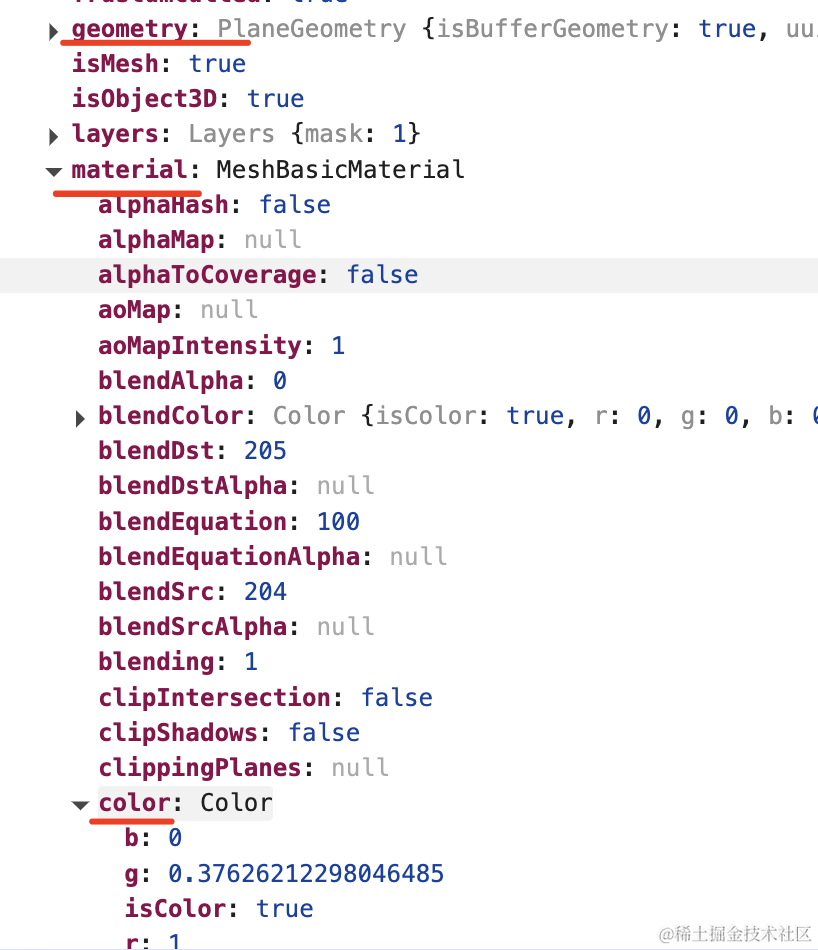
mesh 除了 geometry 属性,也有 material 属性。
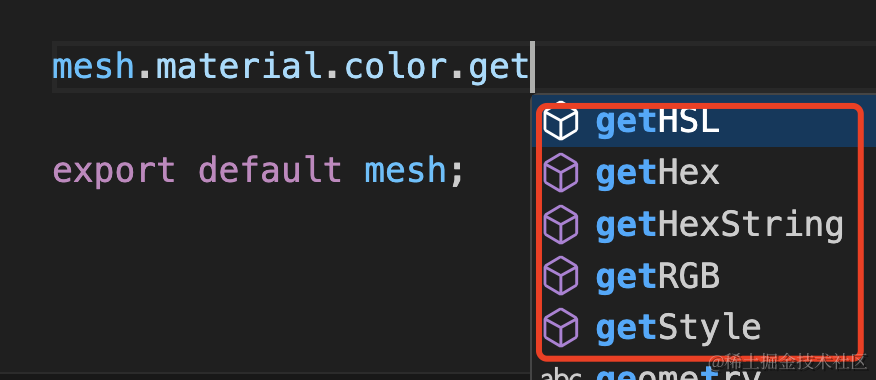
material.color 是一个 Color 对象,那它有啥方法呢?
可以以各种格式拿到它的颜色值:
也可以设置颜色值:
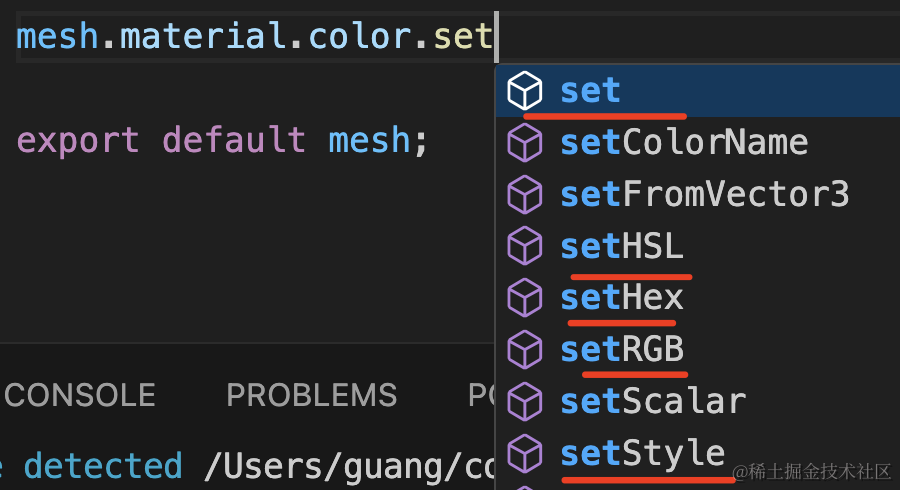
试一下:
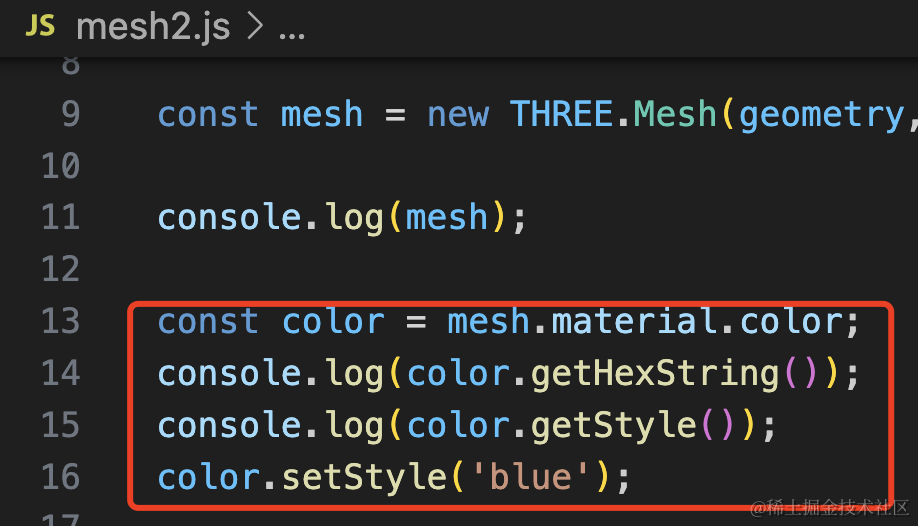
const color = mesh.material.color;
console.log(color.getHexString());
console.log(color.getStyle());
color.setStyle('blue');
style 是 css 样式的意思,可以用 css 写样式的方式来设置获取 color。
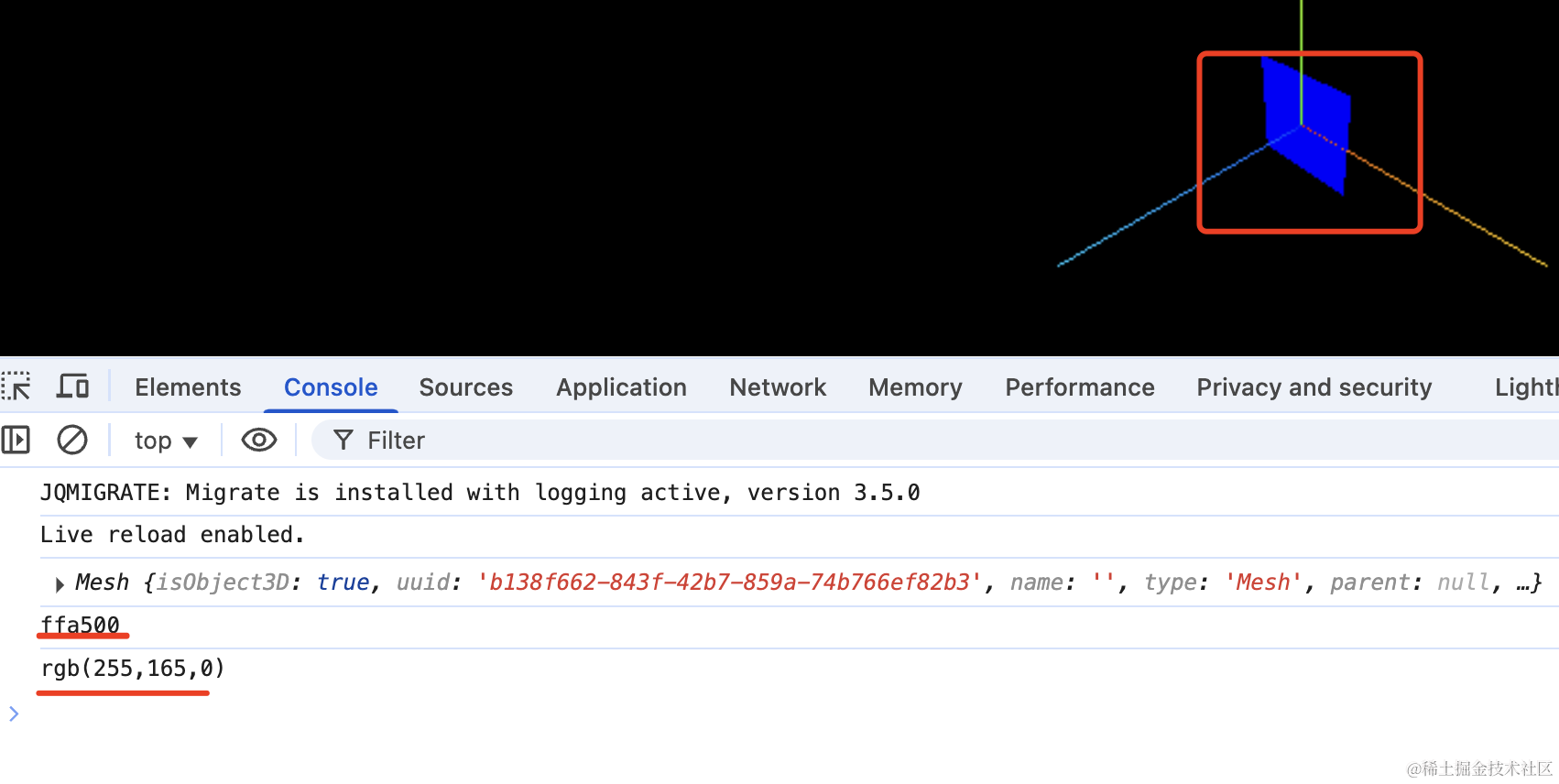
网格模型材质透明度
如果我们希望材质有一定的透明度呢?
这样:
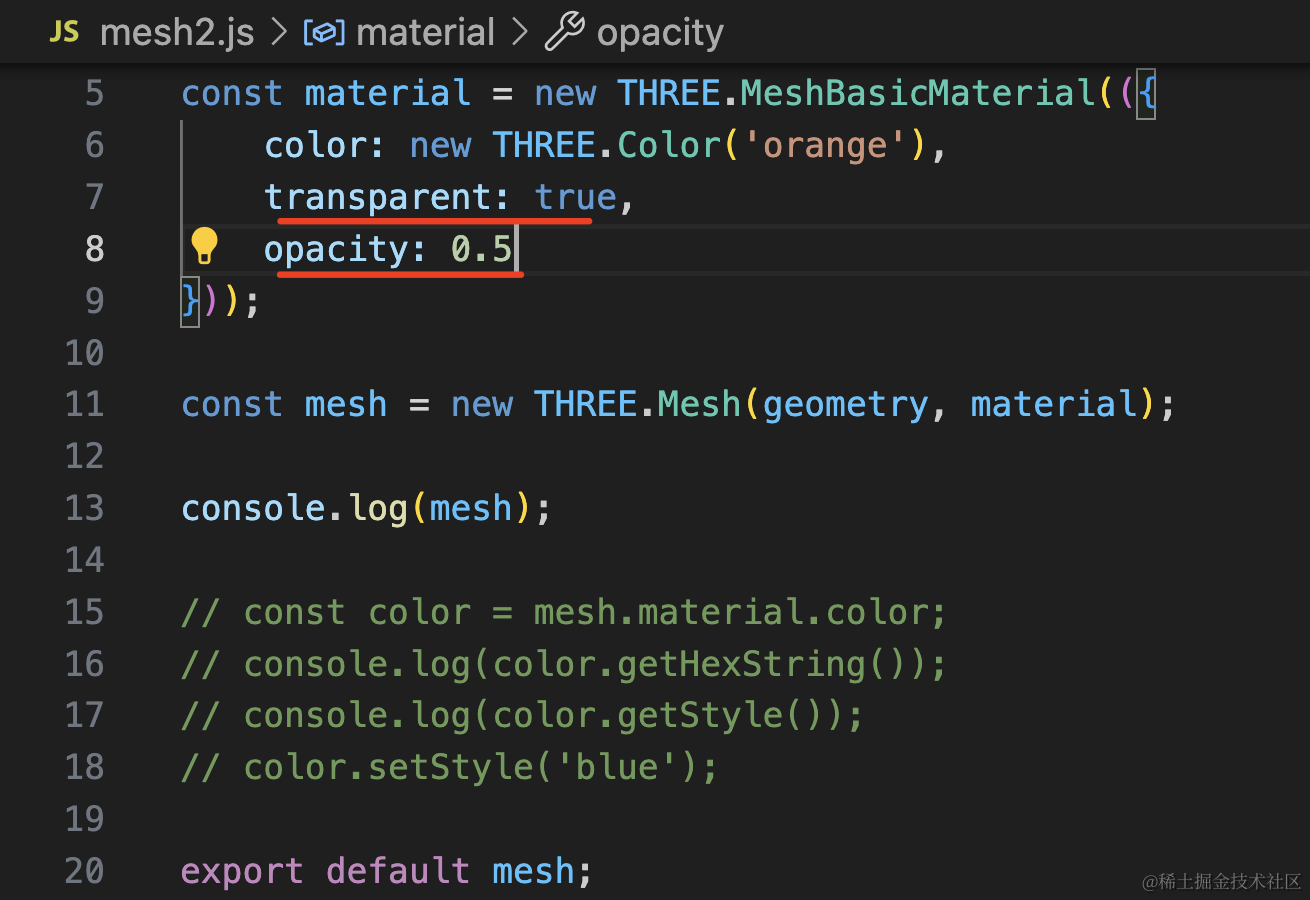
const material = new THREE.MeshBasicMaterial(({
    color: new THREE.Color('orange'),
    transparent: true,
    opacity: 0.5
}));
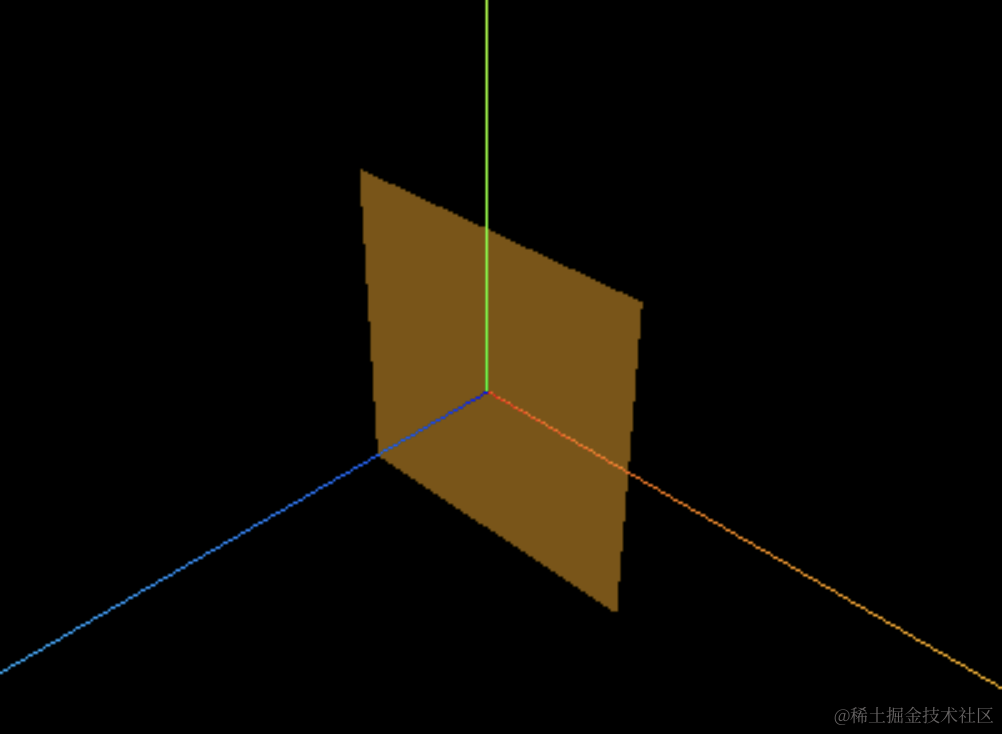
用 transparent 开启透明度,然后设置 opacity
看下效果:
纹理贴图 Texture
很多时候,我们不是要设置颜色,而是要设置一张图片。
这时候用 map 属性:
map 是颜色贴图,因为我们会设置一张纹理图片,所以也叫纹理贴图。
创建 mesh3.js
import * as THREE from 'three';

const loader = new THREE.TextureLoader();
const texture = loader.load('./diqiu.jpg');

const geometry = new THREE.SphereGeometry(100);

const material = new THREE.MeshBasicMaterial({
    map: texture
});

const mesh = new THREE.Mesh(geometry, material);

export default mesh;
创建 TextureLoader,用它加载一张纹理贴图,设置到材质的 map 属性。
创建一个球状几何体 SphereGeometry,半径为 100
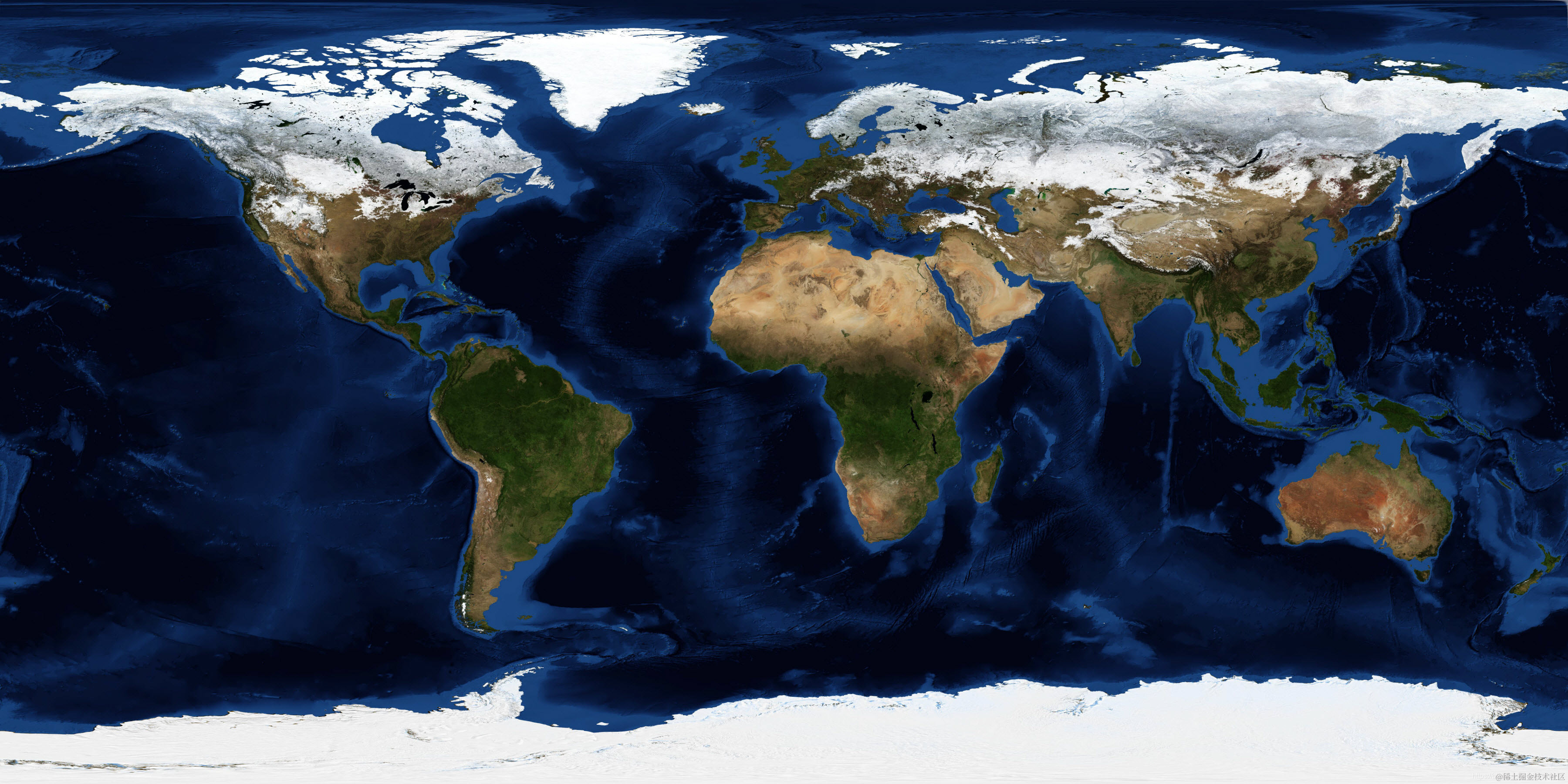
贴图是网上搜的地球的纹理贴图:
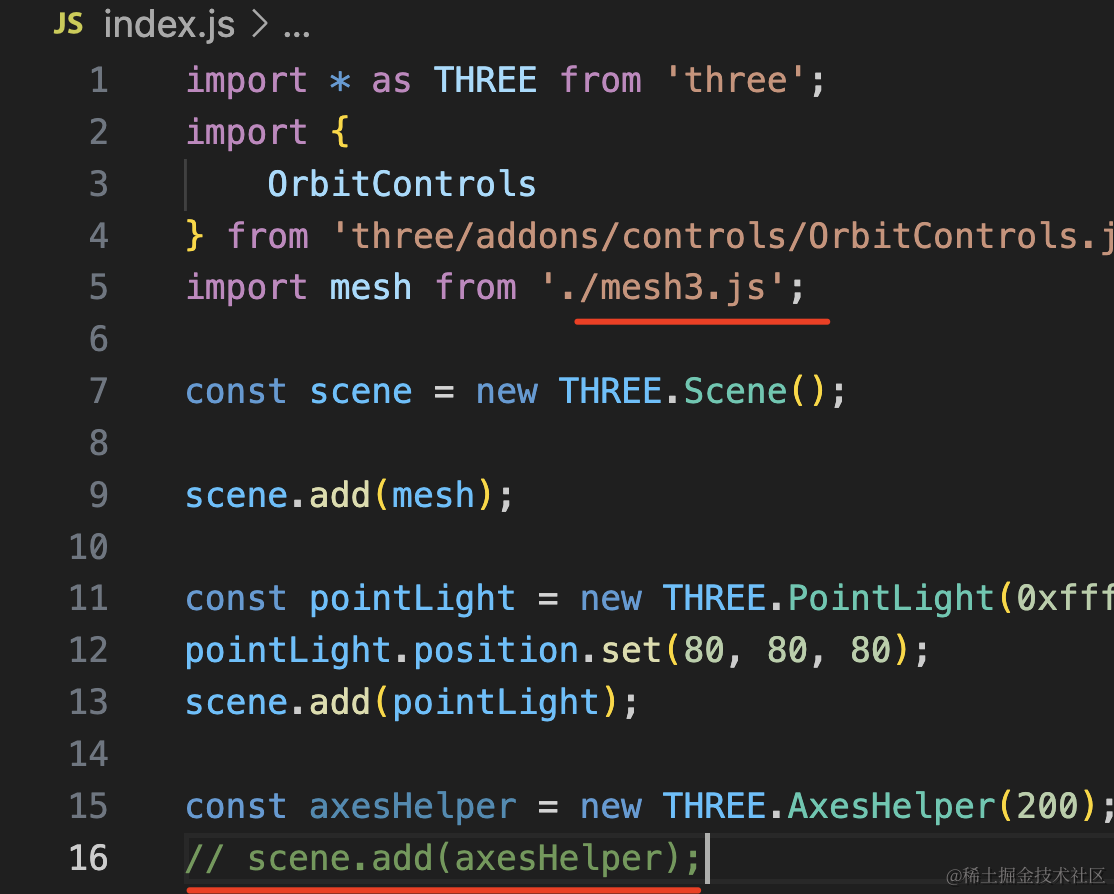
引入 mesh3.js,注释掉 AxesHelper
看下效果:

这样,地球的纹理贴图就生效了。
map 叫颜色贴图,因为它是可以和 color 混合的。
比如你再设置下 color:
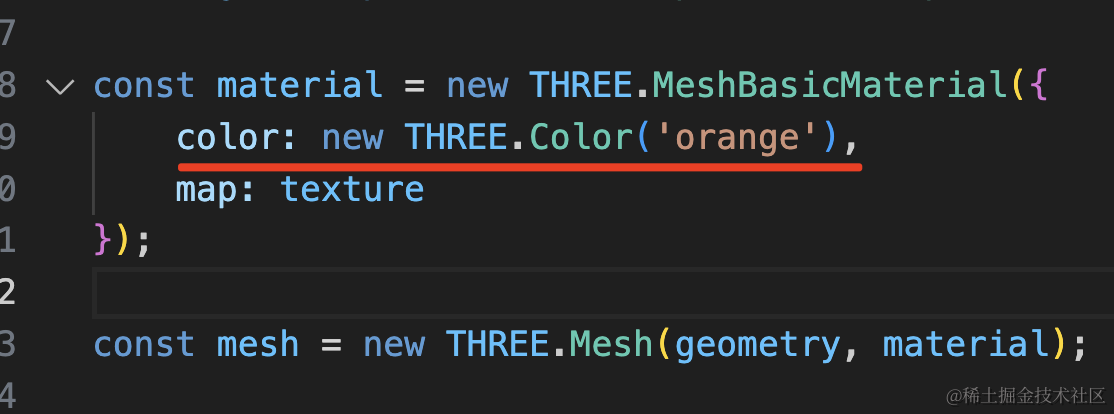
const material = new THREE.MeshBasicMaterial({
    color: new THREE.Color('orange'),
    map: texture
});
可以看到,颜色 color 和颜色贴图 map 叠加了。
当然,很少会这样用,一般都是单独设置 color 或者 map。
最后,我们来做个墙面的效果,纹理贴图经常用来做地板、墙面。
创建 mesh4.js
import * as THREE from 'three';

const loader = new THREE.TextureLoader();
const texture = loader.load('./zhuan.jpg');

const geometry = new THREE.PlaneGeometry(1000, 1000);

const material = new THREE.MeshBasicMaterial({
    map: texture
});

const mesh = new THREE.Mesh(geometry, material);

export default mesh;
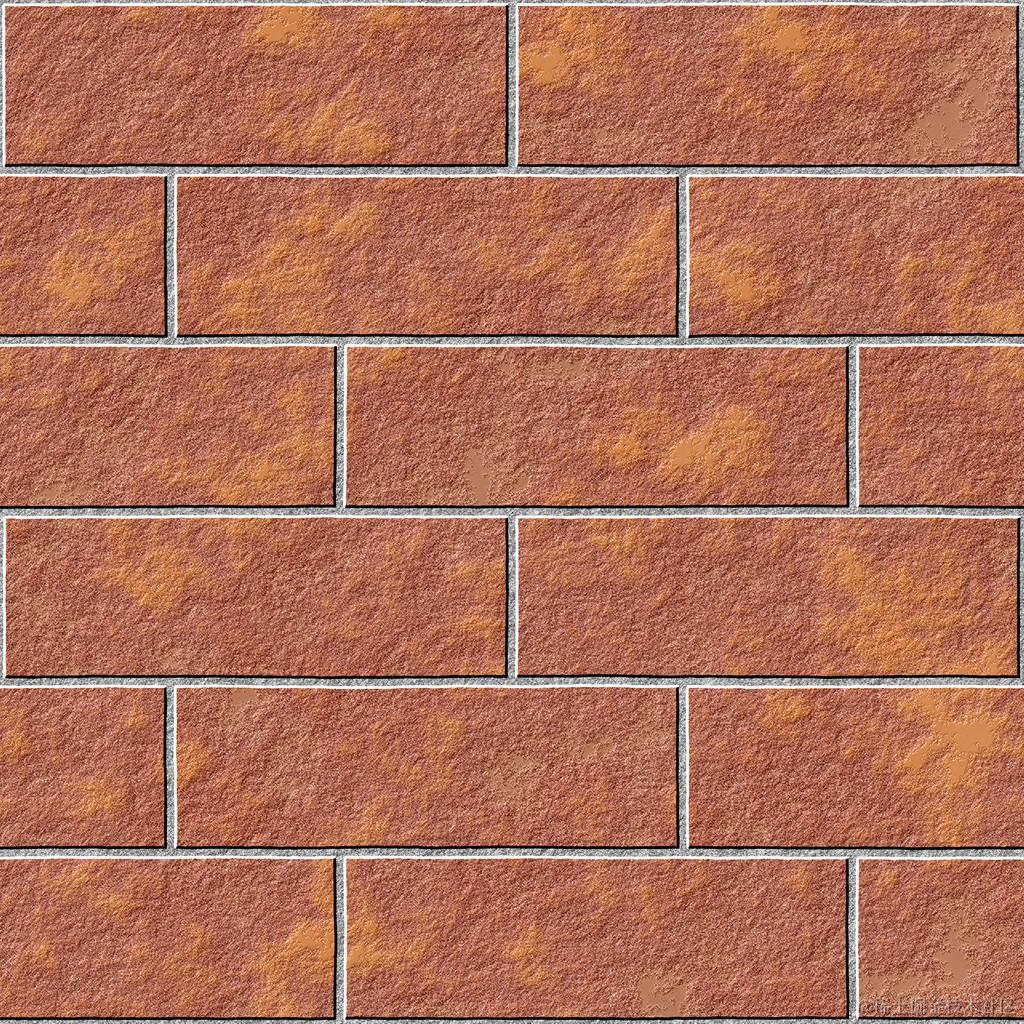
我们创建了一个 PlaneGeometry,然后给 MeshBasicMaterial 设置了纹理贴图
图片用的这个:
引入下:
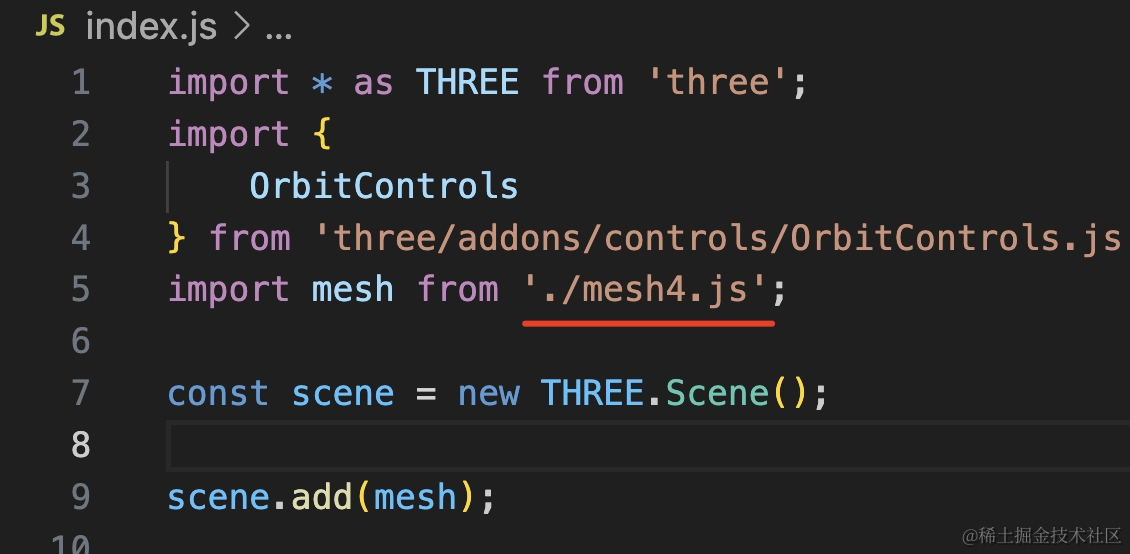
看下效果:
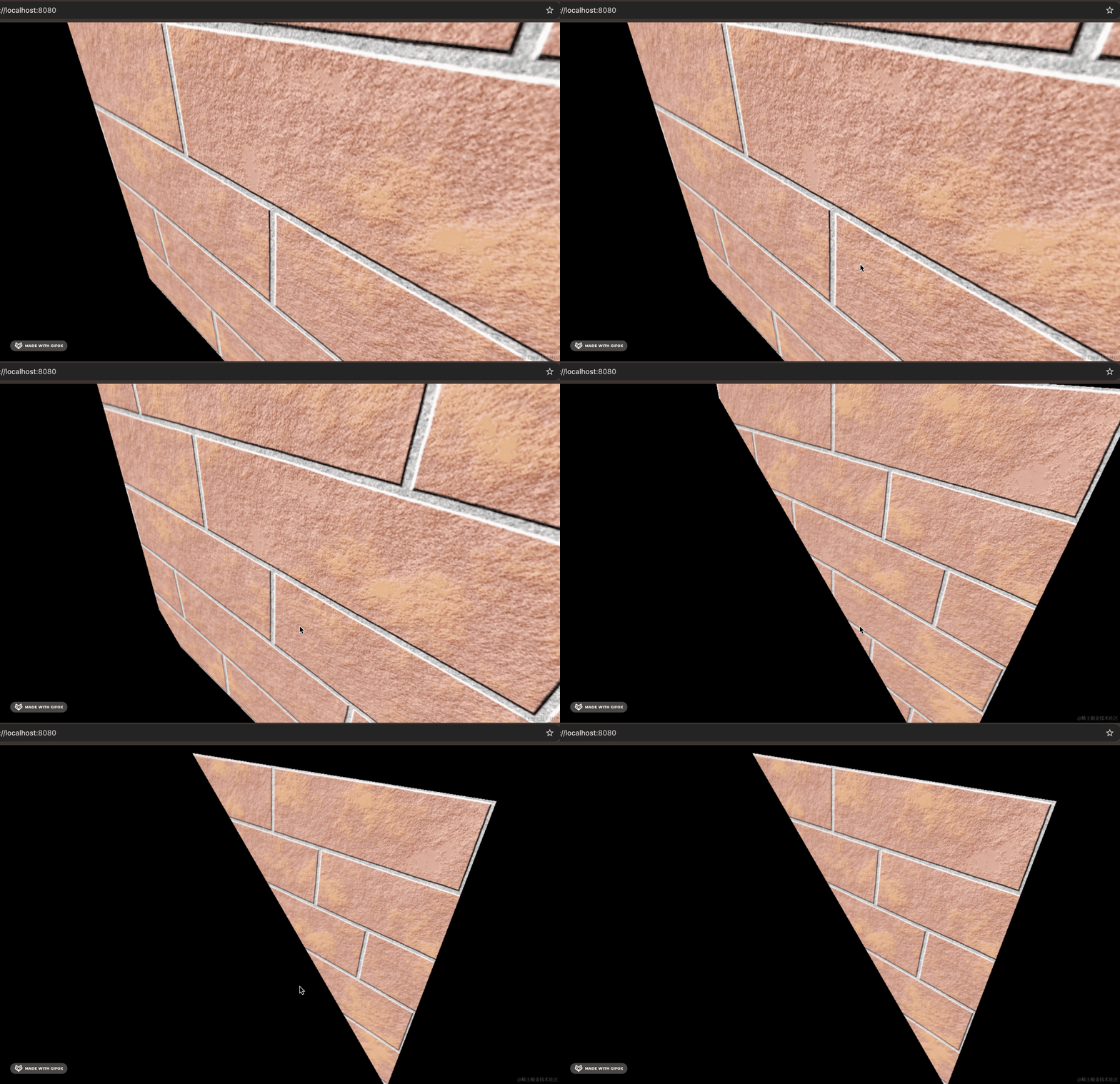
首先,初始相机位置不对,其次用 OrbitControls 调节的时候,会被裁剪一部分。
为啥会被裁剪呢?
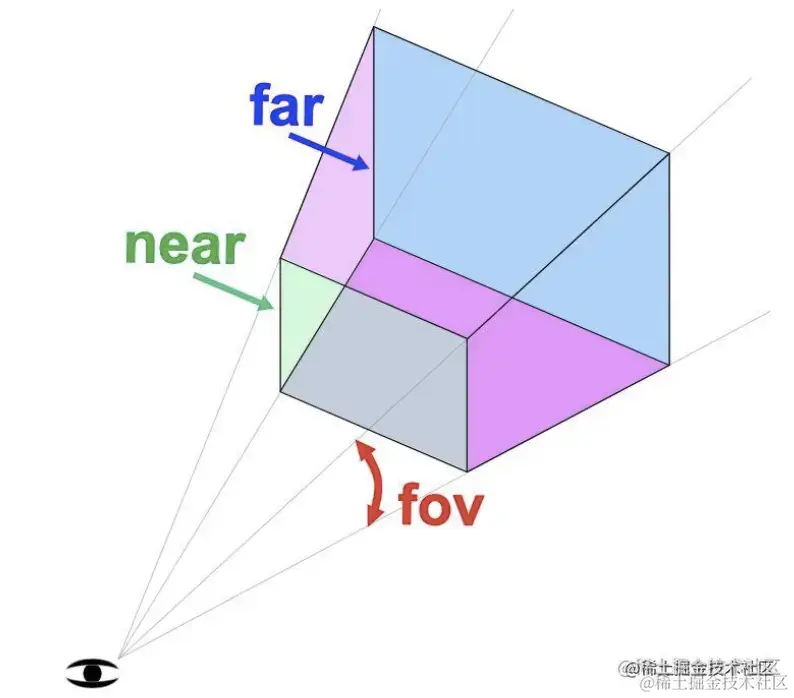
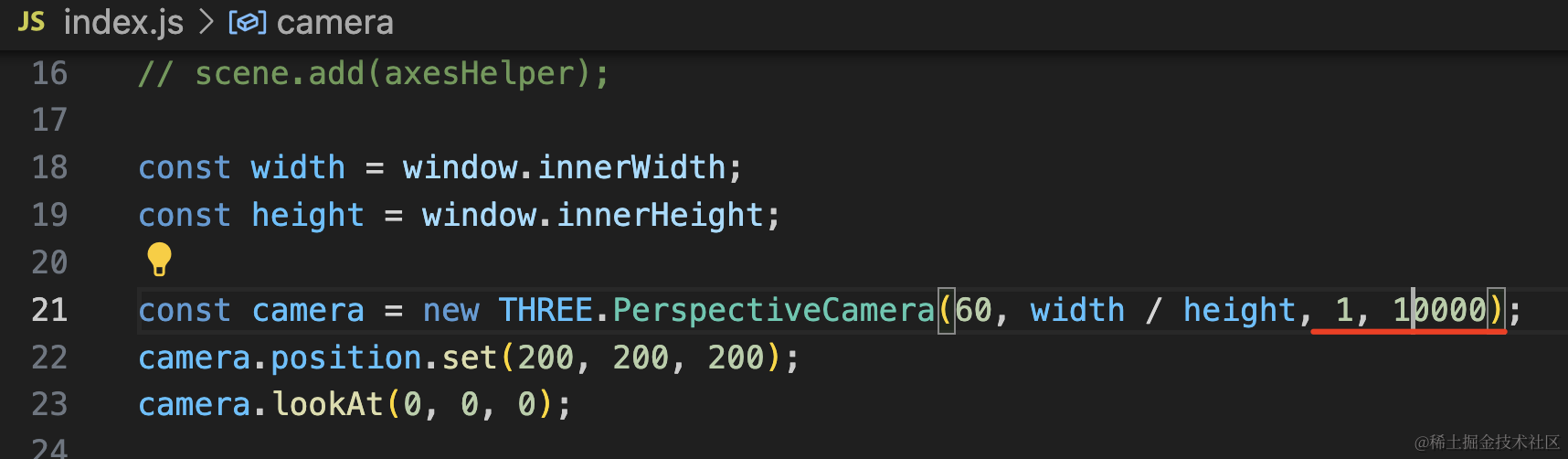
因为远裁截面设置的太近了,所以超出视椎体范围的就不渲染了。
改成 10000 试试:
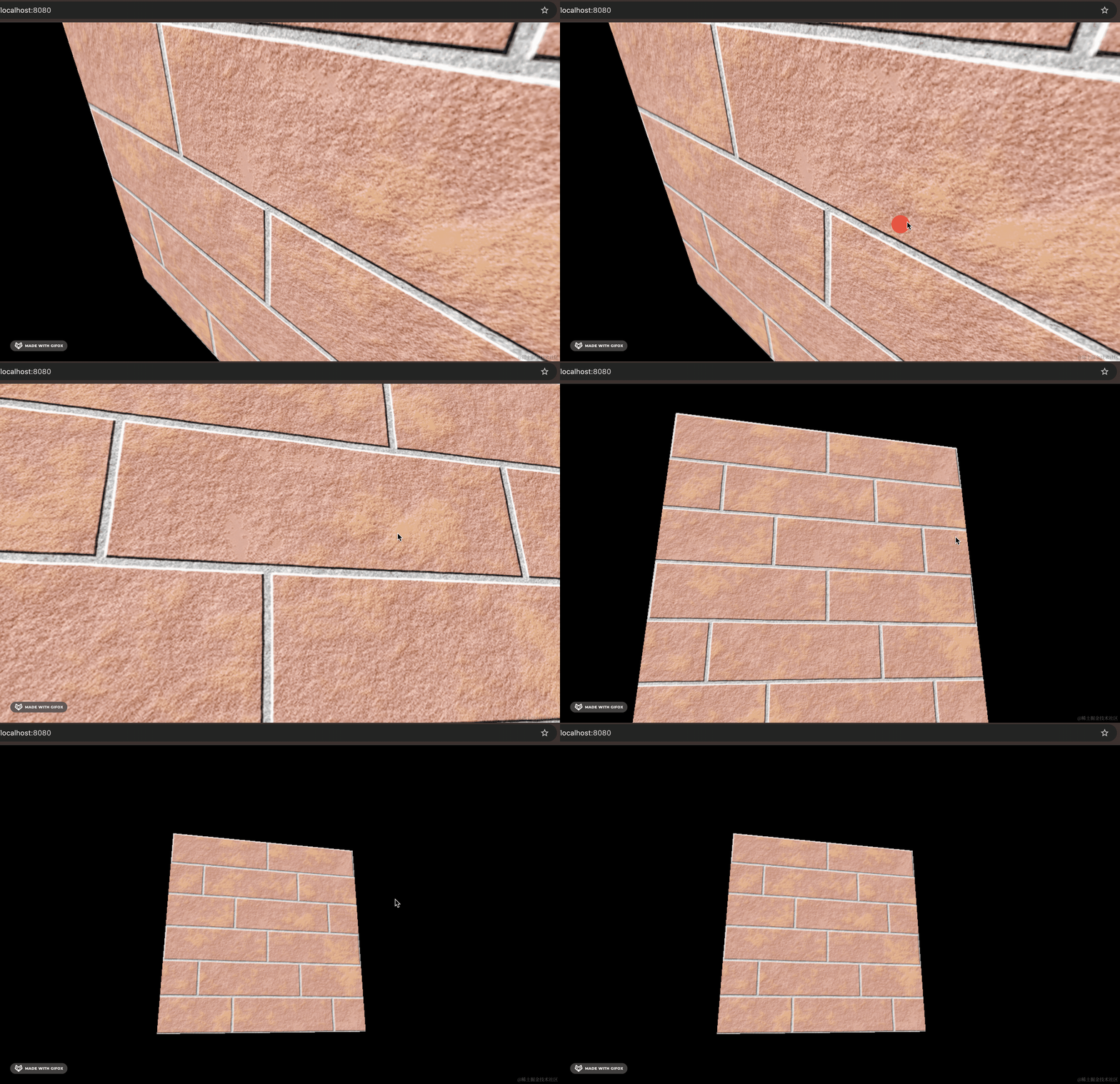
这样就不会被裁剪了。
所以你经常看到代码里近裁截面设置了 0.1,远裁截面设置了好几万,就是为了让视椎体的范围能覆盖全部场景。
然后相机初始位置不对,这个怎么调呢?
可以用 OrbitControls 可视化调试。
这样:
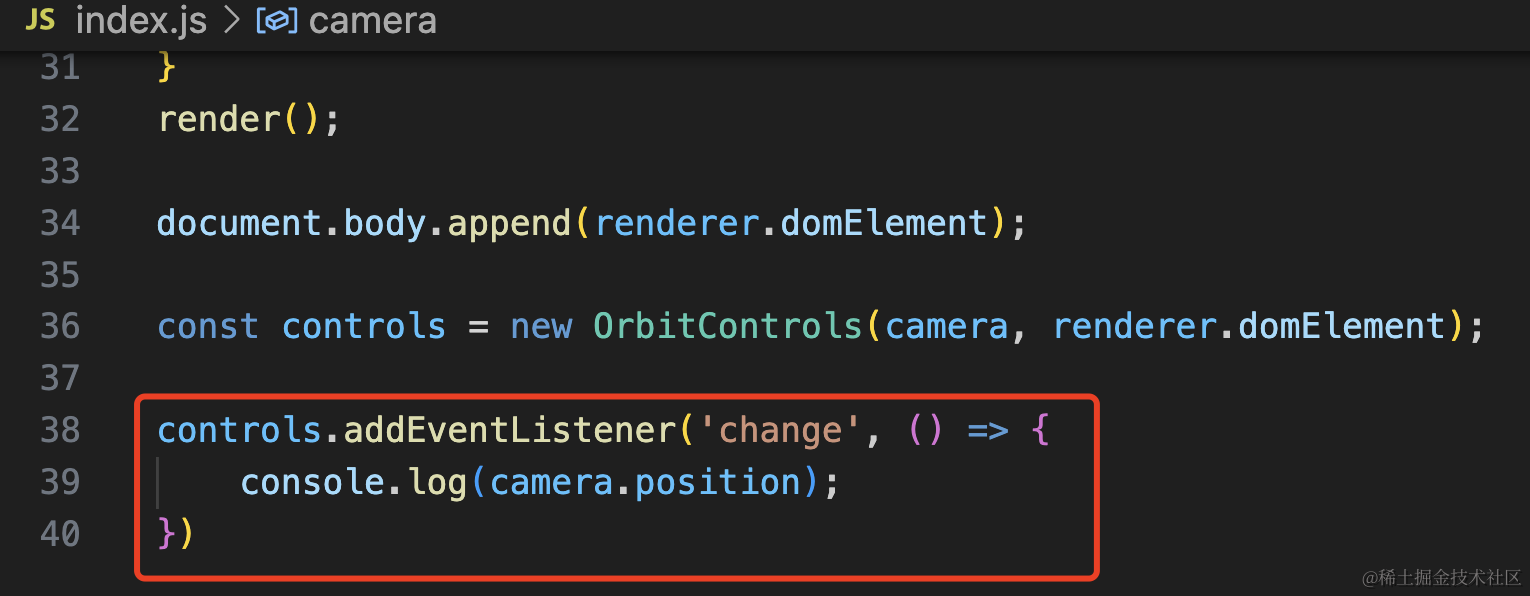
监听 change 事件,改变的时候打印一下相机位置:
controls.addEventListener('change', () => {
    console.log(camera.position);
})
调整好之后,把打印的相机位置写到代码里:
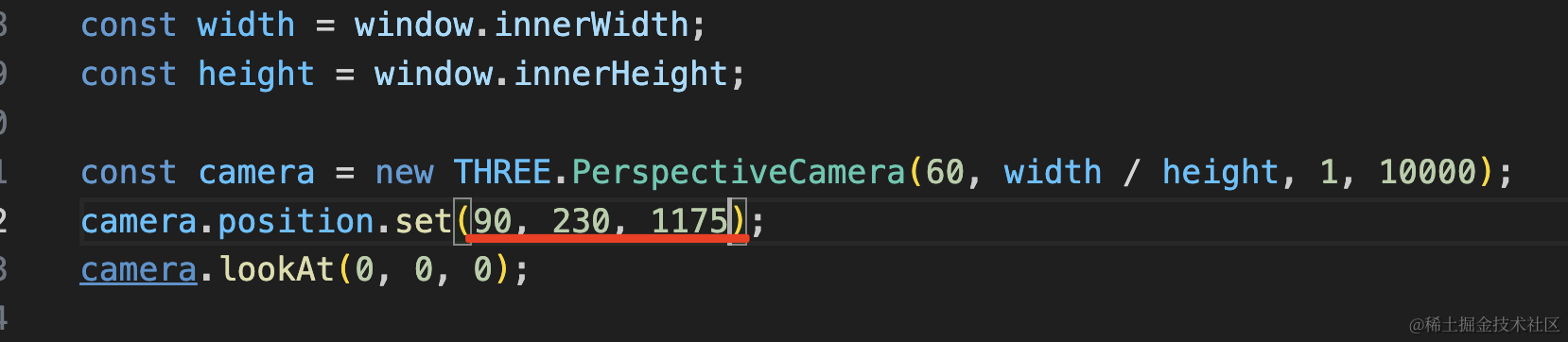
刷新页面:
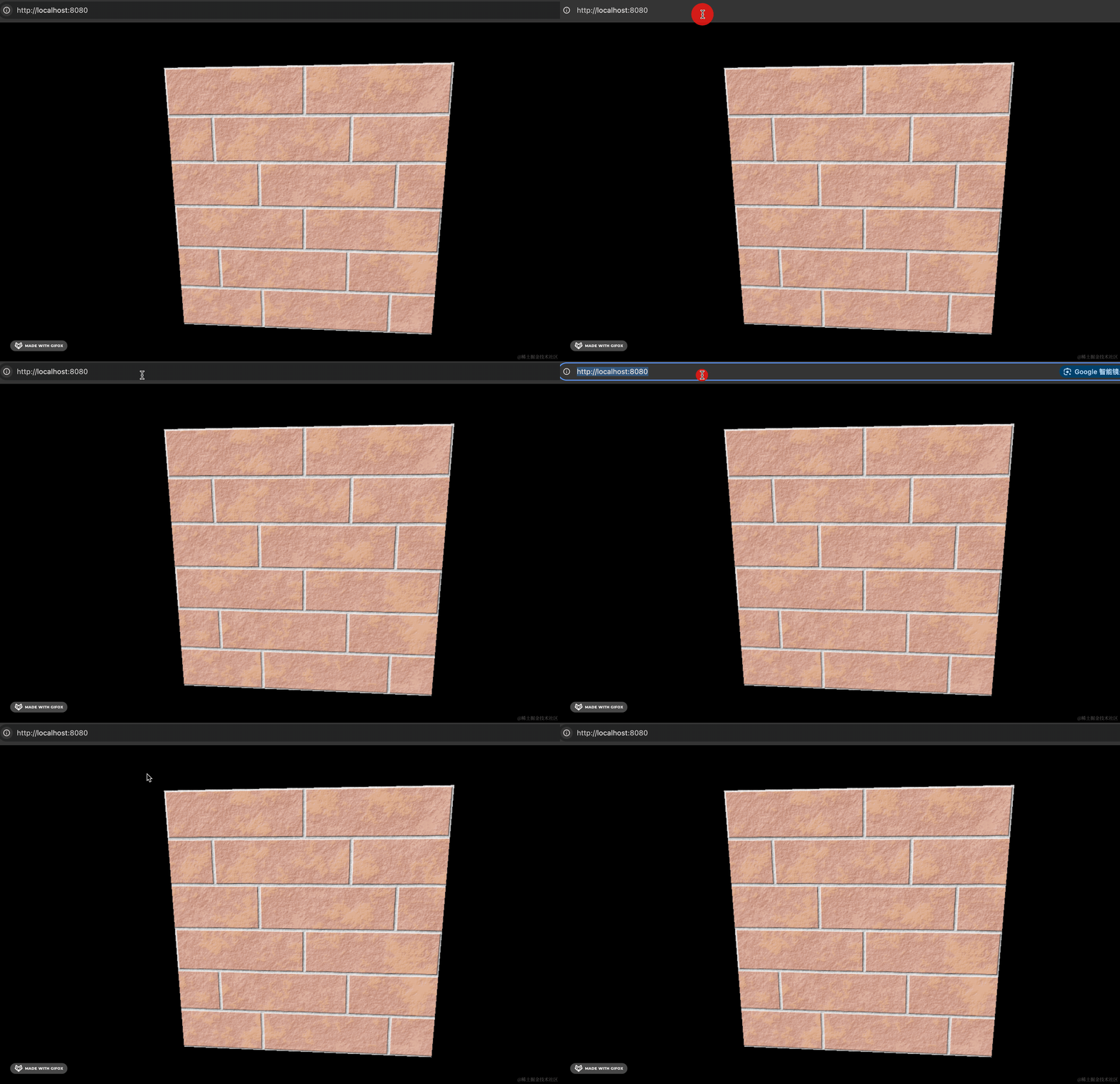
现在初始相机位置就是我们调好的了。
然后现在墙面的贴图只重复了一次,砖太大了,能不能设置水平、竖直重复次数呢?
可以的。
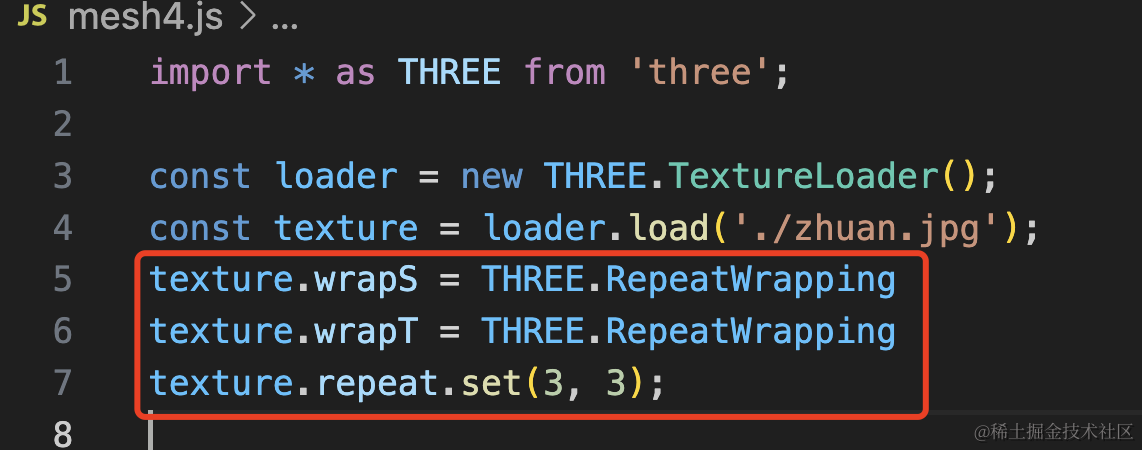
texture.wrapS = THREE.RepeatWrapping
texture.wrapT = THREE.RepeatWrapping
texture.repeat.set(3, 3);
设置在水平(wrapS)和竖直(wrapT)方向重复,然后设置重复次数。
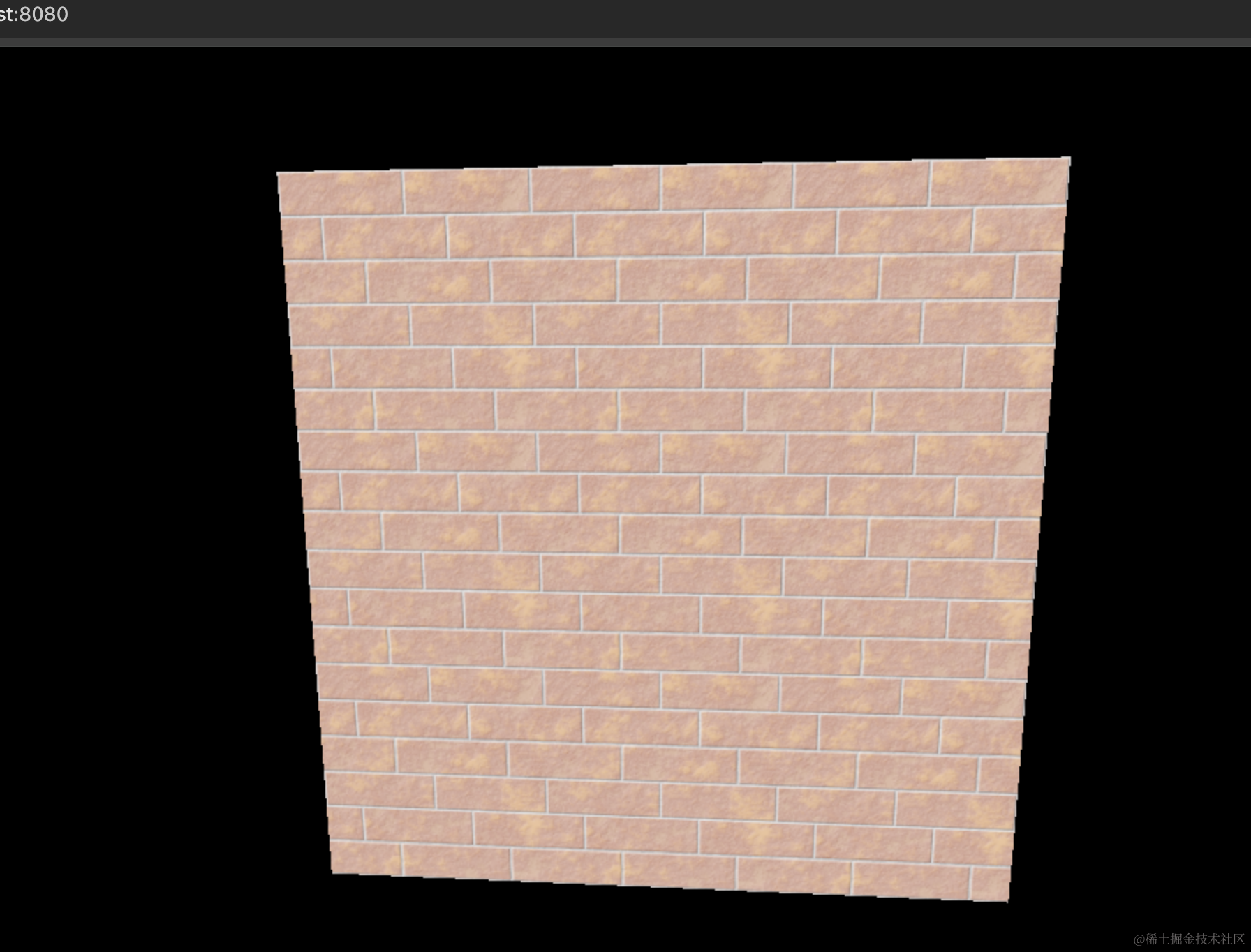
这样,砖的大小就比较合理了。
不知道大家有没有注意到,不管是地球还是砖墙,贴图的颜色都和实际图片的颜色有点差距。
这个修改下 texture 的颜色空间就好了:
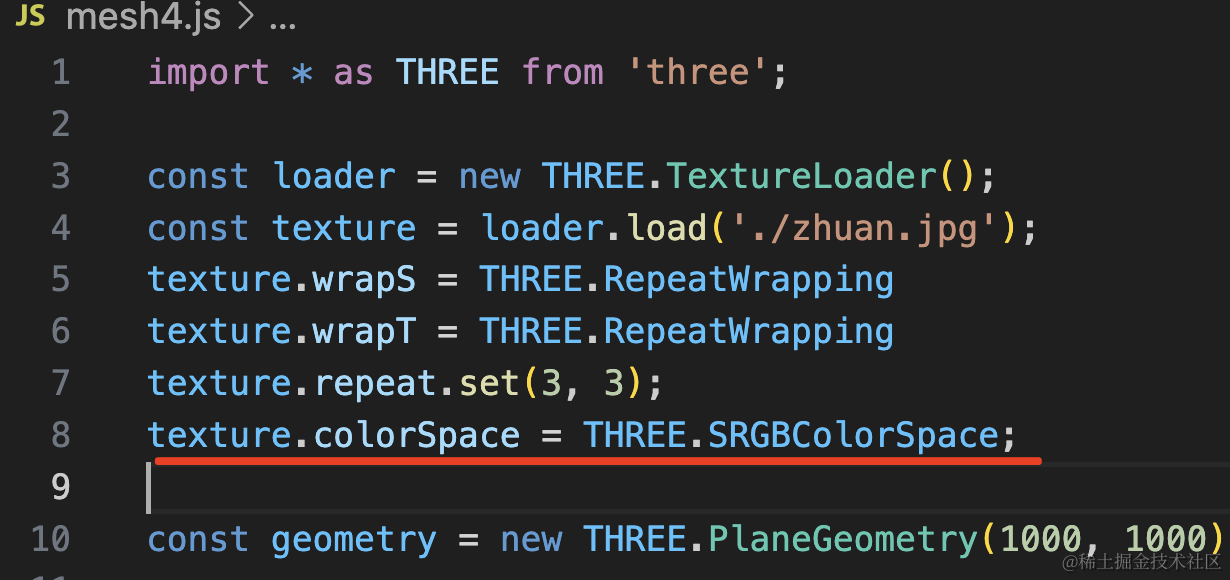
texture.colorSpace = THREE.SRGBColorSpace;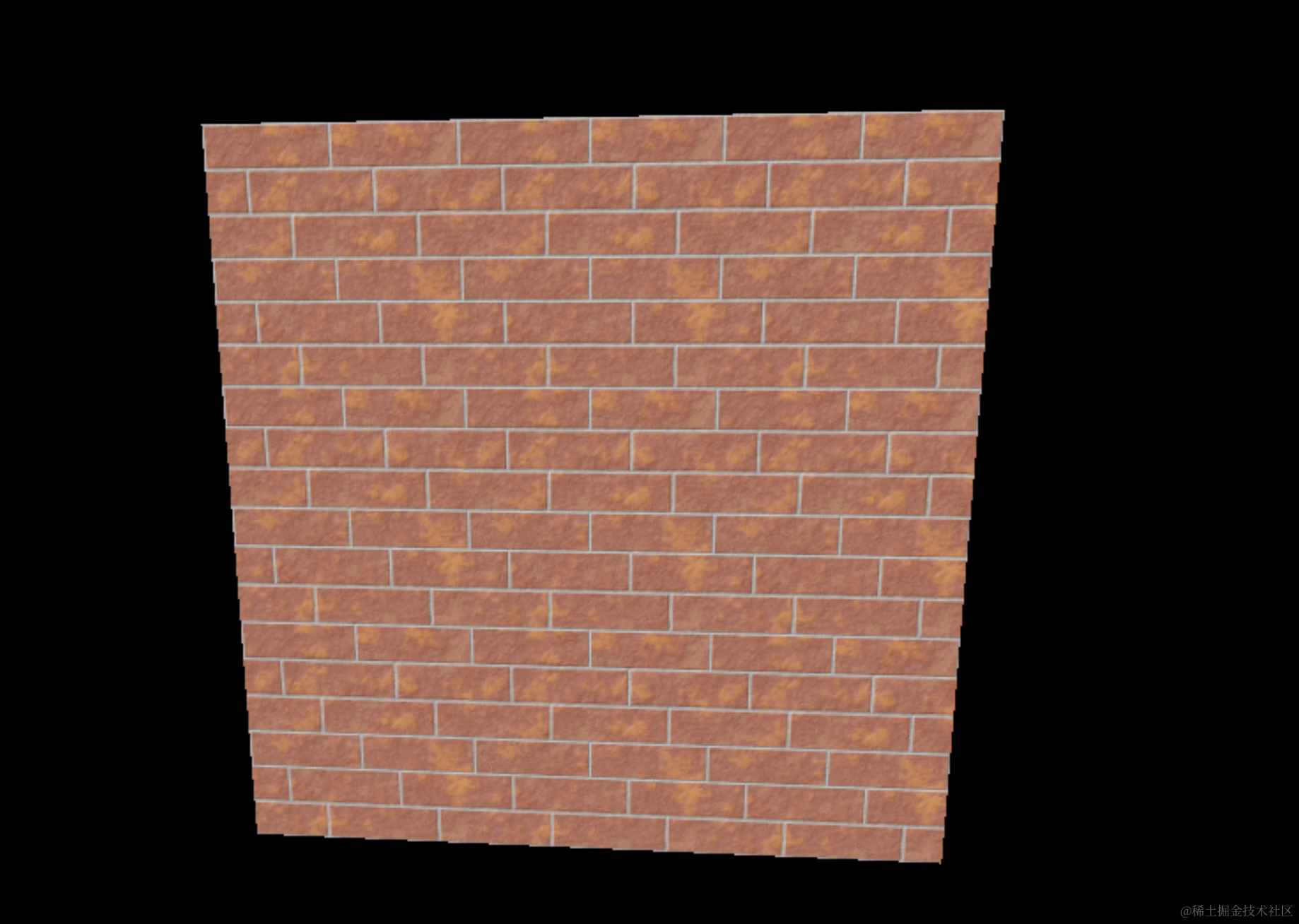
地球的纹理贴图设置 colorSpace 后的效果:
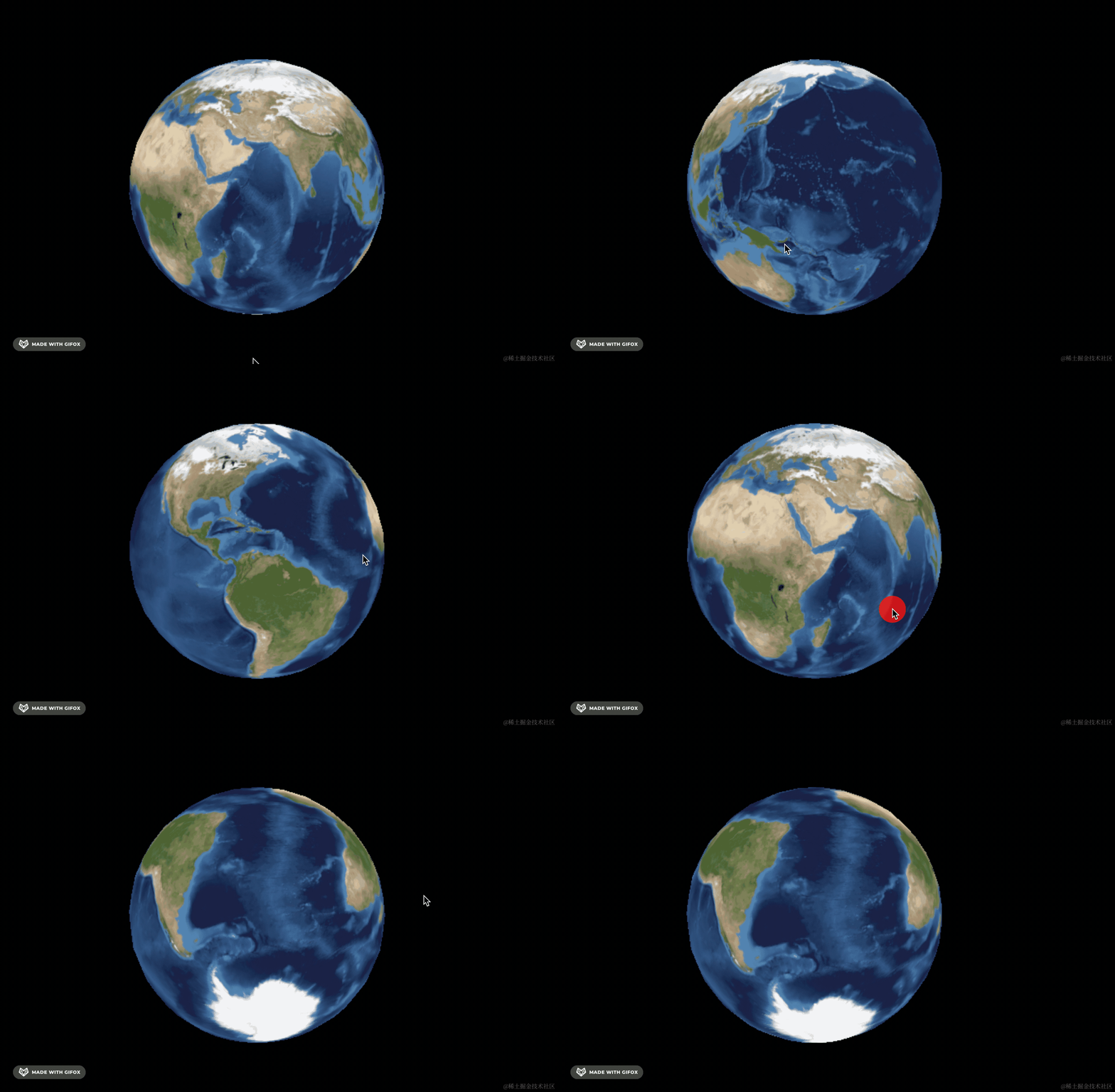
现在颜色都对了。
不过你有没有觉得现在的贴图有点假,没有那种凹凸不平的感觉。
因为 map 只是把贴图的颜色加上去了,没有做进一步的处理,如果你想要那种受环境光影响的凹凸感,需要设置 aoMap 属性:
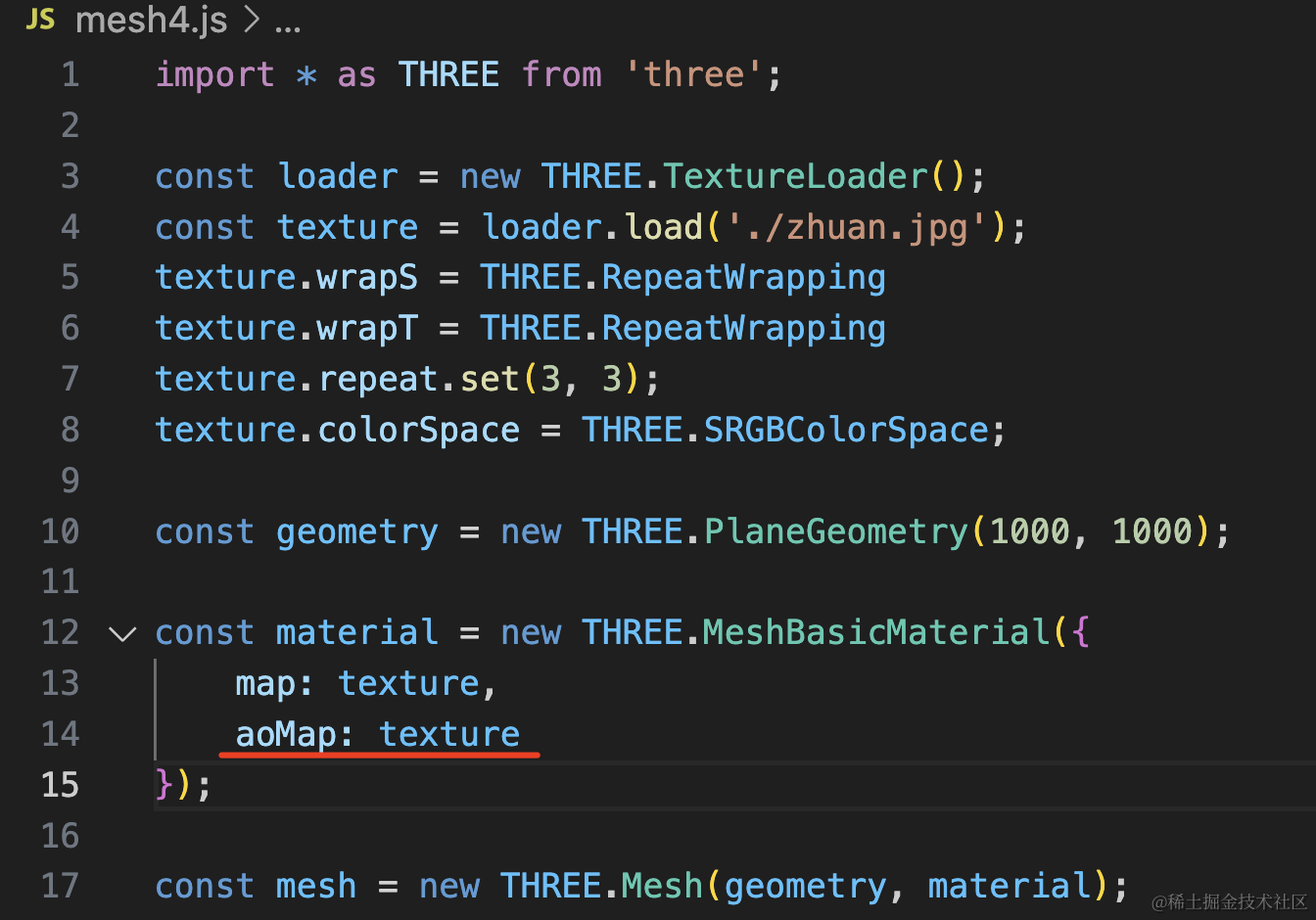
看下效果:
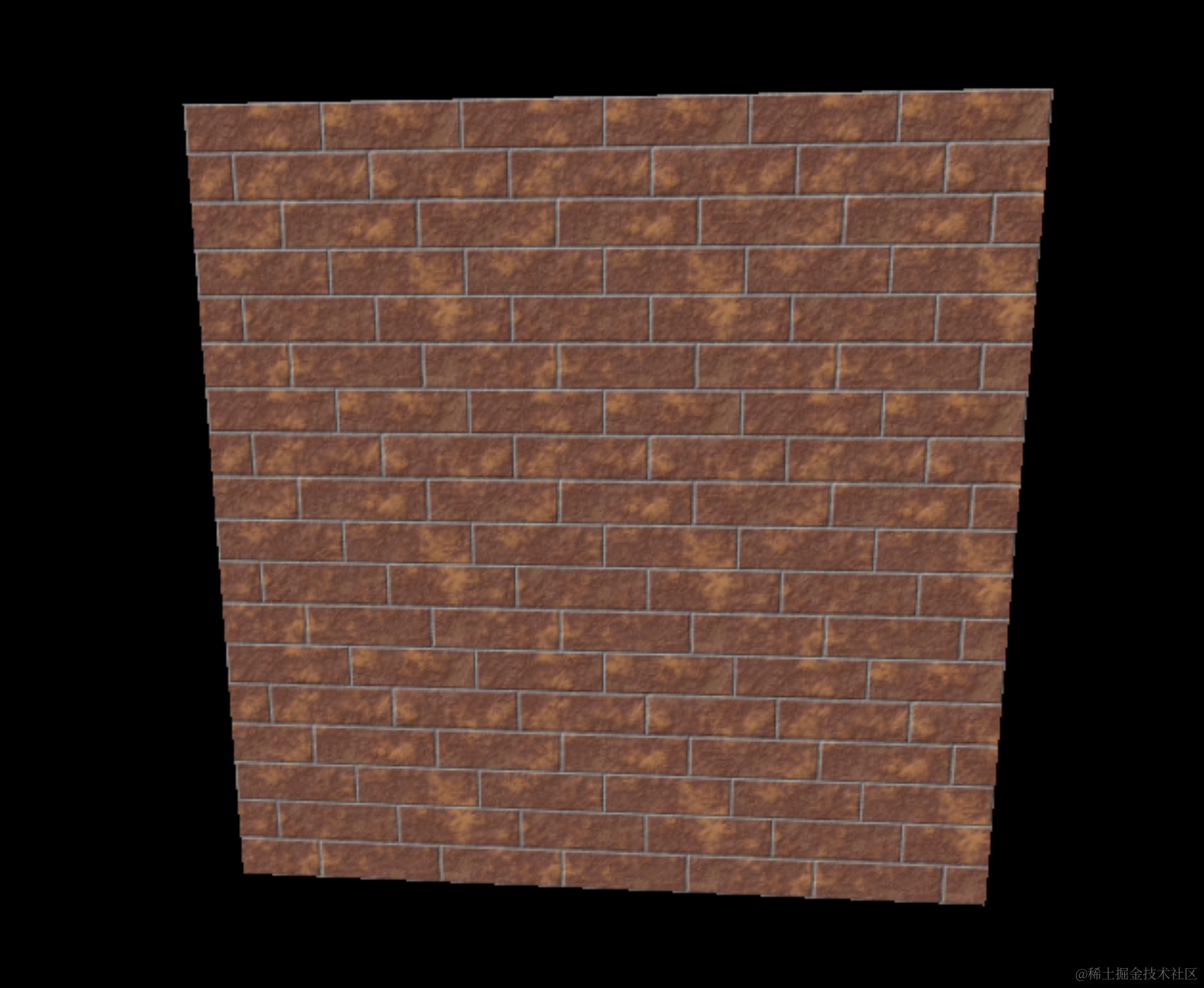
和之前的对比下看看:
是不是有一些凹凸不平的感觉。
这个属性就是基于光线对贴图的影响来做一次计算,加上凹凸感。
案例代码上传了小册仓库。
总结
我们过了一遍材质相关属性。
点模型、线模型、网格模型都有专门的材质。
线模型想要渲染几何体需要先用 EdgesGeometry 包裹来处理下顶点,之后可以设置 LineDashedMaterial 画虚线,但要调用 line.computeLineDistances() 做相关计算。
网格模型的材质有很多,主要是与光照有关,可以设置 color、map,transparent、opacity 等属性。
设置透明度需要 transparent 开启后,设置 opacity。
map 是颜色贴图也叫纹理贴图,用 TextureLoader 加载纹理图片后设置到 map。
纹理贴图可以设置水平、竖直方向的重复次数,重复多次后再作为网格模型的纹理。
如果纹理贴图颜色不对,可以设置下 texture.colorSpace
此外,你还可以再设置 aoMap,它会基于环境对贴图的影响做计算,加上凹凸感
颜色 color、纹理贴图 map 都是很常用的材质属性,后面会大量用到。