有时候我们需要在 3D 场景中画一些曲线。
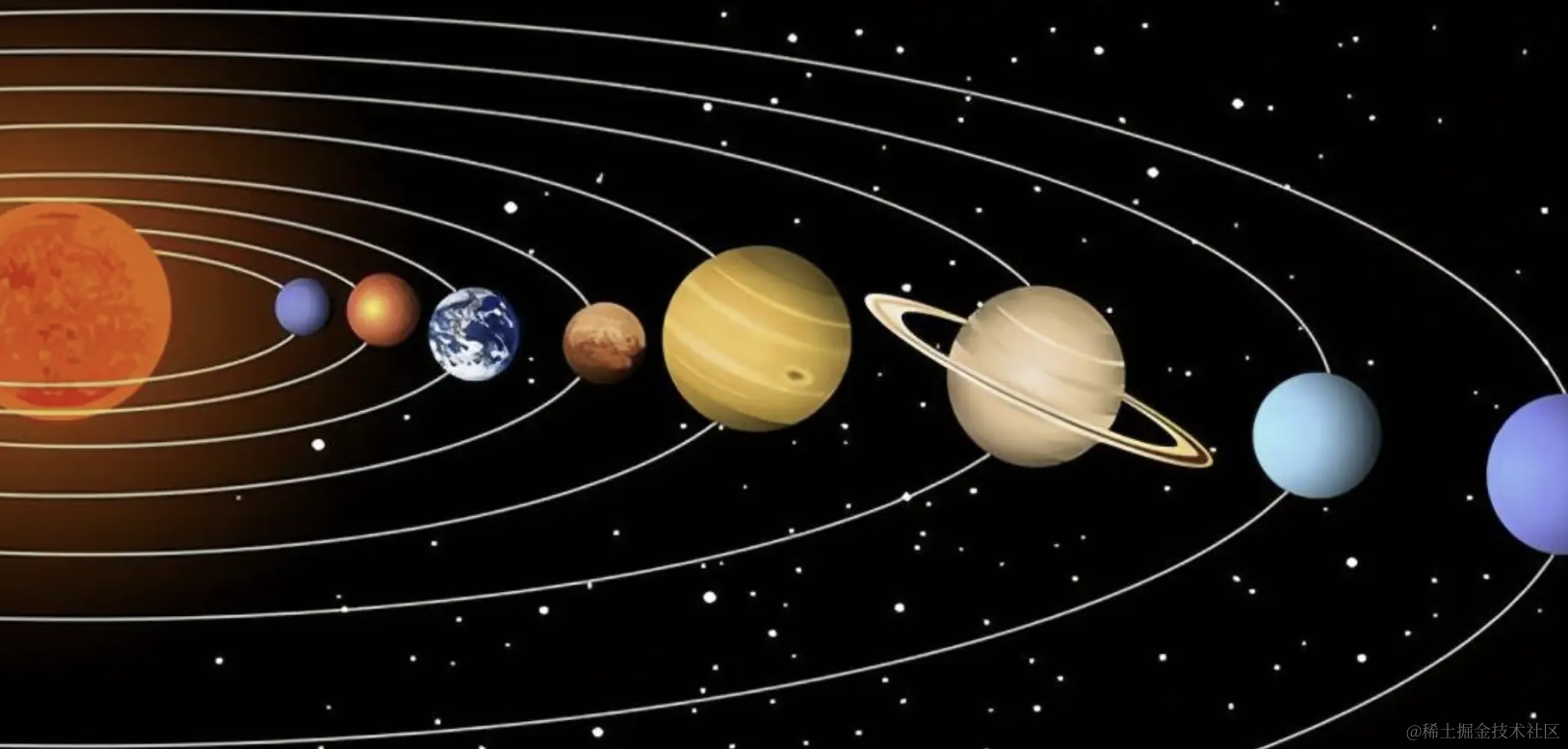
比如太阳系行星的轨道:
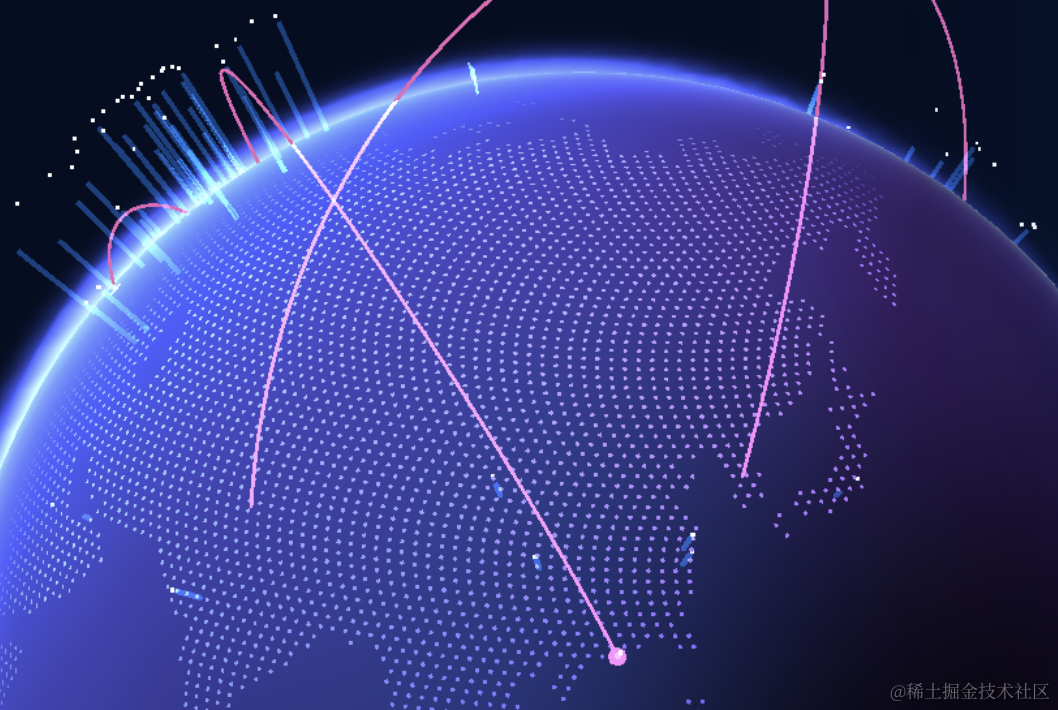
地图上的飞线:
或者这种曲线:
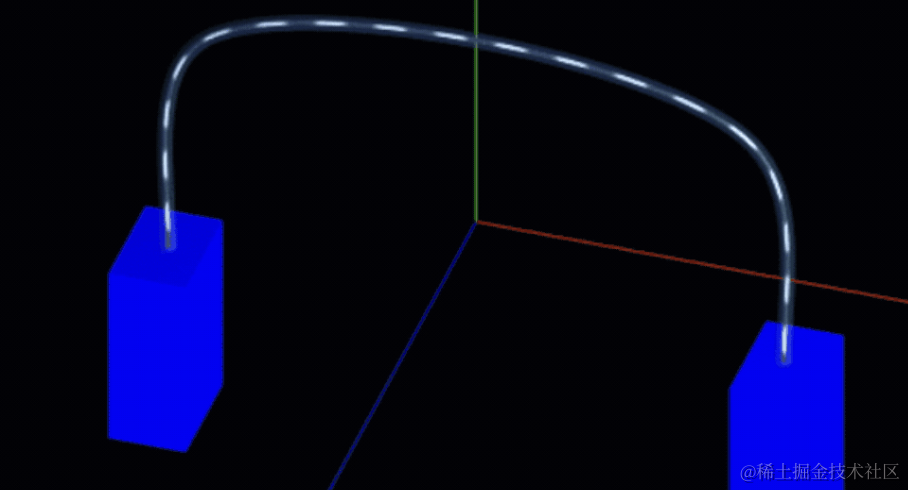
这种线怎么画呢?
这就要用 Three.js 提供的曲线的 API 了。
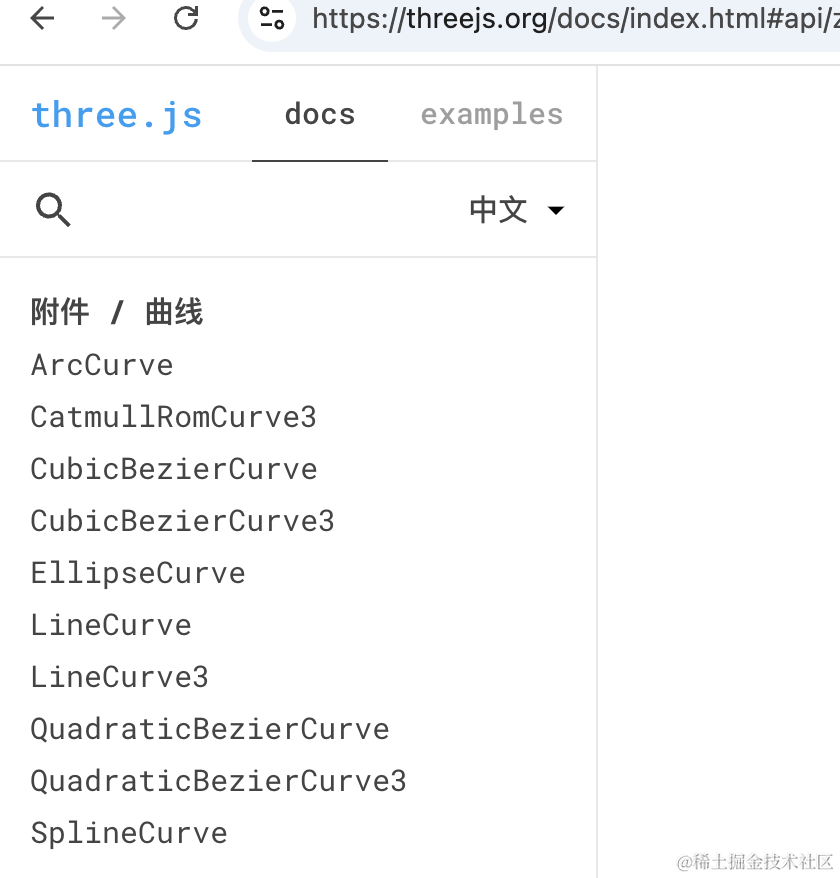
我们来试一下。
创建项目:
mkdir curve
cd curve
npm init -y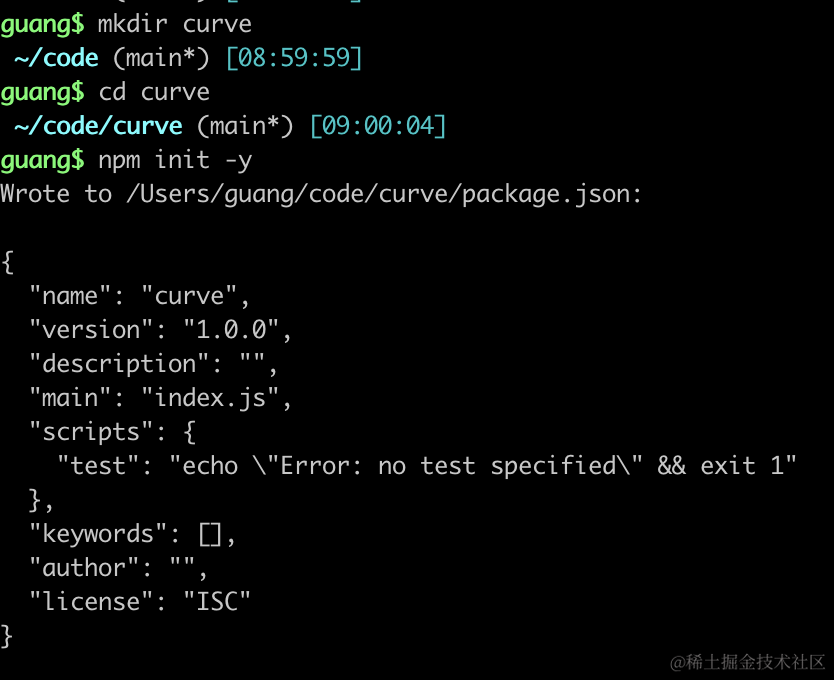
安装下 ts 类型包:
npm install --save-dev @types/three创建 index.html
<!DOCTYPE html>
<html lang="en">
<head>
    <meta charset="UTF-8">
    <meta name="viewport" content="width=device-width, initial-scale=1.0">
    <title>Document</title>
    <style>
        body {
            margin: 0;
        }
    </style>
</head>
<body>
    <script type="importmap">
    {
        "imports": {
            "three": "https://esm.sh/three@0.174.0/build/three.module.js",
            "three/addons/": "https://esm.sh/three@0.174.0/examples/jsm/"
        }
    }
    </script>
    <script type="module" src="./index.js"></script>
</body>
</html>
创建 index.js
import * as THREE from 'three';
import {
    OrbitControls
} from 'three/addons/controls/OrbitControls.js';
import mesh from './mesh.js';

const scene = new THREE.Scene();

scene.add(mesh);

const axesHelper = new THREE.AxesHelper(200);
scene.add(axesHelper);

const width = window.innerWidth;
const height = window.innerHeight;

const camera = new THREE.PerspectiveCamera(60, width / height, 1, 1000);
camera.position.set(0, 100, 200);
camera.lookAt(0, 0, 0);

const renderer = new THREE.WebGLRenderer();
renderer.setSize(width, height)

function render() {
    renderer.render(scene, camera);
    requestAnimationFrame(render);
}

render();

document.body.append(renderer.domElement);

const controls = new OrbitControls(camera, renderer.domElement);
创建 Scene、Camera、Renderer,启用 OrbitControls 轨道控制器。
EllipseCurve
然后写下 mesh.js
import * as THREE from 'three';

const arc = new THREE.EllipseCurve(0, 0, 100, 50);
const pointsList = arc.getPoints(20);

const geometry = new THREE.BufferGeometry();
geometry.setFromPoints(pointsList);

const material = new THREE.PointsMaterial({
    color: new THREE.Color('orange'),
    size: 10
});

const points = new THREE.Points(geometry, material);

console.log(points);

export default points;
这里我们用 EllipseCurve 画一条椭圆曲线,椭圆中心是 0,0,长短半轴长分别是 100、50
用 getPoints 方法从中取出一些点的坐标,传入的是分段数,20 段就是 21 个点。
用这 21 个点的坐标设置为 BufferGeometry 的顶点,通过 setFromPoints 方法。
之后创建点模型。
看下效果:
npx live-server
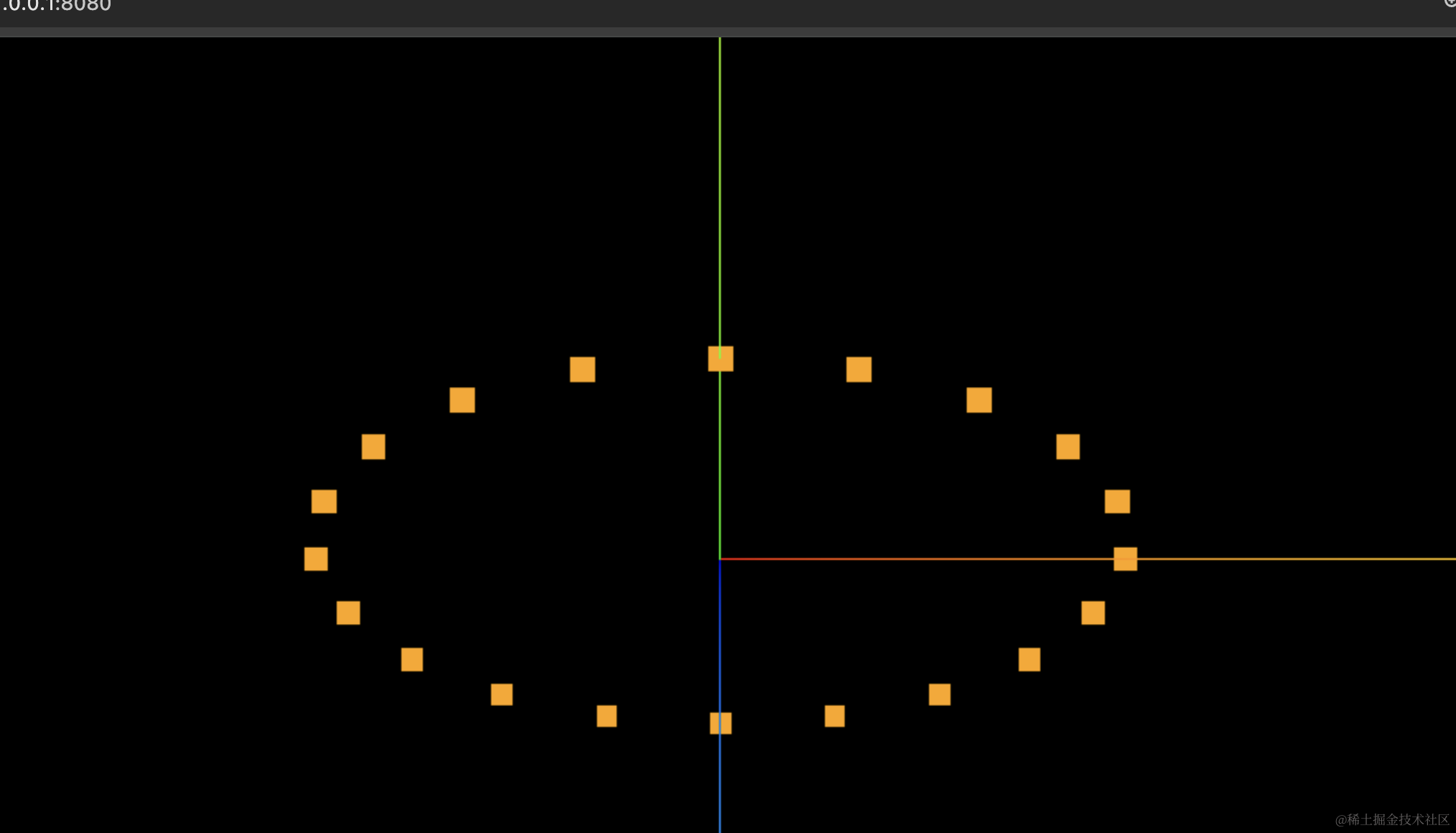
可以看到,确实是一个椭圆的形状:
打开 devtools 看下:
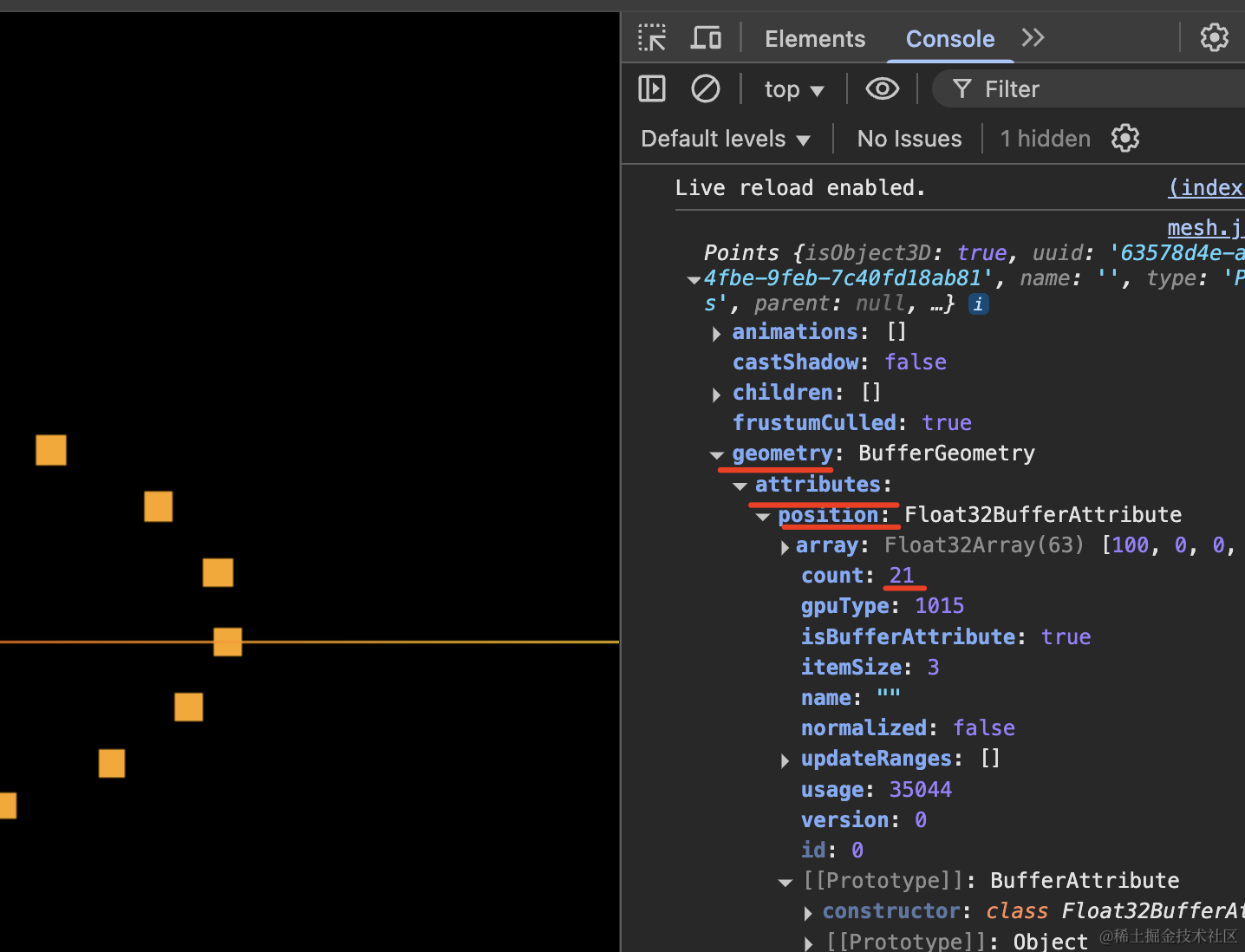
可以看到,geometry.attributes.position 就是 21
也就是说曲线 API 就是一些计算曲线坐标的公式,从中取出一些点用点模型或者线模型画出来。
我们试下线模型:
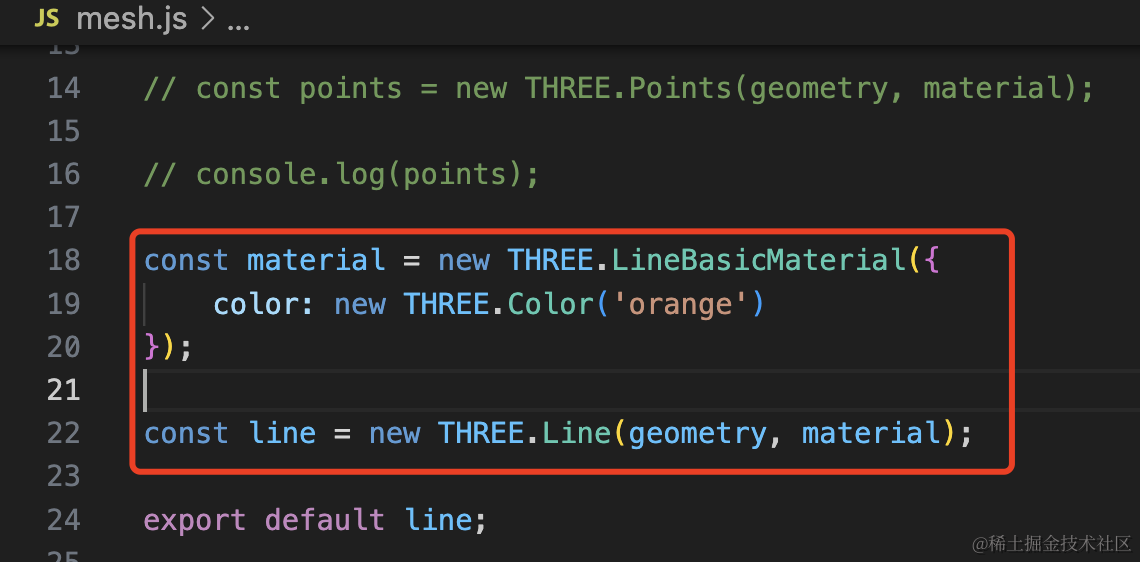
const material = new THREE.LineBasicMaterial({
    color: new THREE.Color('orange')
});

const line = new THREE.Line(geometry, material);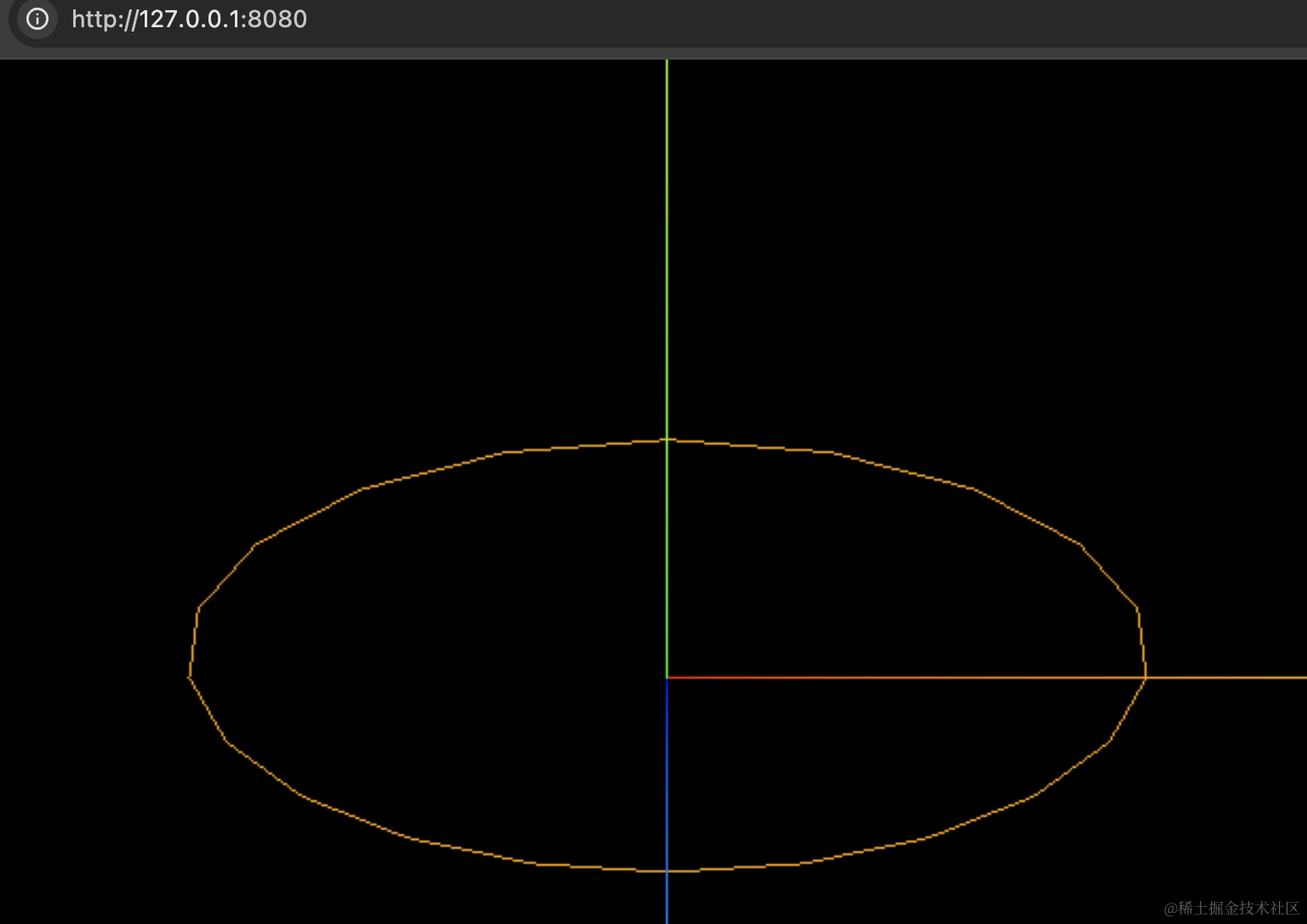
这种就可以用来做行星轨道了。
当然,你要更光滑的话取更多的点就可以了。
圆是椭圆的一种特殊情况,把长短半轴长设置为一样就可以了:
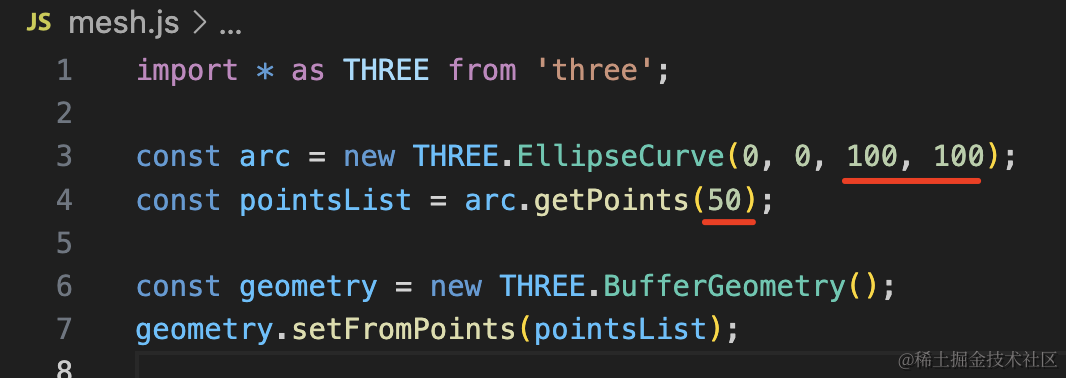
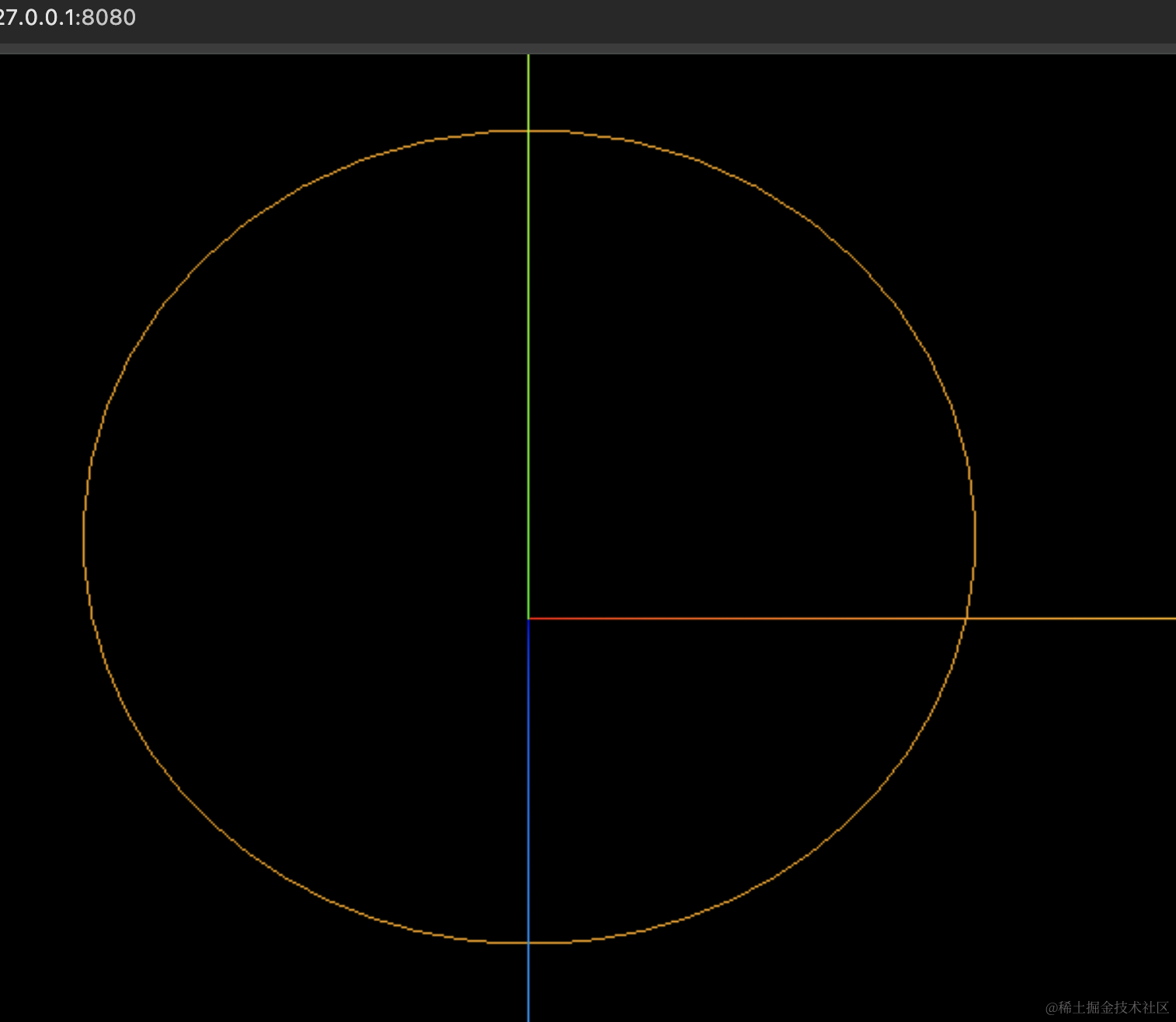
所以圆弧也是这个 API。
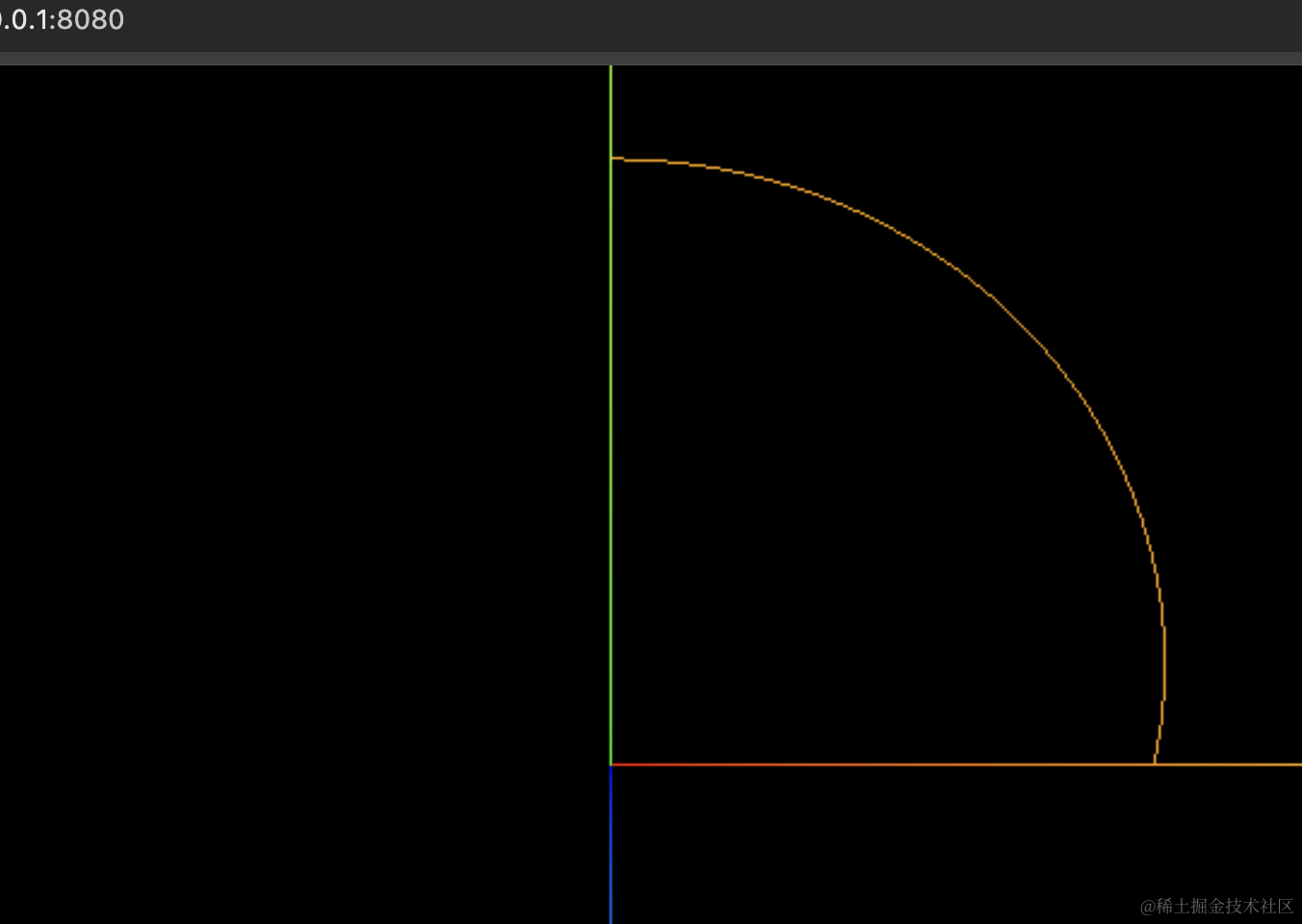
你还可以指定画的角度:
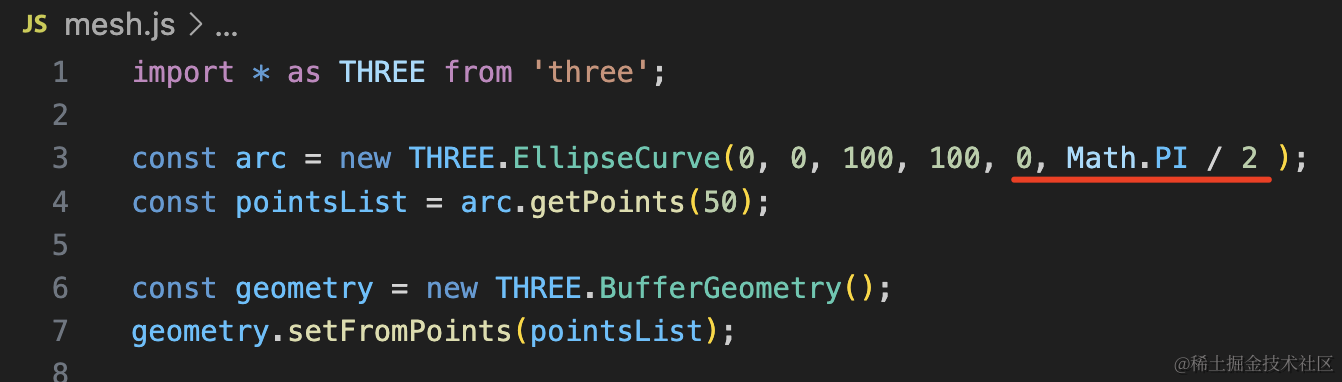
比如 0 到 90 度:
SplineCurve
当然,椭圆、圆这种曲线都太规则了,如果我们想画一些不规则的曲线呢?
比如任意的一堆点连起来的曲线。
这就要用别的 API 了。
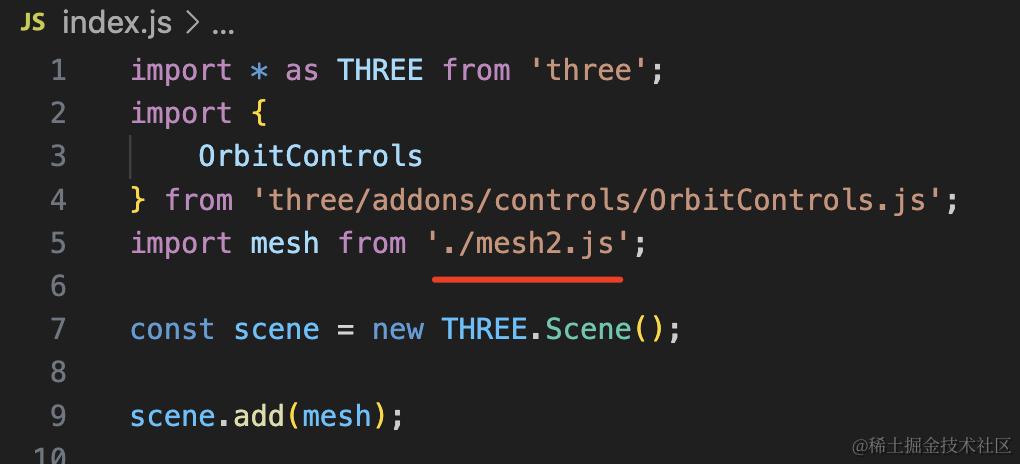
创建 mesh2.js
import * as THREE from 'three';

const arr = [
    new THREE.Vector2( -100, 0 ),
	new THREE.Vector2( -50, 50 ),
	new THREE.Vector2( 0, 0 ),
	new THREE.Vector2( 50, -50 ),
	new THREE.Vector2( 100, 0 )
];

const curve = new THREE.SplineCurve(arr);
const pointsArr = curve.getPoints(20);

const geometry = new THREE.BufferGeometry();
geometry.setFromPoints(pointsArr);

const material = new THREE.LineBasicMaterial({
    color: new THREE.Color('orange')
});

const line = new THREE.Line( geometry, material );

export default line;
如果我们已经有 5 个点,想让这 5 个点连成一条曲线,就用样条曲线 SplineCurve 的 api。
看下效果:
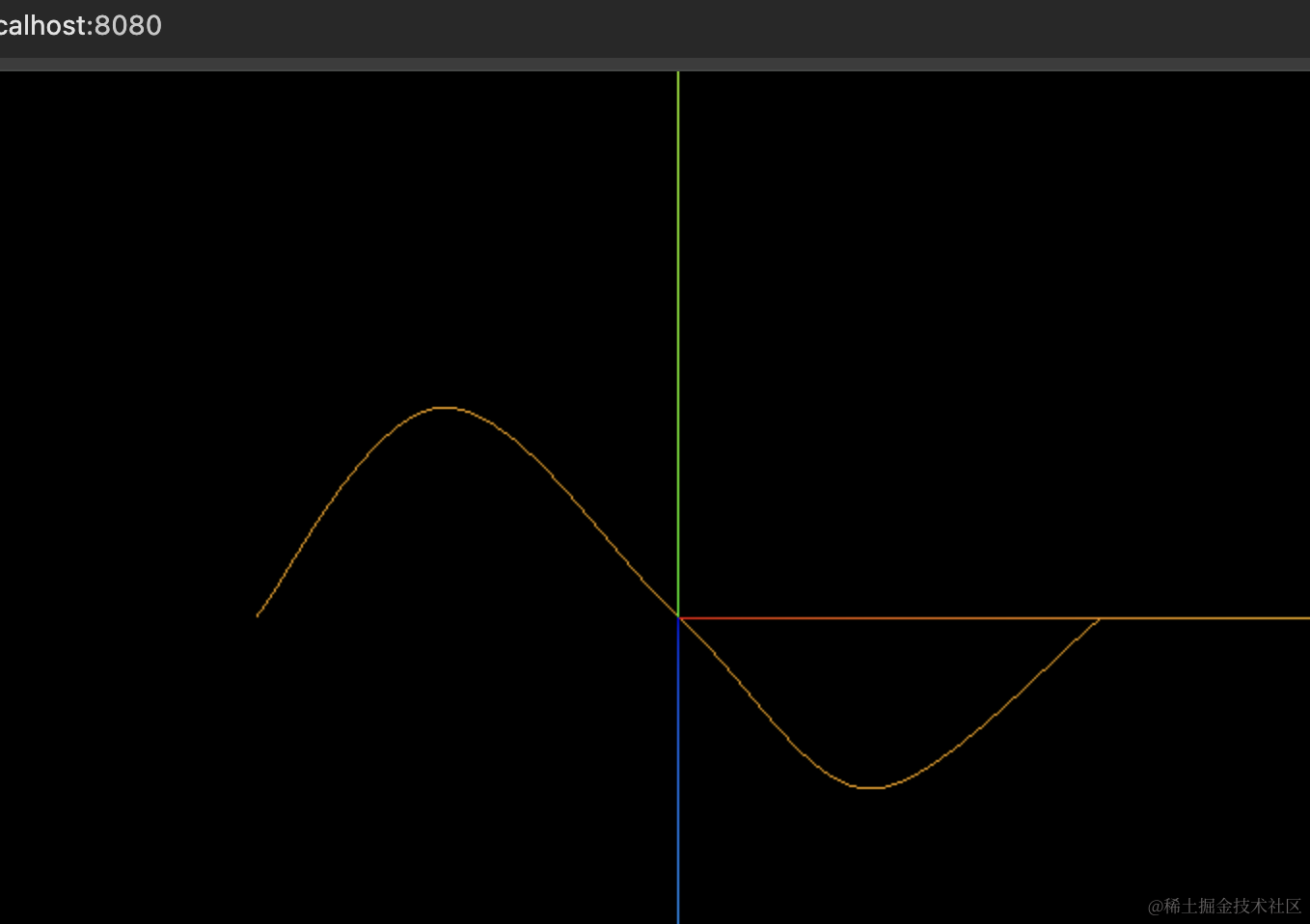
这样不明显,我们把点也画出来:
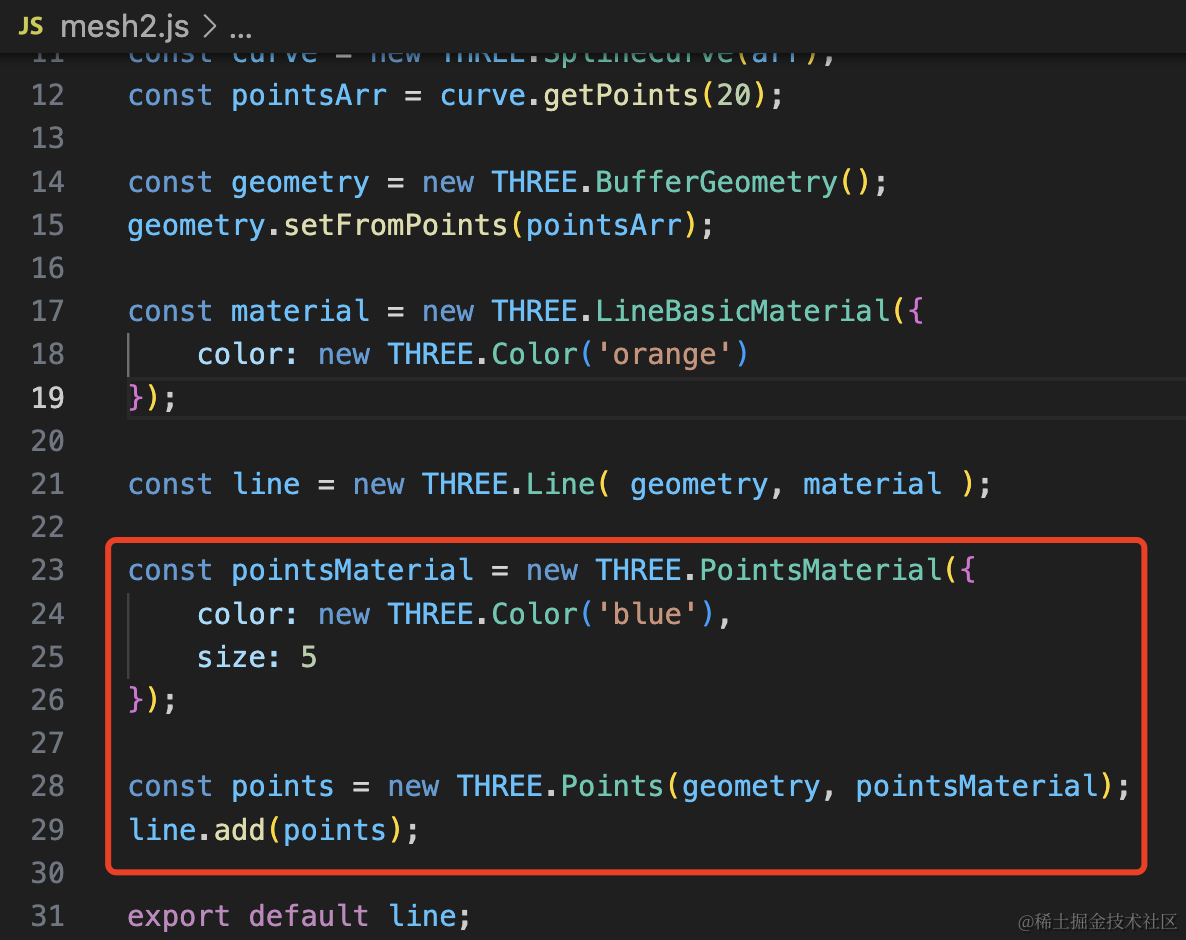
const pointsMaterial = new THREE.PointsMaterial({
    color: new THREE.Color('pink'),
    size: 5
});
const points = new THREE.Points(geometry, pointsMaterial);
line.add(points);
用这个 geometry 和点模型的材质创建点模型,加到 line 下面。
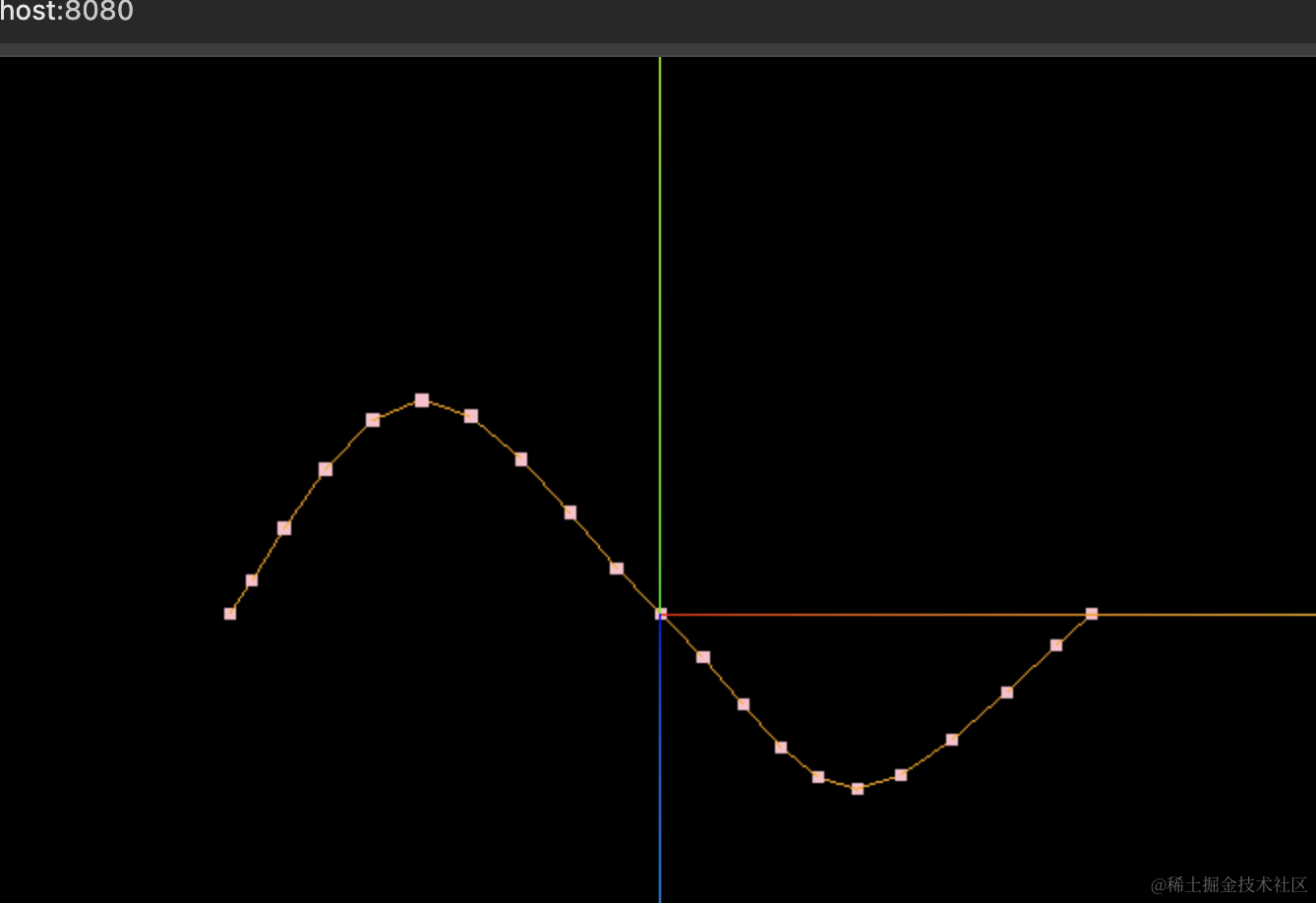
可以看到,SplineCurve 会画出穿过你给的那些点的曲线。
我们加个任意的点试试:
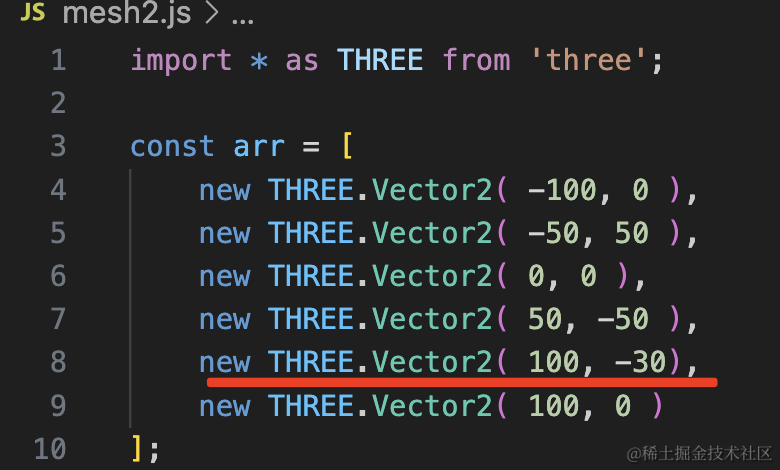
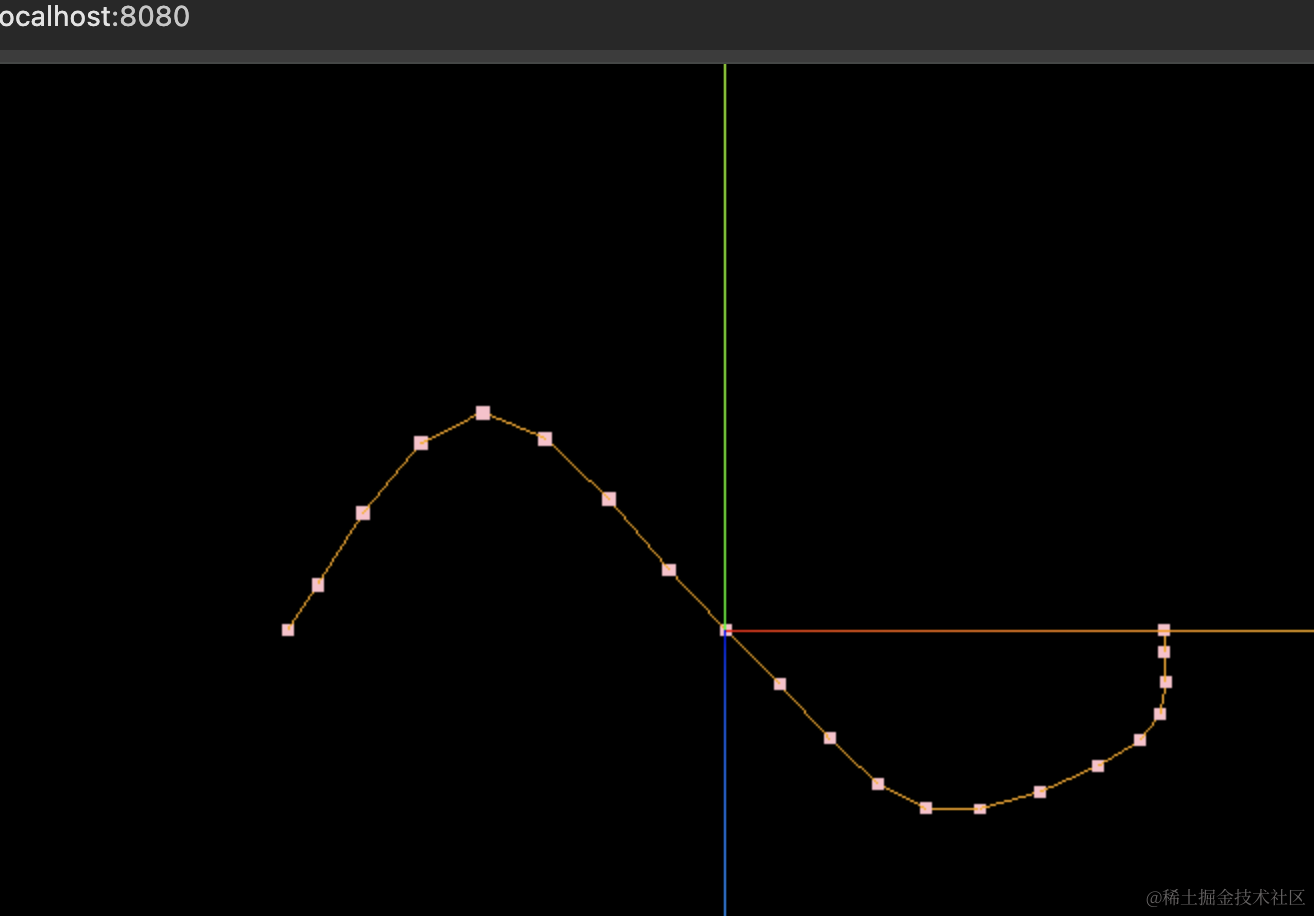
我们把传入的几个点单独标出来:
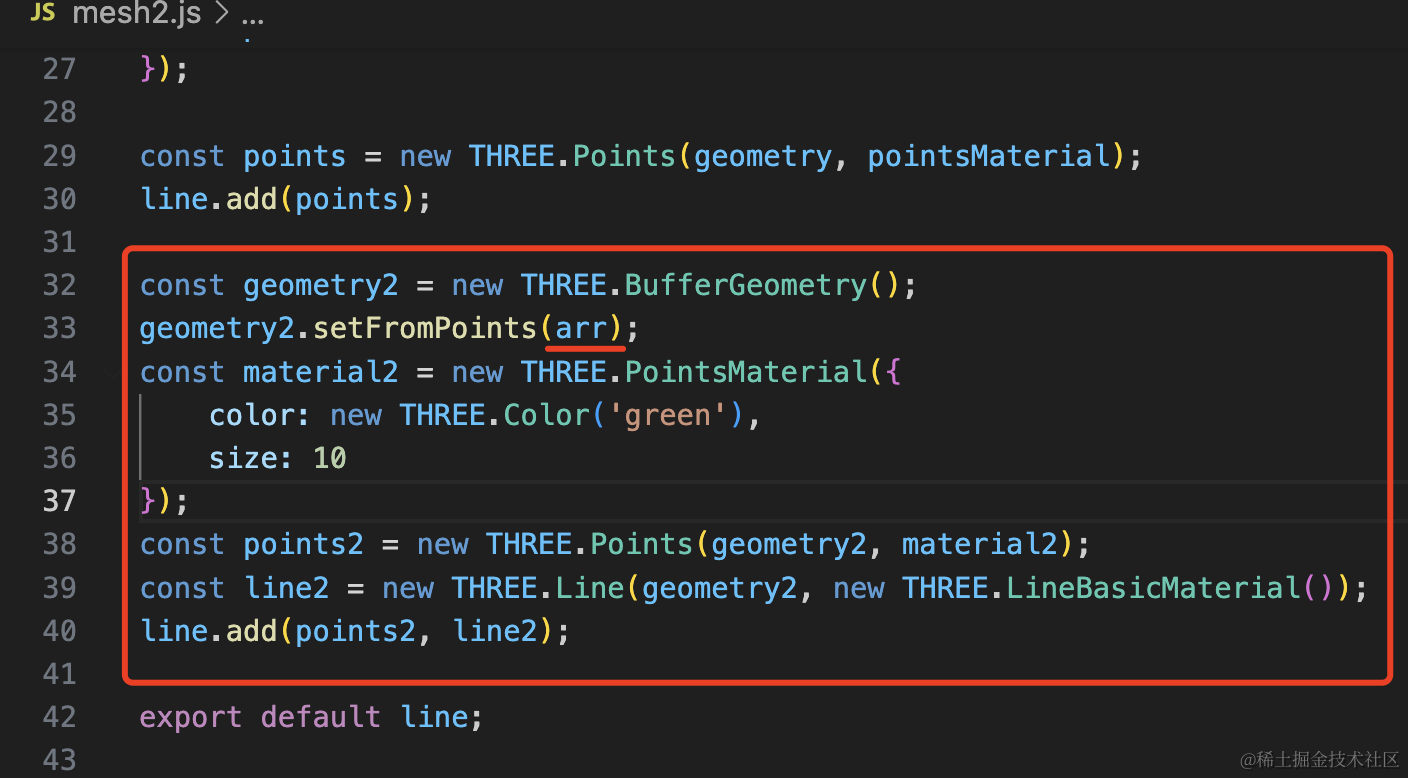
const geometry2 = new THREE.BufferGeometry();
geometry2.setFromPoints(arr);
const material2 = new THREE.PointsMaterial({
    color: new THREE.Color('green'),
    size: 10
});
const points2 = new THREE.Points(geometry2, material2);
const line2 = new THREE.Line(geometry2, new THREE.LineBasicMaterial());
line.add(points2, line2);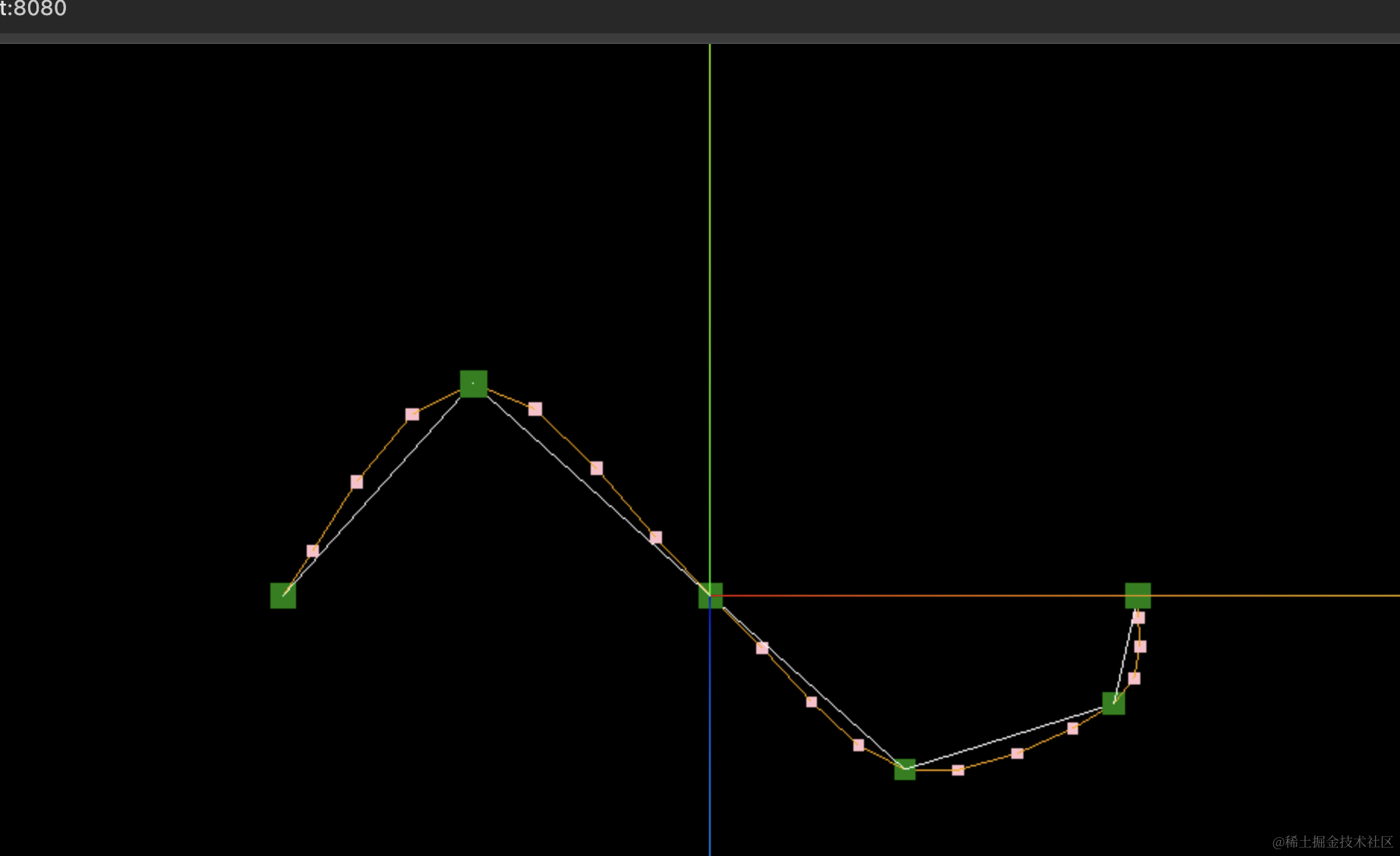
可以看到,样条曲线 SplineCurve 确实是会把你传入的点用曲线连接起来。
QuadraticBezierCurve
如果你觉得这些曲线,曲率不是很大,想自己控制曲率呢?
这种就要用贝塞尔曲线了:
创建 mesh3.js
import * as THREE from 'three';

const p1 = new THREE.Vector2(0, 0);
const p2 = new THREE.Vector2(50, 100);
const p3 = new THREE.Vector2(100, 0);

const curve = new THREE.QuadraticBezierCurve(p1, p2, p3);
const pointsArr = curve.getPoints(20);

const geometry = new THREE.BufferGeometry();
geometry.setFromPoints(pointsArr);

const material = new THREE.LineBasicMaterial({
    color: new THREE.Color('orange')
});

const line = new THREE.Line( geometry, material );

const geometry2 = new THREE.BufferGeometry();
geometry2.setFromPoints([p1,p2,p3]);
const material2 = new THREE.PointsMaterial({
    color: new THREE.Color('pink'),
    size: 5
});
const points2 = new THREE.Points(geometry2, material2);
const line2 = new THREE.Line(geometry2, new THREE.LineBasicMaterial());
line.add(points2, line2);

export default line;
我们用 QuadraticBezierCurve 的 api 创建了贝塞尔曲线,传入 3 个点,第二个为控制点。
之后又把这三个点单独用点模型、线模型画了出来。
看下效果:
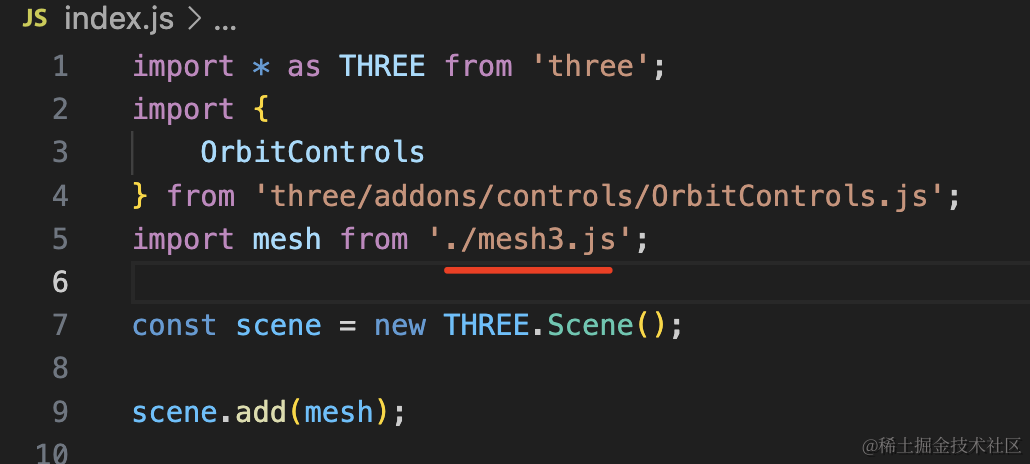
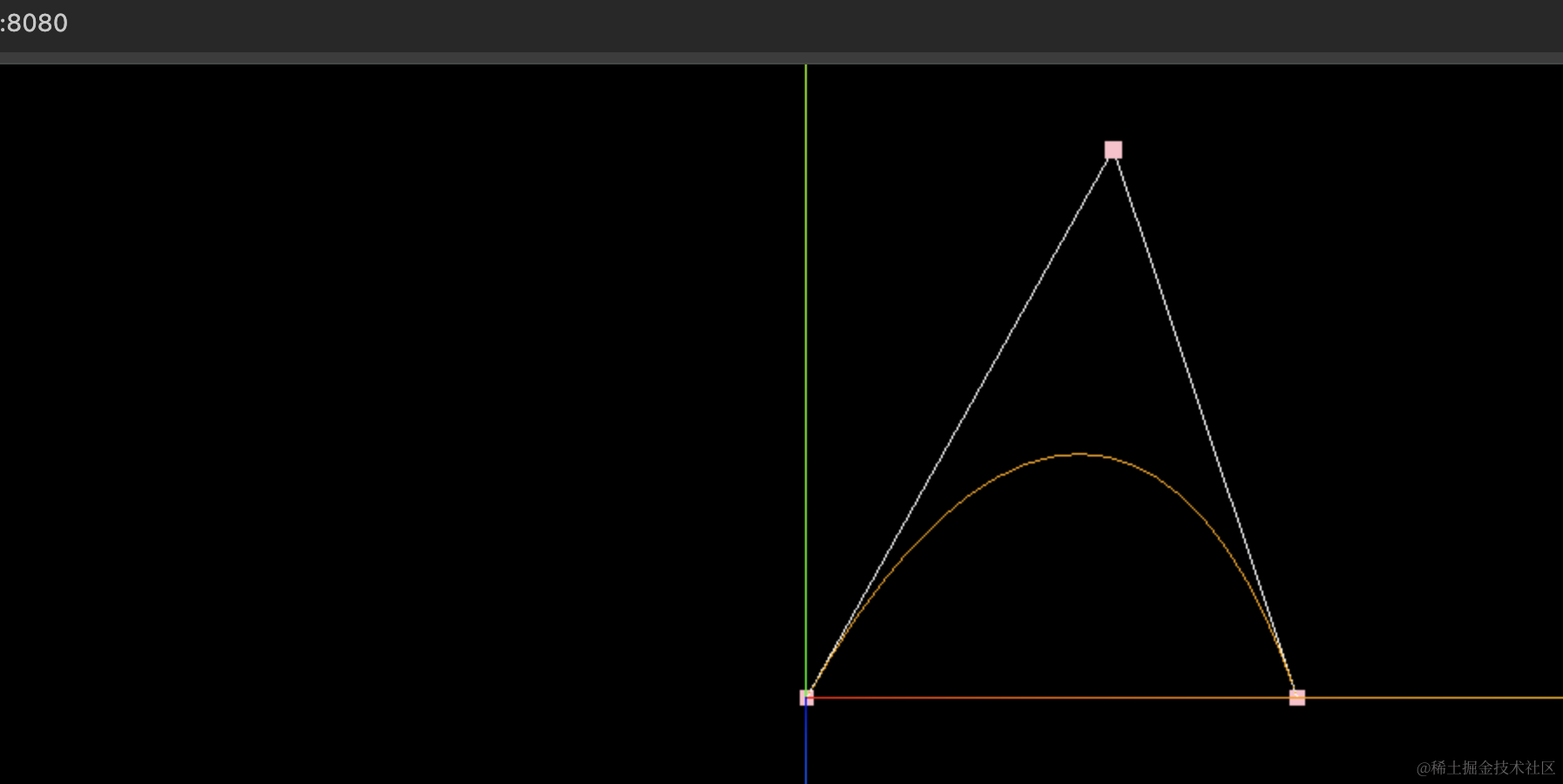
和样条曲线不同,贝塞尔曲线中间那个点是控制曲率的,把它改大一点试试:
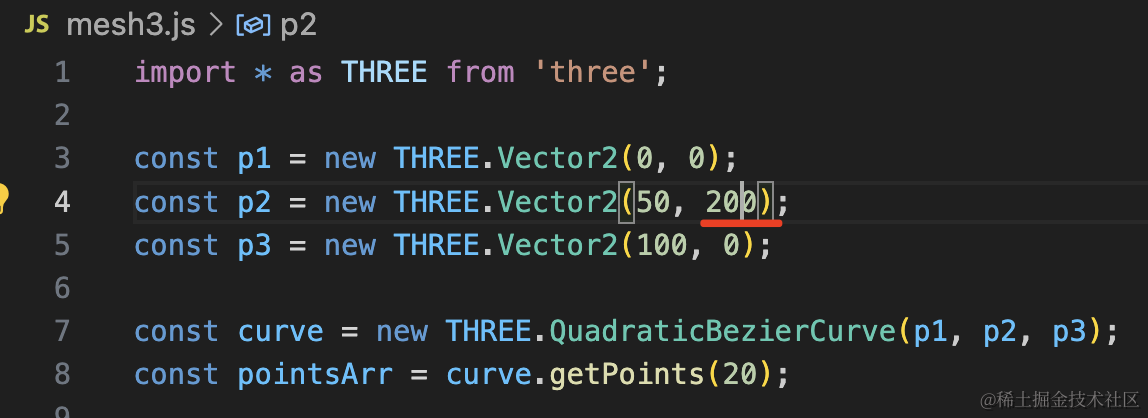
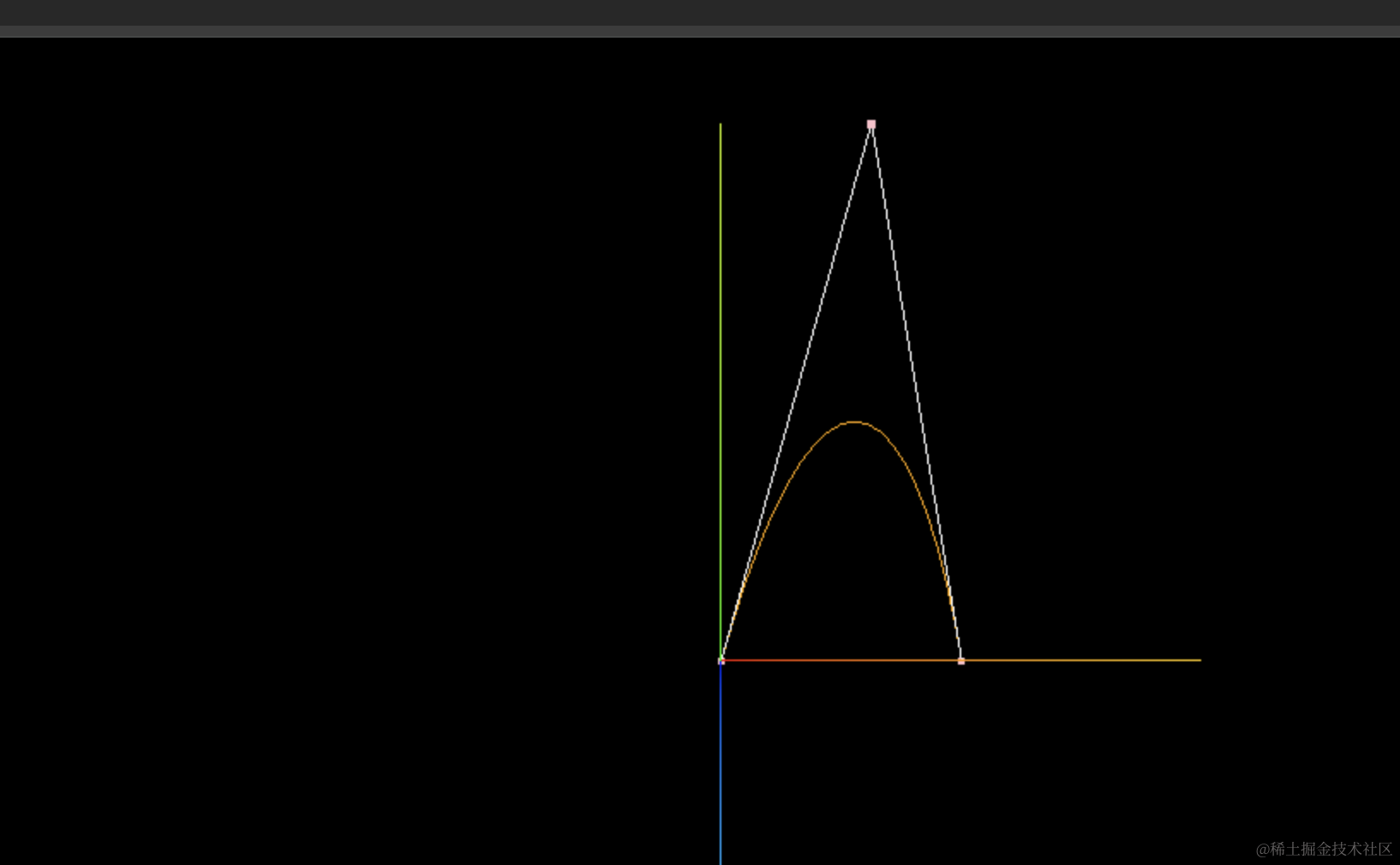
现在明显曲率更大了。
CubicBezierCurve3
二次贝塞尔曲线是在一个平面上弯曲,如果是三次贝塞尔曲线,就是在三维空间内弯曲了。
创建 mesh4.js
import * as THREE from 'three';

const p1 = new THREE.Vector3(-100, 0, 0);
const p2 = new THREE.Vector3(50, 100, 0);
const p3 = new THREE.Vector3(100, 0, 100);
const p4 = new THREE.Vector3(100, 0, 0);

const curve = new THREE.CubicBezierCurve3(p1, p2, p3, p4);
const pointsArr = curve.getPoints(20);

const geometry = new THREE.BufferGeometry();
geometry.setFromPoints(pointsArr);

const material = new THREE.LineBasicMaterial({
    color: new THREE.Color('orange')
});

const line = new THREE.Line( geometry, material );

const geometry2 = new THREE.BufferGeometry();
geometry2.setFromPoints([p1,p2,p3,p4]);
const material2 = new THREE.PointsMaterial({
    color: new THREE.Color('pink'),
    size: 5
});
const points2 = new THREE.Points(geometry2, material2);
const line2 = new THREE.Line(geometry2, new THREE.LineBasicMaterial());
line.add(points2, line2);

export default line;
用 CubicBezierCurve3 这个 API,传入 4 个点,中间两个是控制点。
其余部分一样。
跑下看看:
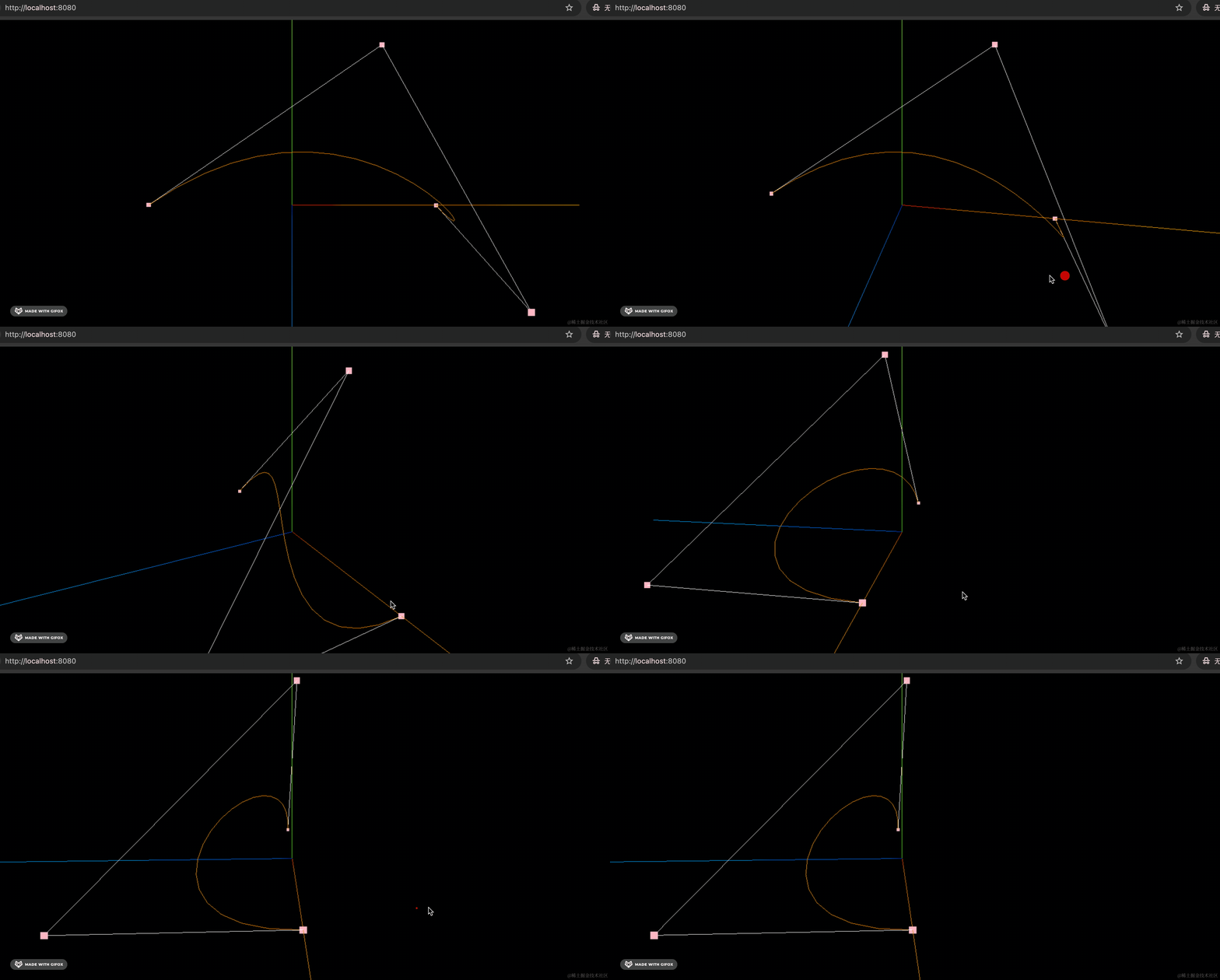
可以看到,是一条三维曲线,第一个和第四个点是端点,中间两个是控制点。
CurvePath
有的时候,一条曲线可能是由多条曲线复合而成的,如果你想组合多条曲线,就可以用 CurvePath 的 api。
创建 mesh5.js
import * as THREE from 'three';

const p1 = new THREE.Vector2(0, 0);
const p2 = new THREE.Vector2(100, 100);
const line1 = new THREE.LineCurve(p1, p2);

const arc = new THREE.EllipseCurve(0, 100, 100 , 100, 0, Math.PI);

const p3 = new THREE.Vector2(-100, 100);
const p4 = new THREE.Vector2(0, 0);
const line2 = new THREE.LineCurve(p3, p4);

const curvePath = new THREE.CurvePath();
curvePath.add(line1);
curvePath.add(arc);
curvePath.add(line2);

const pointsArr = curvePath.getPoints(20);
const geometry = new THREE.BufferGeometry();
geometry.setFromPoints(pointsArr);

const material = new THREE.LineBasicMaterial({
    color: new THREE.Color('pink')
});

const line = new THREE.Line(geometry, material);

export default line;
圆是椭圆的特殊情况,直线也是曲线的特殊情况,所以也归为曲线。
我们创建了两条直线 LineCure、一个椭圆曲线 EllipseCurve
用曲线路径 CurvePath 把它们组合起来。
看下效果:
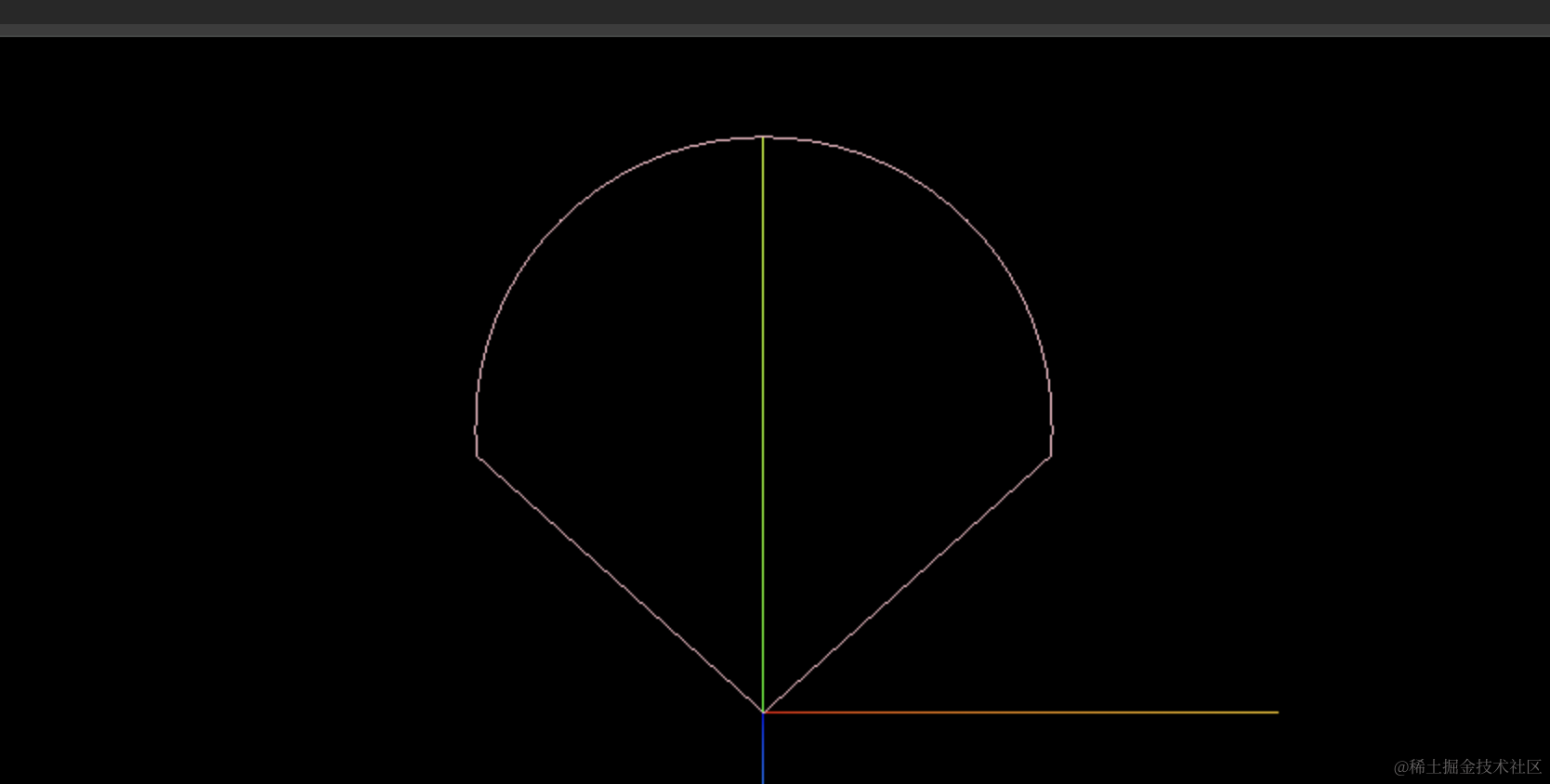
这样,就可以组合出复杂的曲线形状了。
案例代码上传了小册仓库。
总结
很多时候都要画曲线,比如行星的轨道、地图的飞线。
这节我们学了下曲线的 API。
- 椭圆曲线 EllipseCurve:画椭圆、圆曲线
- 样式曲线 SplineCurve:画经过一些点的曲线
- 二次贝塞尔曲线 QuadraticBezierCurve:可以通过控制点调节曲率,有一个控制点
- 三次贝塞尔曲线 CubicBezierCurve3:可以画三维曲线,通过控制点调节曲率,有两个控制点
- 直线 LineCurve:直线是曲线的一种特殊情况,传入两个端点
- 曲线路径 CurvePath:可以传入多条曲线,组合起来
很多 3D 场景中,需要画一些曲线,到时候就会用到这些曲线 API。