上节把旋转箭头画出来了:
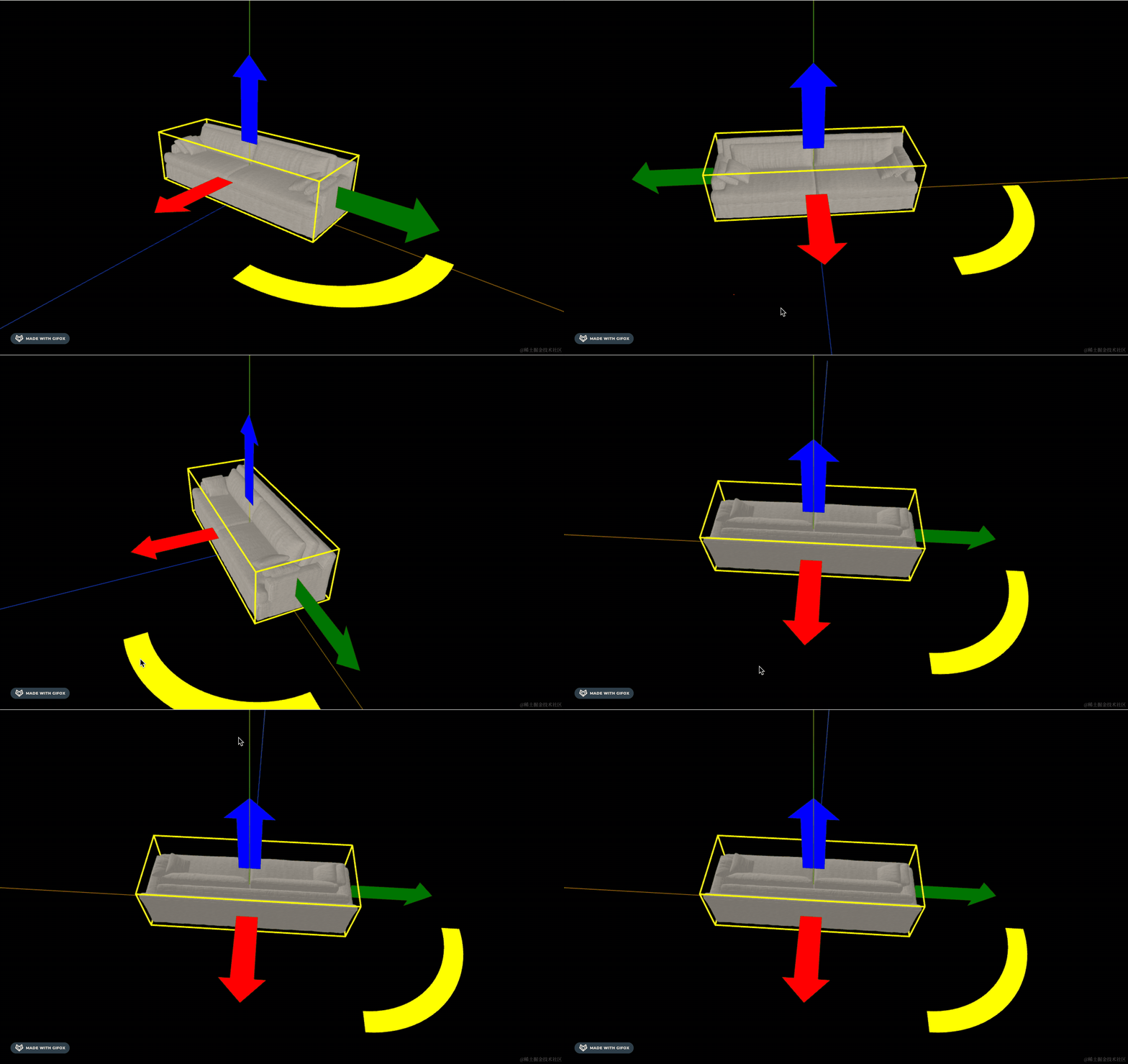
这节加上拖拽旋转的交互。
拖拽改变位置只要知道拖动到的点就行,用它来设置位置。
这里我们可以判断鼠标在水平方向的拖动距离来改变旋转角度:
我们来写一下:
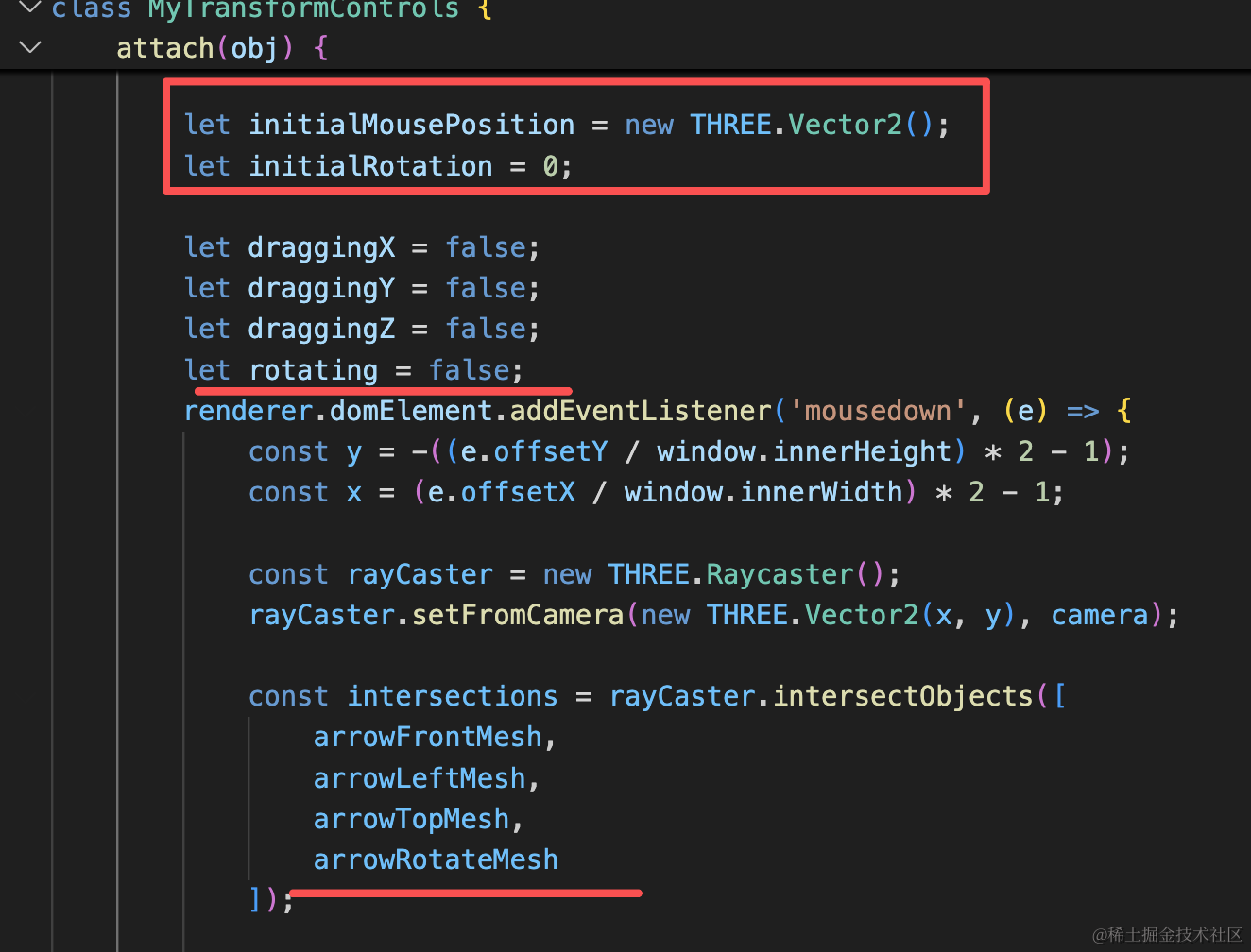
声明两个变量记录开始的鼠标位置和旋转角度,并且加一个 rotating 状态。
let initialMousePosition = new THREE.Vector2();
let initialRotation = 0;
let rotating = false;const intersections = rayCaster.intersectObjects([
arrowFrontMesh,
arrowLeftMesh,
arrowTopMesh,
arrowRotateMesh
]);在 mousedown 的时候记录下数据:
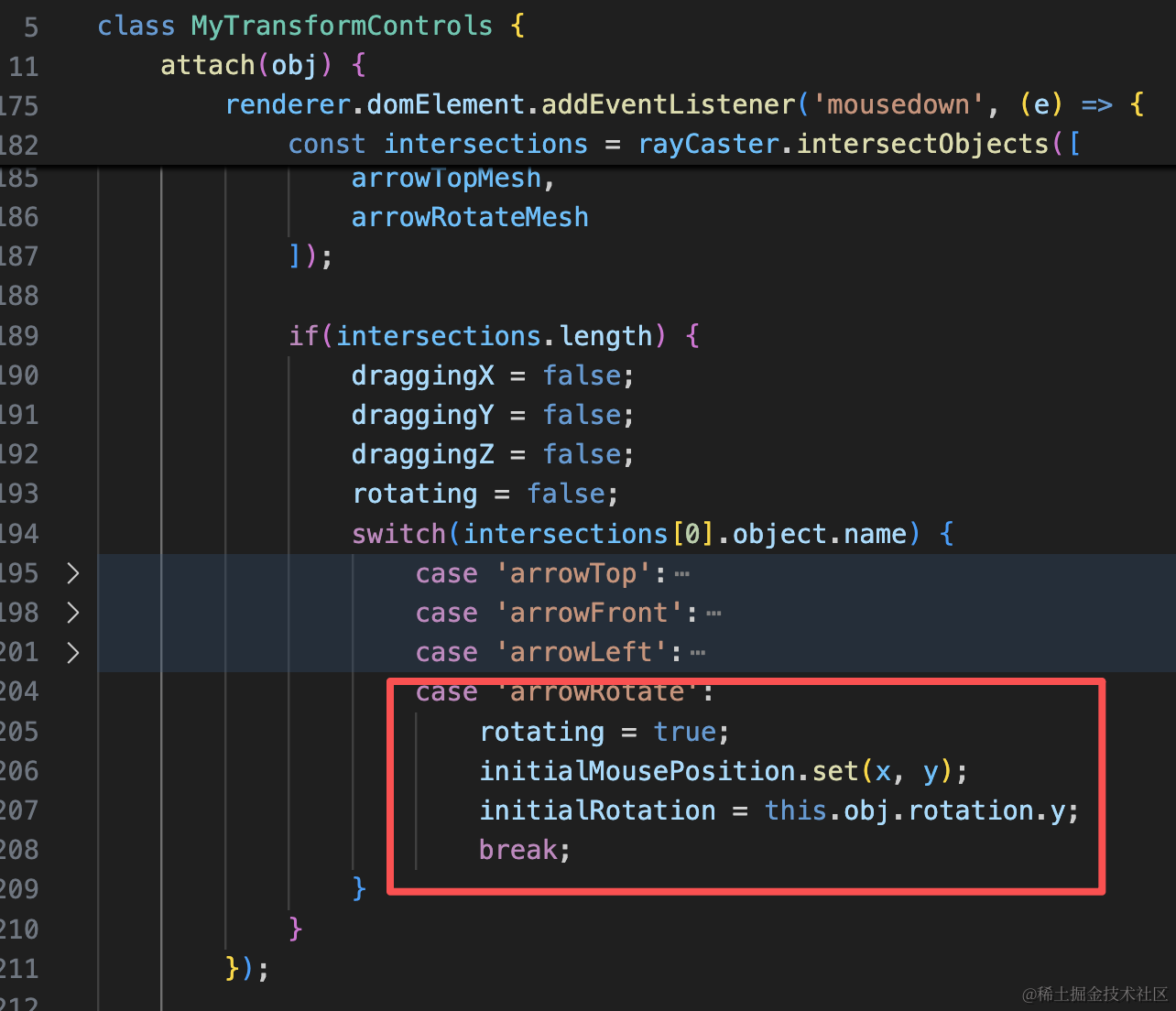
case 'arrowRotate':
rotating = true;
initialMousePosition.set(x, y);
initialRotation = this.obj.rotation.y;
break;
记录当前鼠标位置和旋转角度。
然后 mousemove 的时候,根据 x 轴方向移动的距离来改变 rotation.y
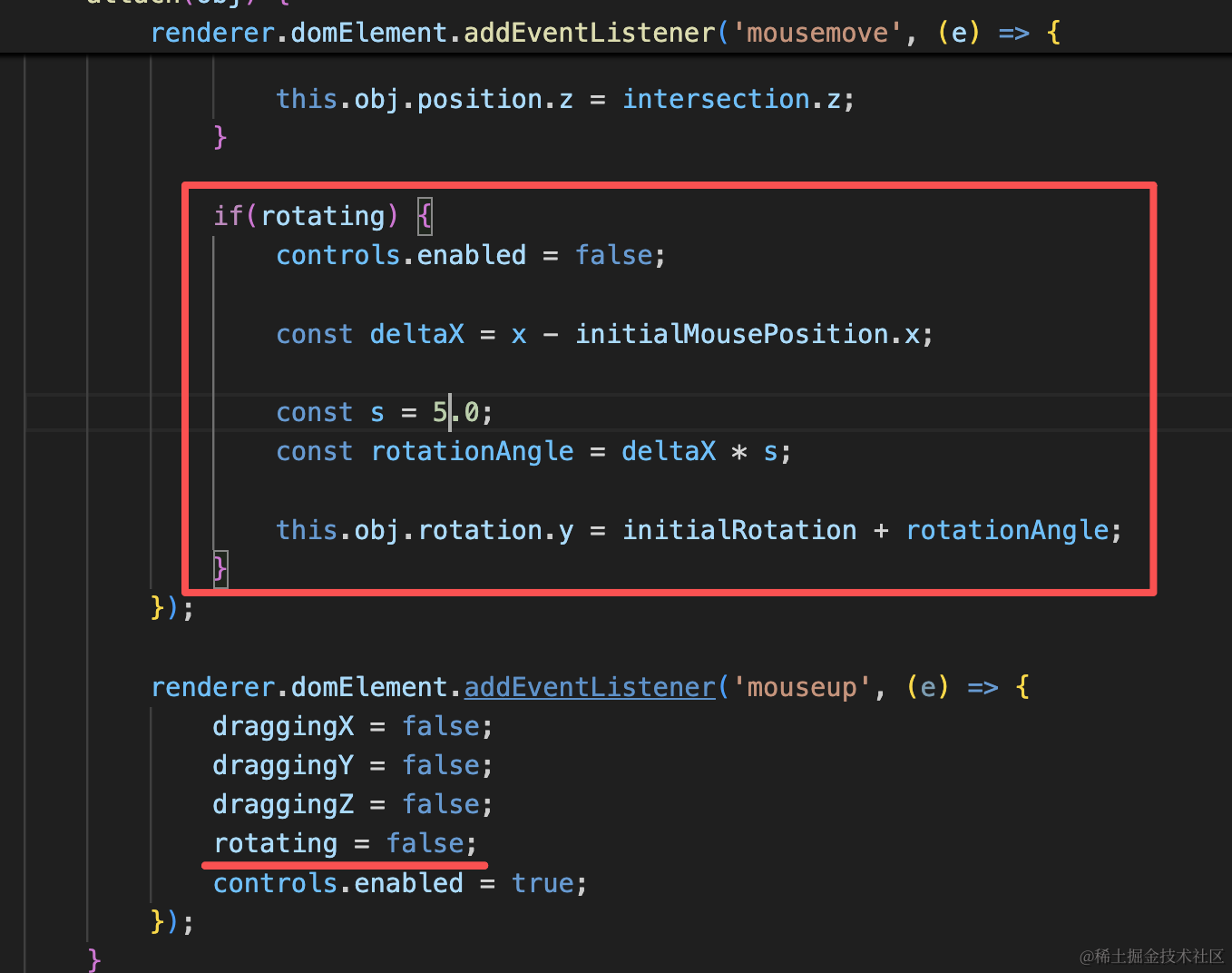
mouseup 的时候重置下。
if(rotating) {
    controls.enabled = false;

    const deltaX = x - initialMousePosition.x;

    const s = 5.0;
    const rotationAngle = deltaX * s;

    this.obj.rotation.y = initialRotation + rotationAngle;
}
rotating = false;这里就是判断鼠标在水平方向移动了多少距离,用它乘以一个系数来改变旋转角度。
试下效果:
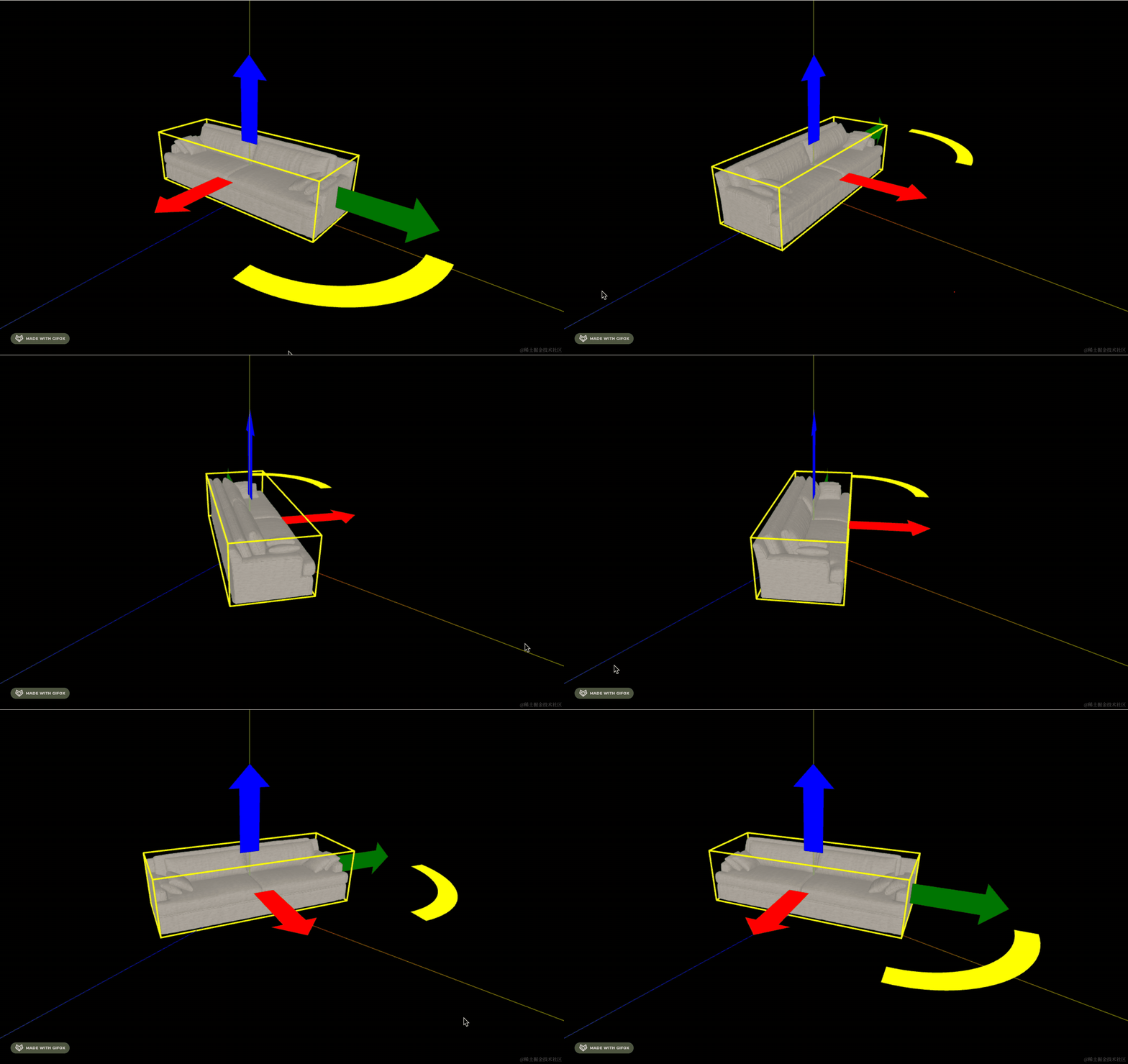
这样,拖拽旋转功能就完成了。
我们换一个模型试试:
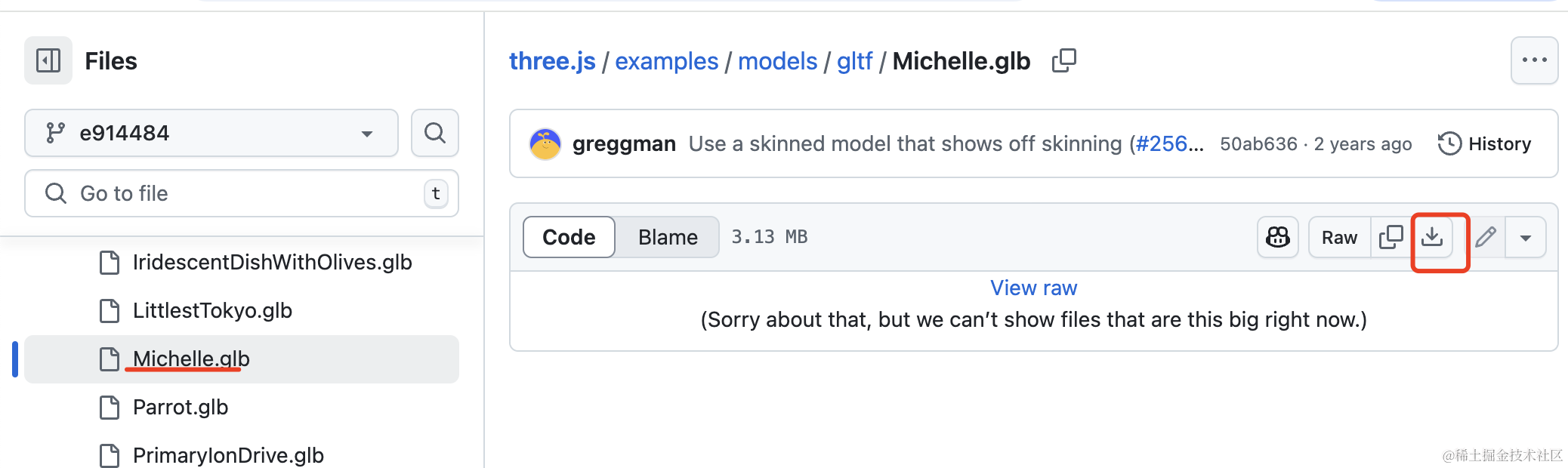
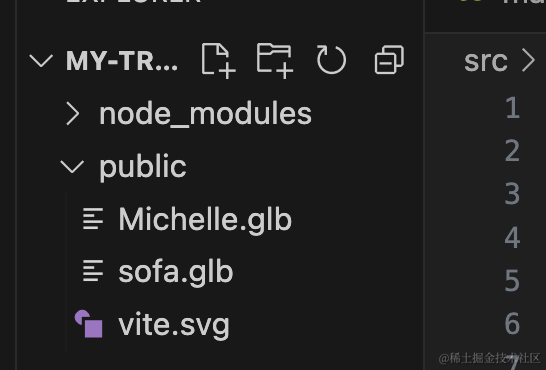
下载下来放到 public 目录下:
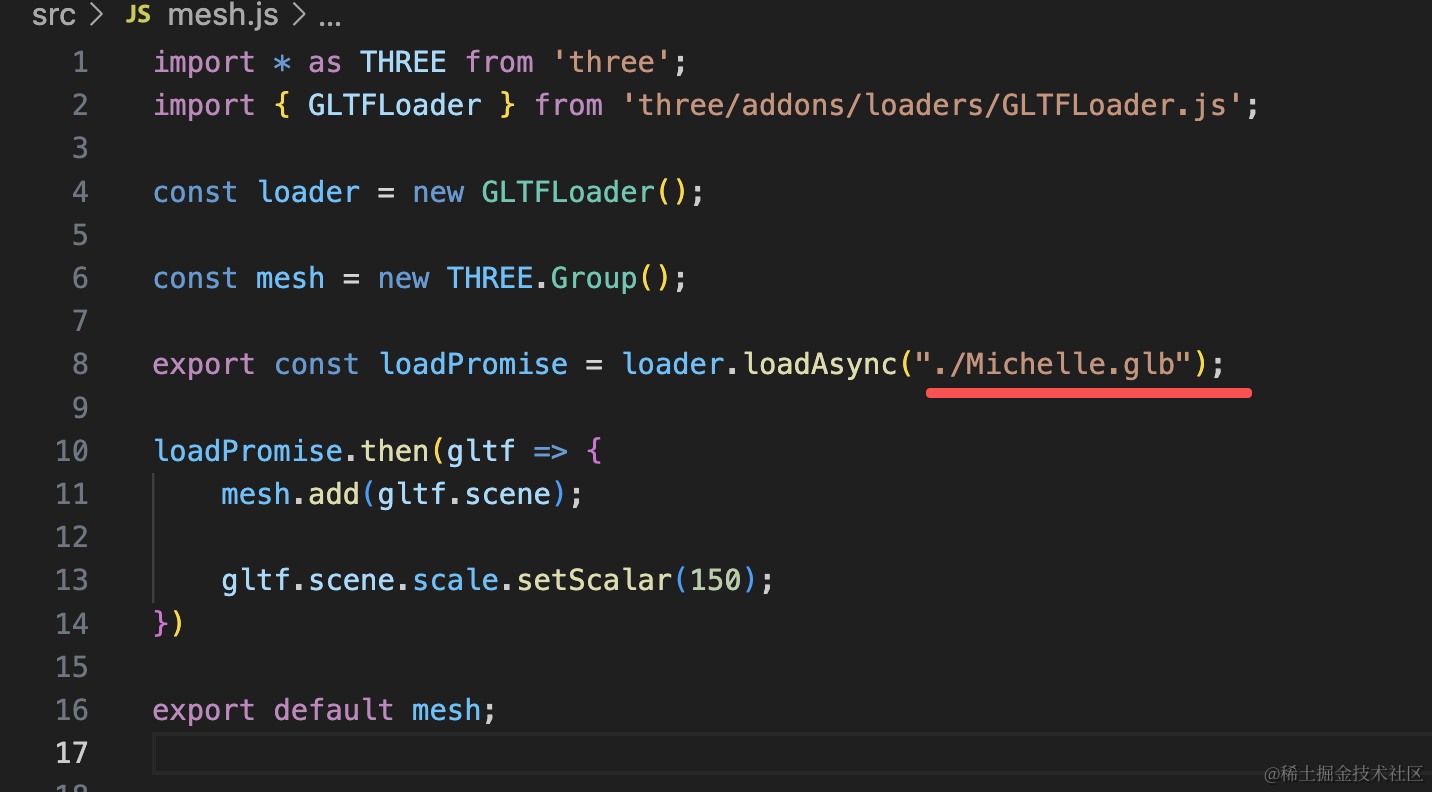
替换下:
看下效果:
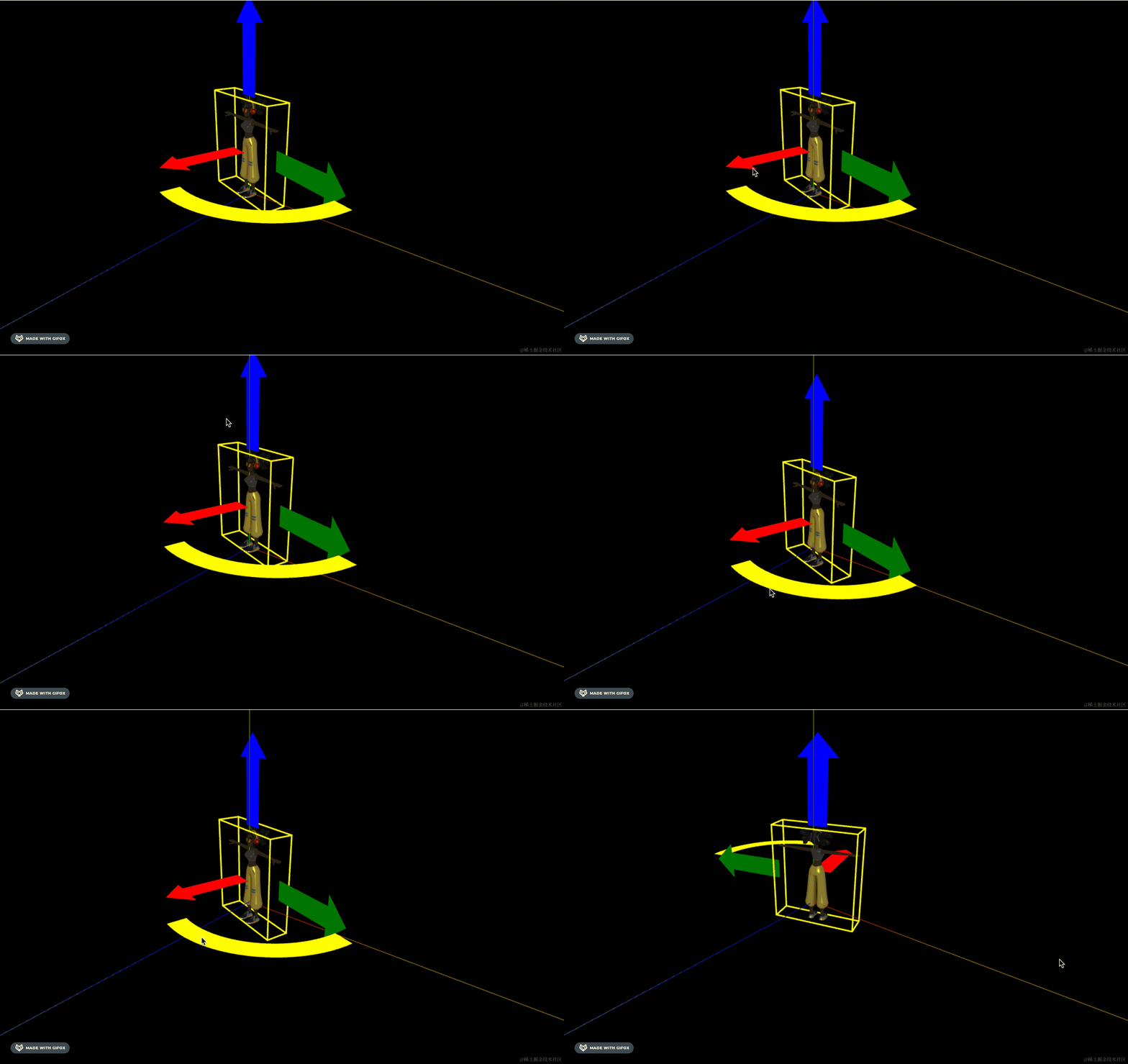
位移和旋转都没问题。
然后加一下改变一个方向的位置或者角度的时候,其余箭头隐藏的效果:
mousemove 的时候,把其他三个箭头隐藏:
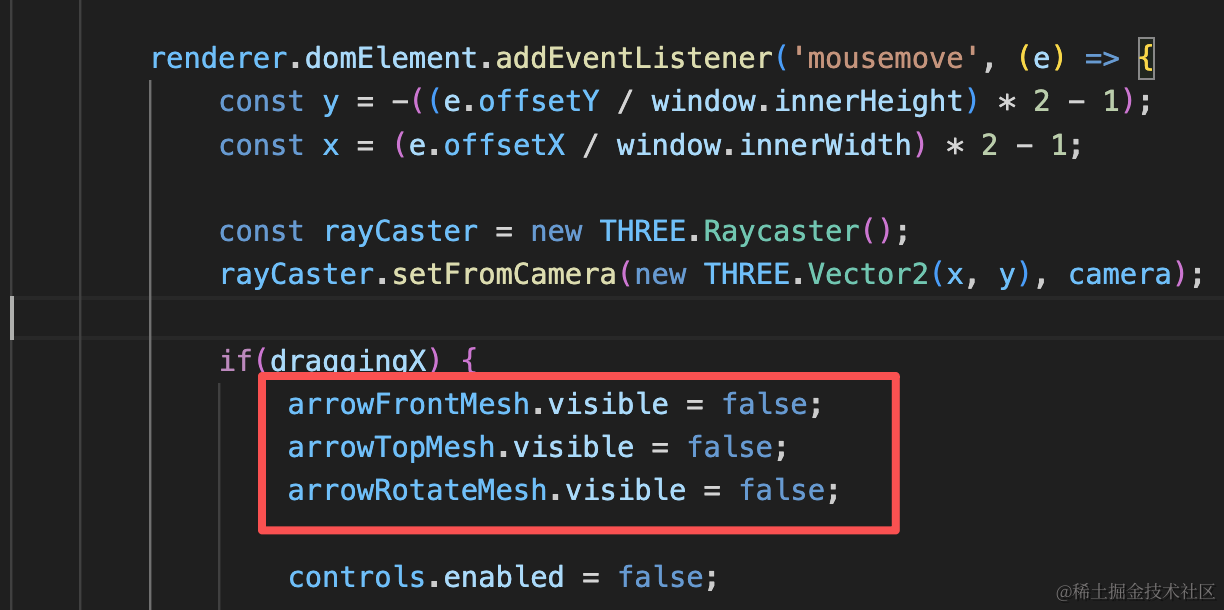
arrowFrontMesh.visible = false;
arrowTopMesh.visible = false;
arrowRotateMesh.visible = false;
mouseup 的时候恢复:
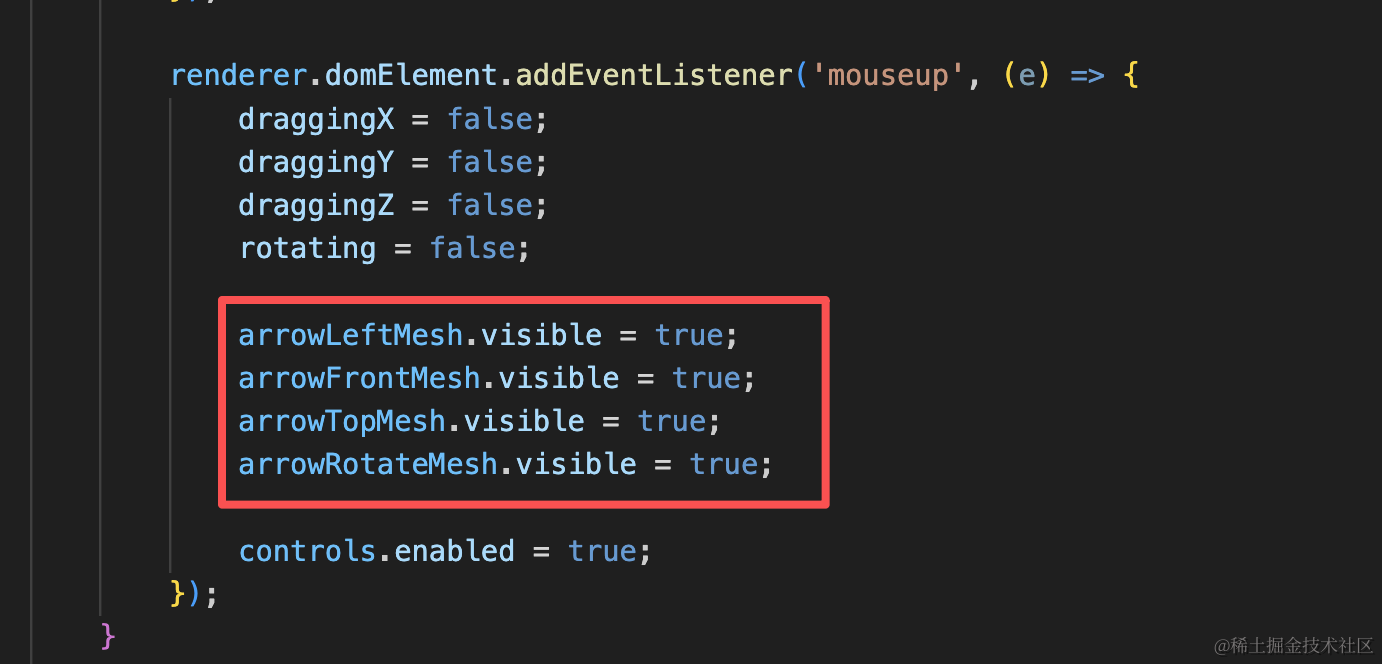
arrowLeftMesh.visible = true;
arrowFrontMesh.visible = true;
arrowTopMesh.visible = true;
arrowRotateMesh.visible = true;
试一下:
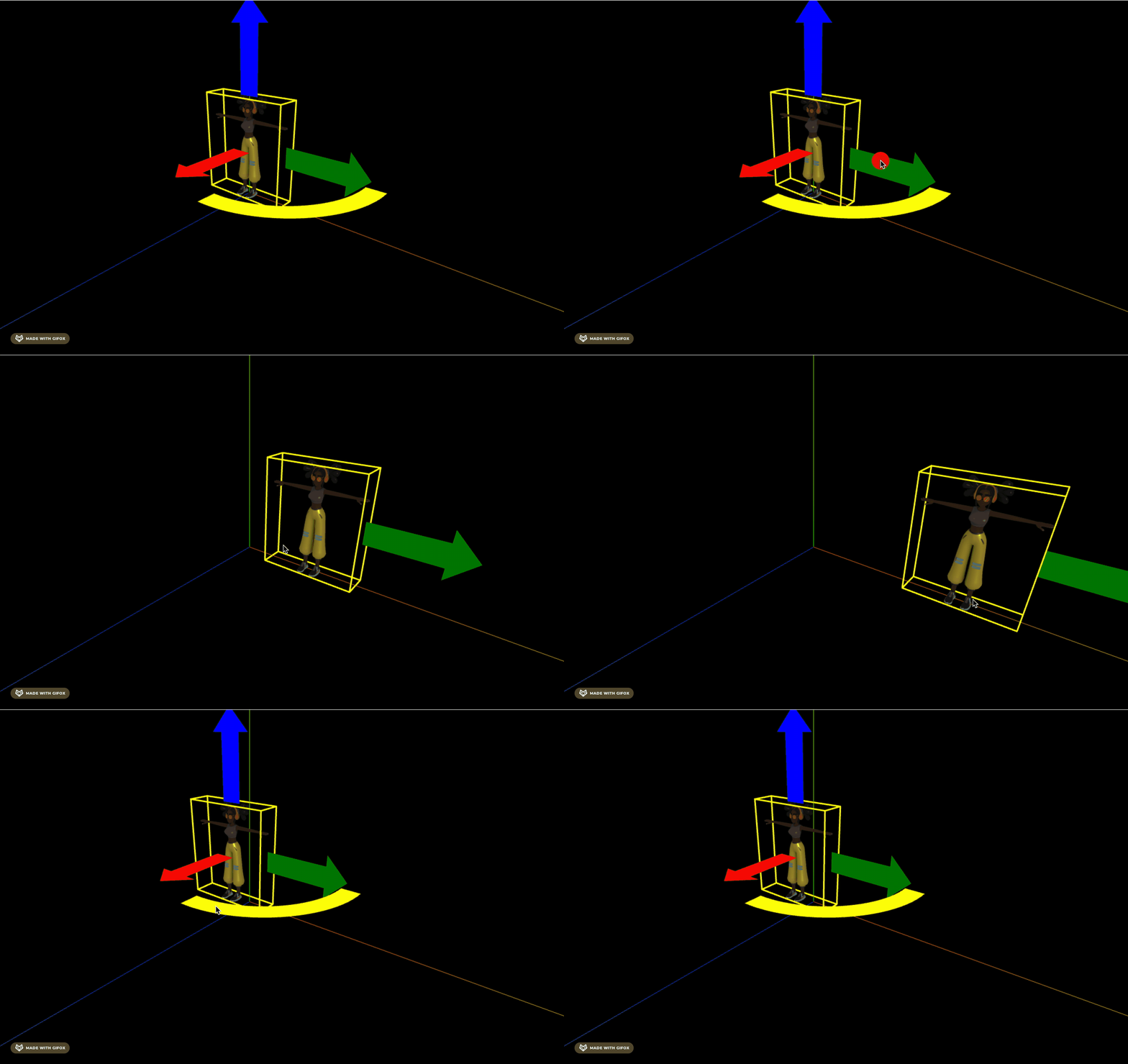
这个方向的效果没问题。
然后把其余三个箭头的也加一下:
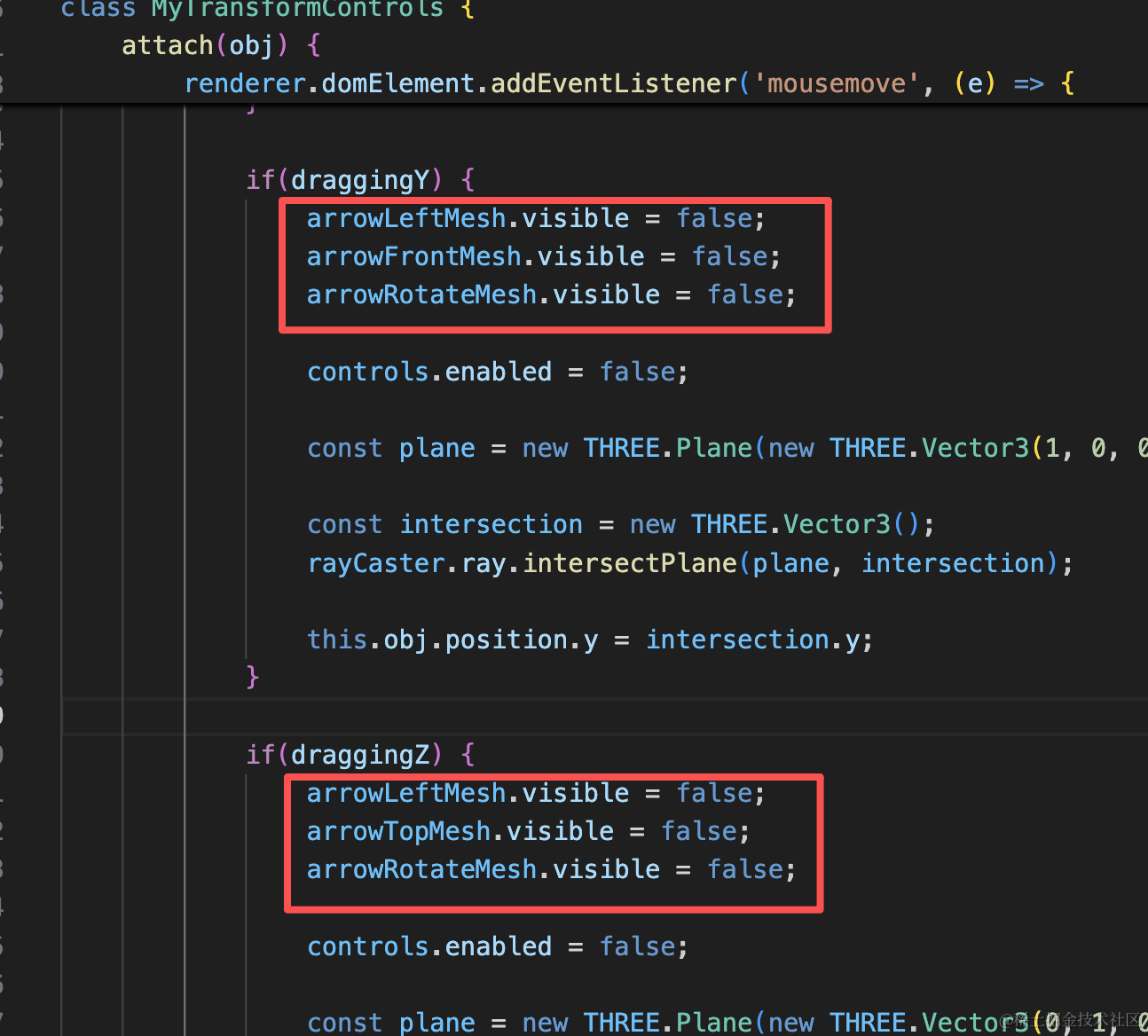
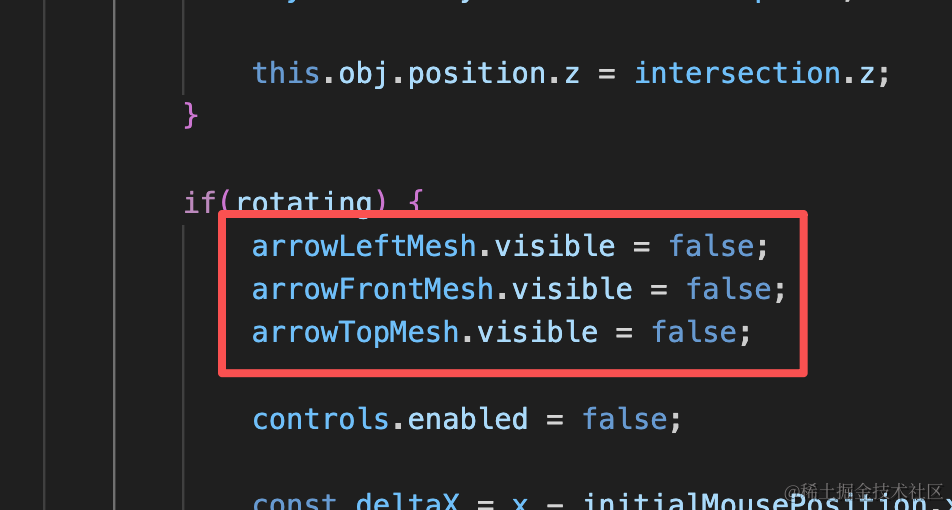
if(draggingY) {
    arrowLeftMesh.visible = false;
    arrowFrontMesh.visible = false;
arrowRotateMesh.visible = false;if(draggingZ) {
arrowLeftMesh.visible = false;
arrowTopMesh.visible = false;
arrowRotateMesh.visible = false;if(rotating) {
arrowLeftMesh.visible = false;
arrowFrontMesh.visible = false;
arrowTopMesh.visible = false;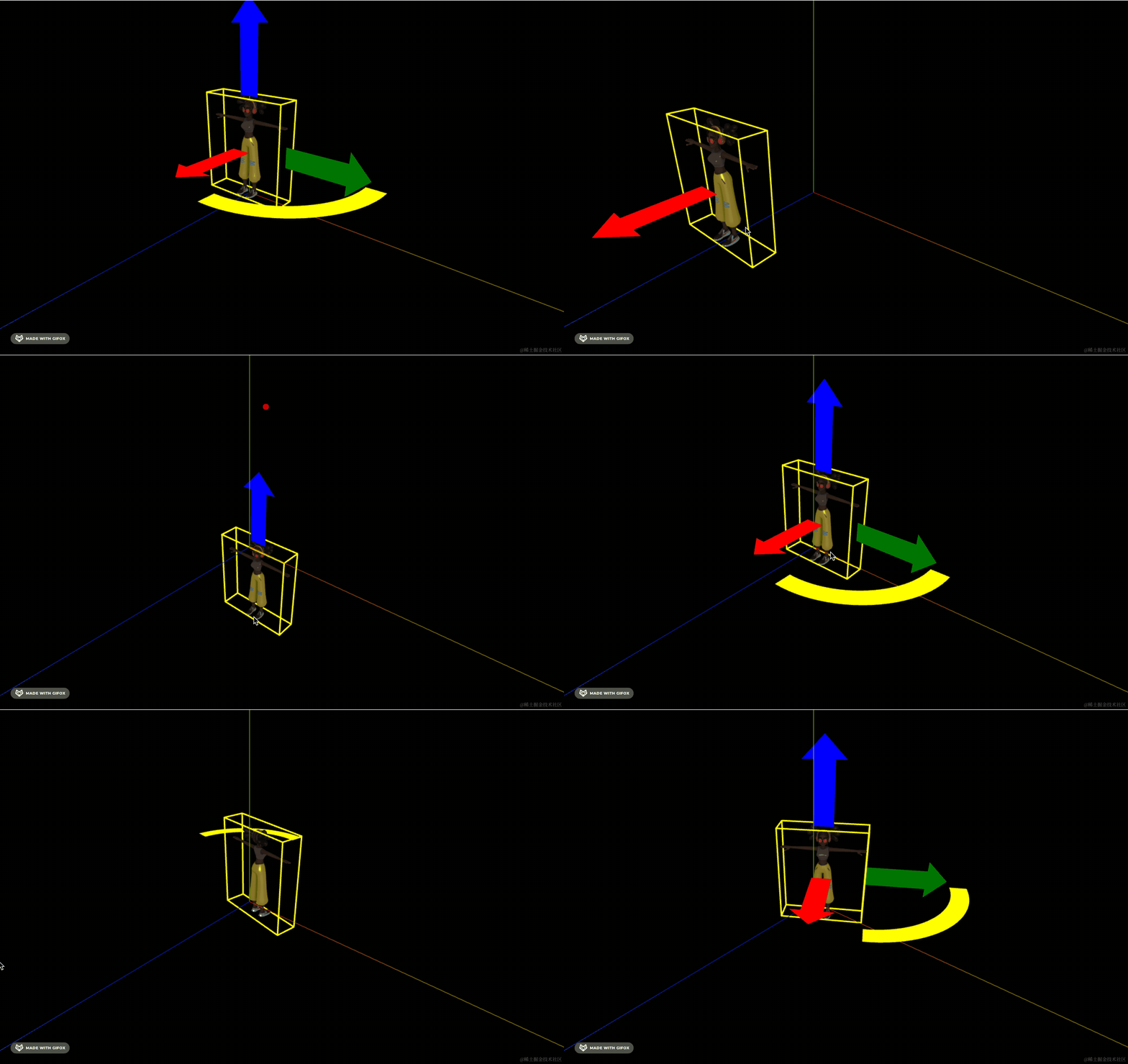
这样,我们自己实现的仿酷家乐控制器就完成了。
当然,很多细节不一样,这些可以自己完善,核心还是交互逻辑。
案例代码上传了小册仓库
总结
这节我们实现了拖拽旋转的功能。
mousedown 的时候,如果是选中了黄色箭头,就加一个 rotating 状态。
记录最开始的位置和旋转角度。
mousemove 的时候,根据鼠标在水平方向移动的距离来改变 rotation.y 角度
这样就实现了拖拽旋转的功能。
然后我们又优化了一下细节,选中一个箭头的时候,其余箭头隐藏。
这样,我们的仿酷家乐控制器就完成了。
如果你觉得内置的 TransformControls 不好用的时候,也可以根据自己的需求来写一个。