上节实现了跳跃:
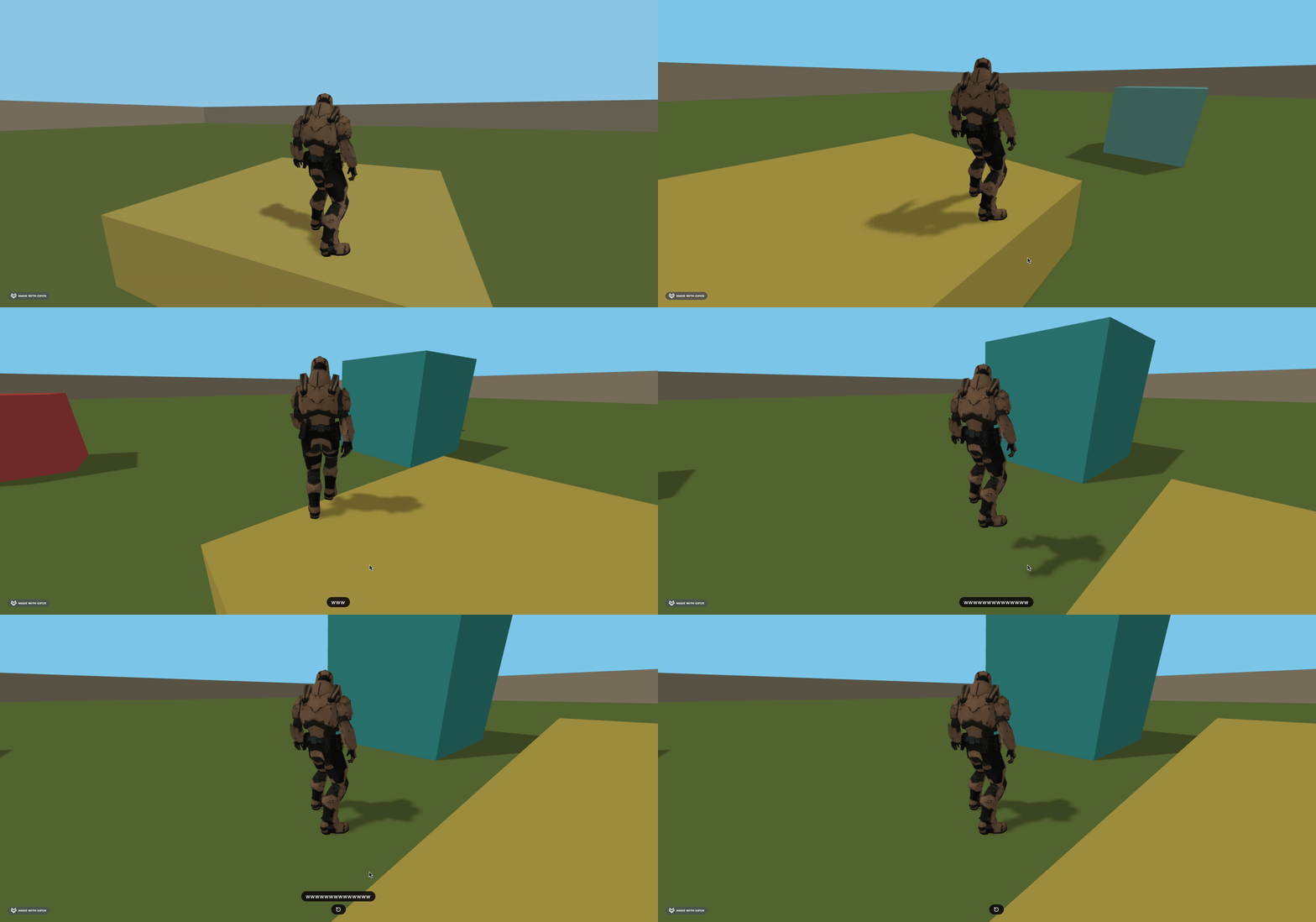
这节我们来做更多的交互。
现实中人走到台阶会自动上台阶,但是现在我们得跳一下才能上去。
如何实现上台阶的效果呢?
最简单的方案就是视觉上是台阶,但物理世界的刚体用斜坡来实现。
我们先画一个台阶和平台:
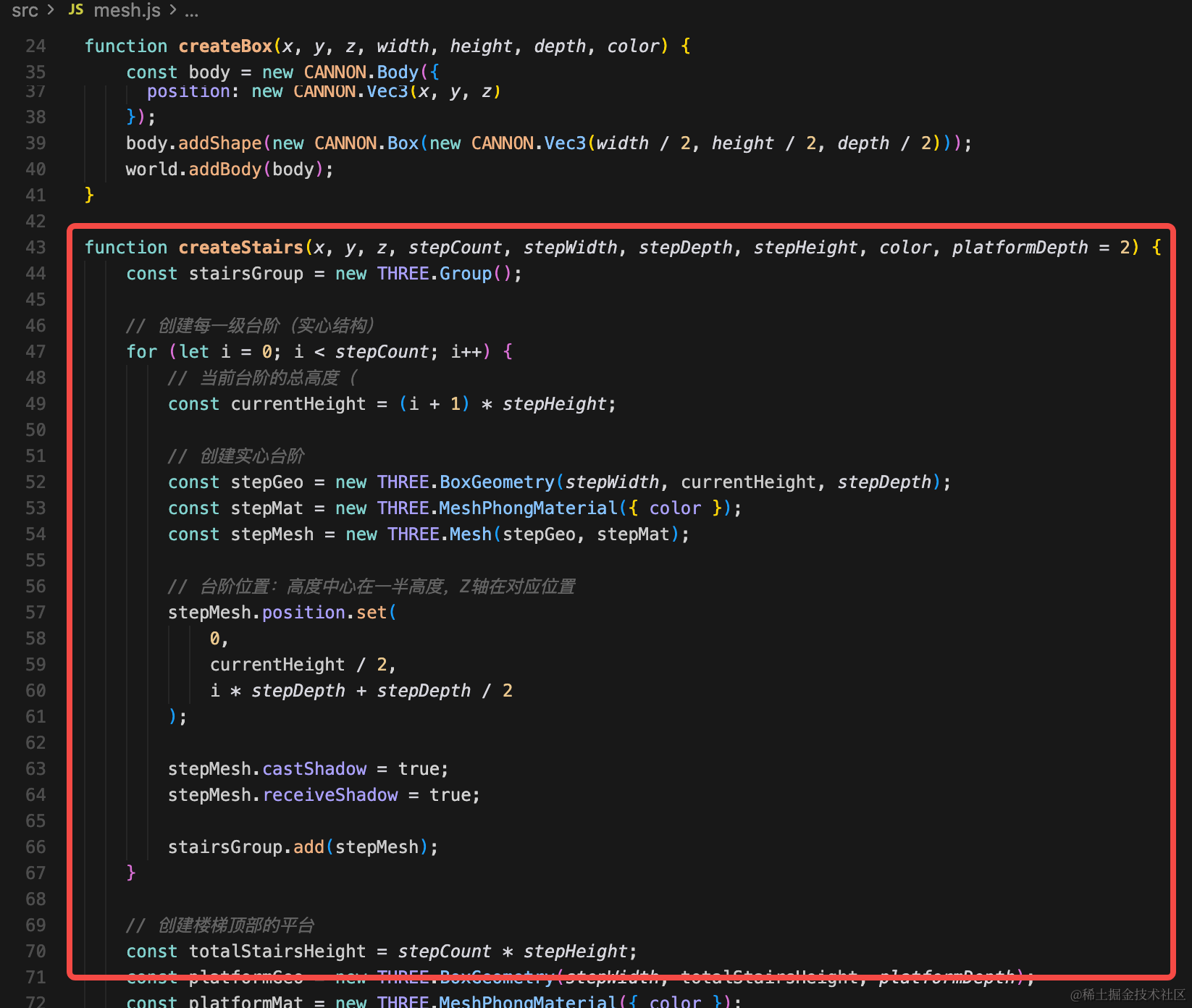
function createStairs(x, y, z, stepCount, stepWidth, stepDepth, stepHeight, color, platformDepth = 2) {
    const stairsGroup = new THREE.Group();

    // 创建每一级台阶(实心结构)
    for (let i = 0; i < stepCount; i++) {
        // 当前台阶的总高度(
        const currentHeight = (i + 1) * stepHeight;

        // 创建实心台阶
        const stepGeo = new THREE.BoxGeometry(stepWidth, currentHeight, stepDepth);
        const stepMat = new THREE.MeshPhongMaterial({ color });
        const stepMesh = new THREE.Mesh(stepGeo, stepMat);

        // 台阶位置:高度中心在一半高度,Z轴在对应位置
        stepMesh.position.set(
            0,
            currentHeight / 2,
            i * stepDepth + stepDepth / 2
        );

        stepMesh.castShadow = true;
        stepMesh.receiveShadow = true;

        stairsGroup.add(stepMesh);
    }

    // 创建楼梯顶部的平台
    const totalStairsHeight = stepCount * stepHeight;
    const platformGeo = new THREE.BoxGeometry(stepWidth, totalStairsHeight, platformDepth);
    const platformMat = new THREE.MeshPhongMaterial({ color });
    const platformMesh = new THREE.Mesh(platformGeo, platformMat);

    platformMesh.position.set(
        0,
        totalStairsHeight / 2,
        stepCount * stepDepth + platformDepth / 2
    );

    platformMesh.castShadow = true;
    platformMesh.receiveShadow = true;

    stairsGroup.add(platformMesh);

    stairsGroup.position.set(x, y, z);
    group.add(stairsGroup);
}

// 创建楼梯
// createStairs(x, y, z, 台阶数量, 台阶宽度, 台阶深度, 台阶高度, 颜色, 平台深度)
createStairs(10, 0, 10, 10, 4, 0.5, 0.2, 0x8b7355, 10);
先看下效果再说:
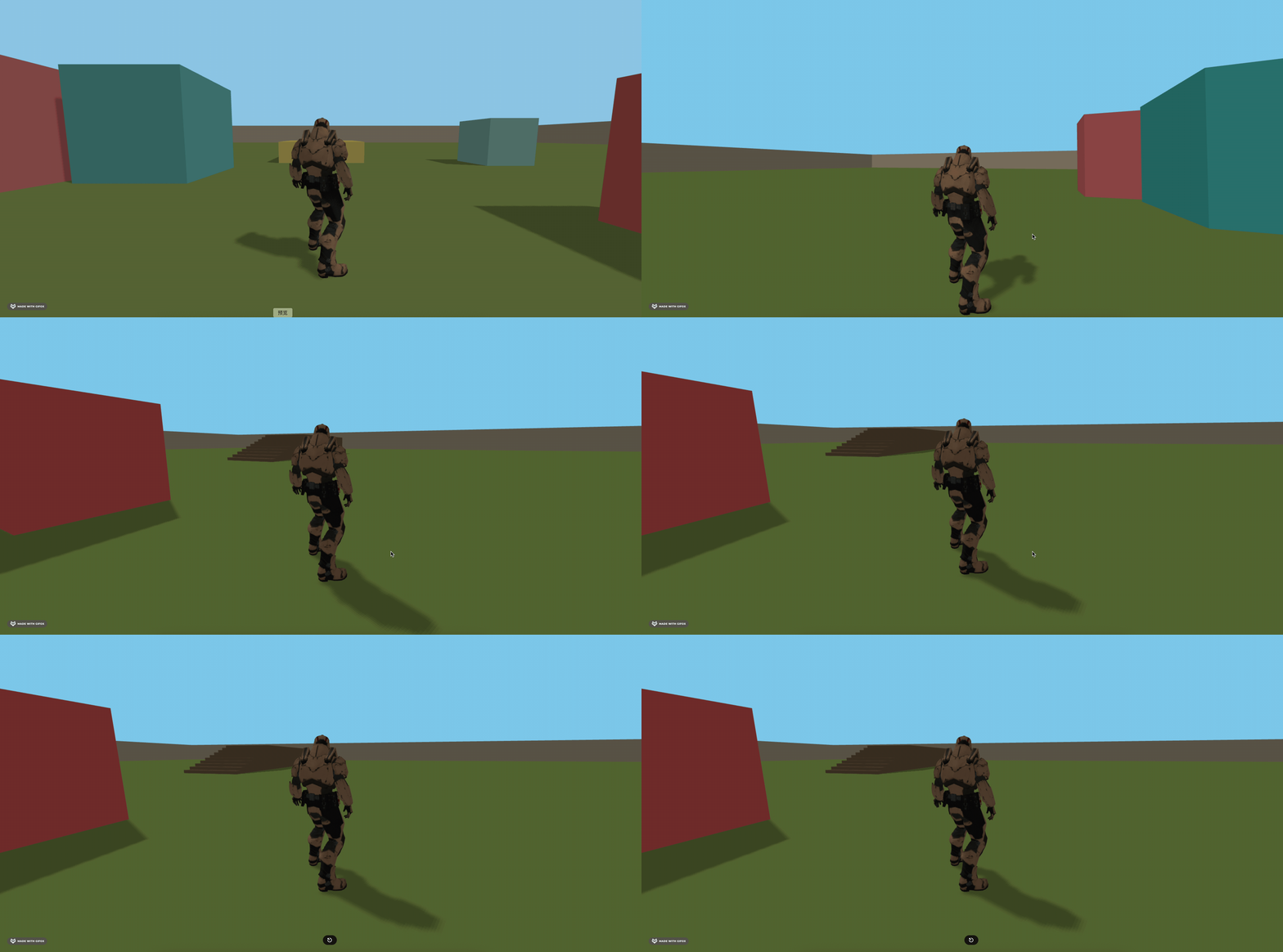
可以看到,有一个台阶,然后上了台阶有个平台。
画这些自然要用 BoxGeometry。
过程比较简单:
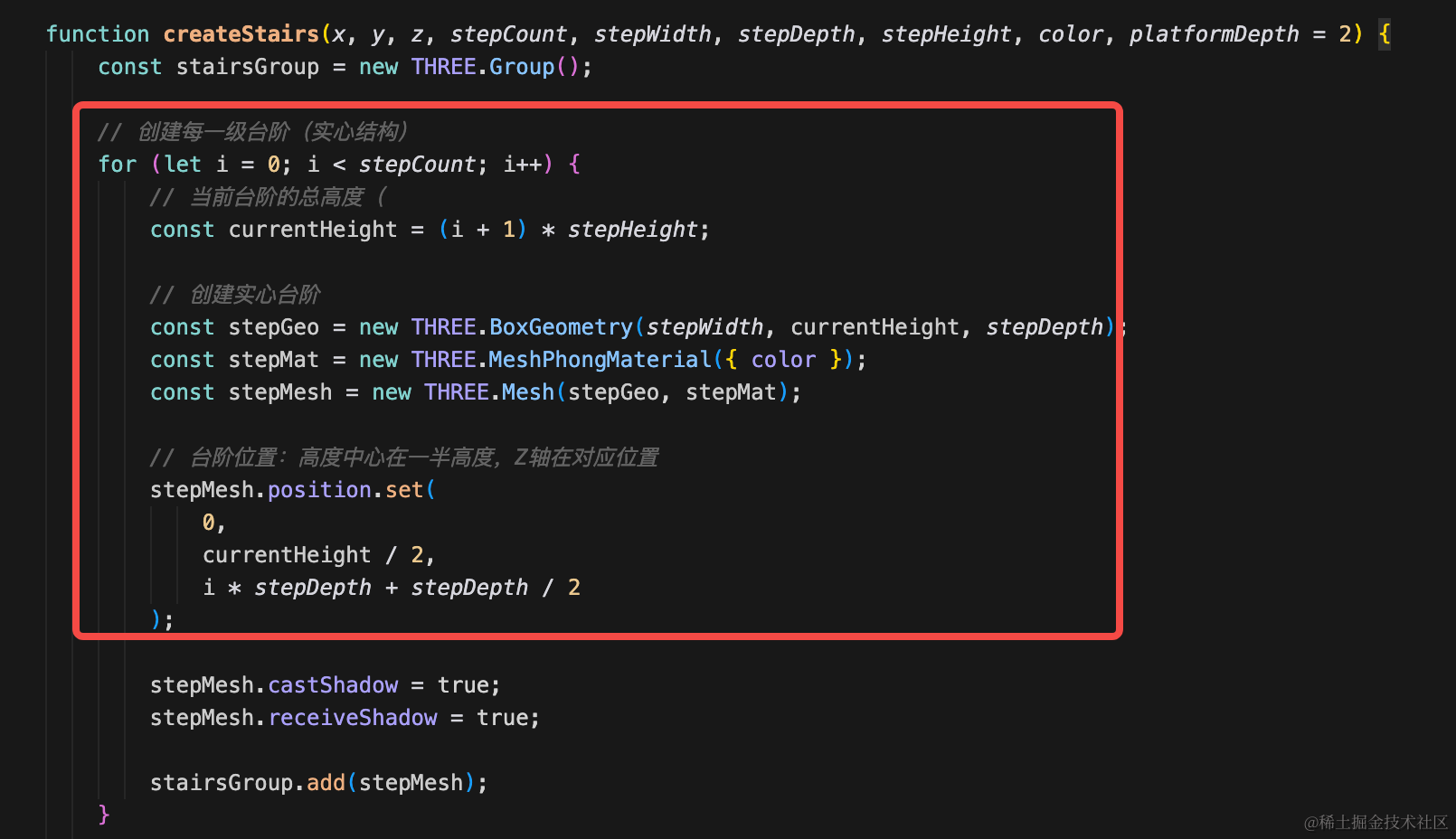
循环画每一级台阶,并设置位置:
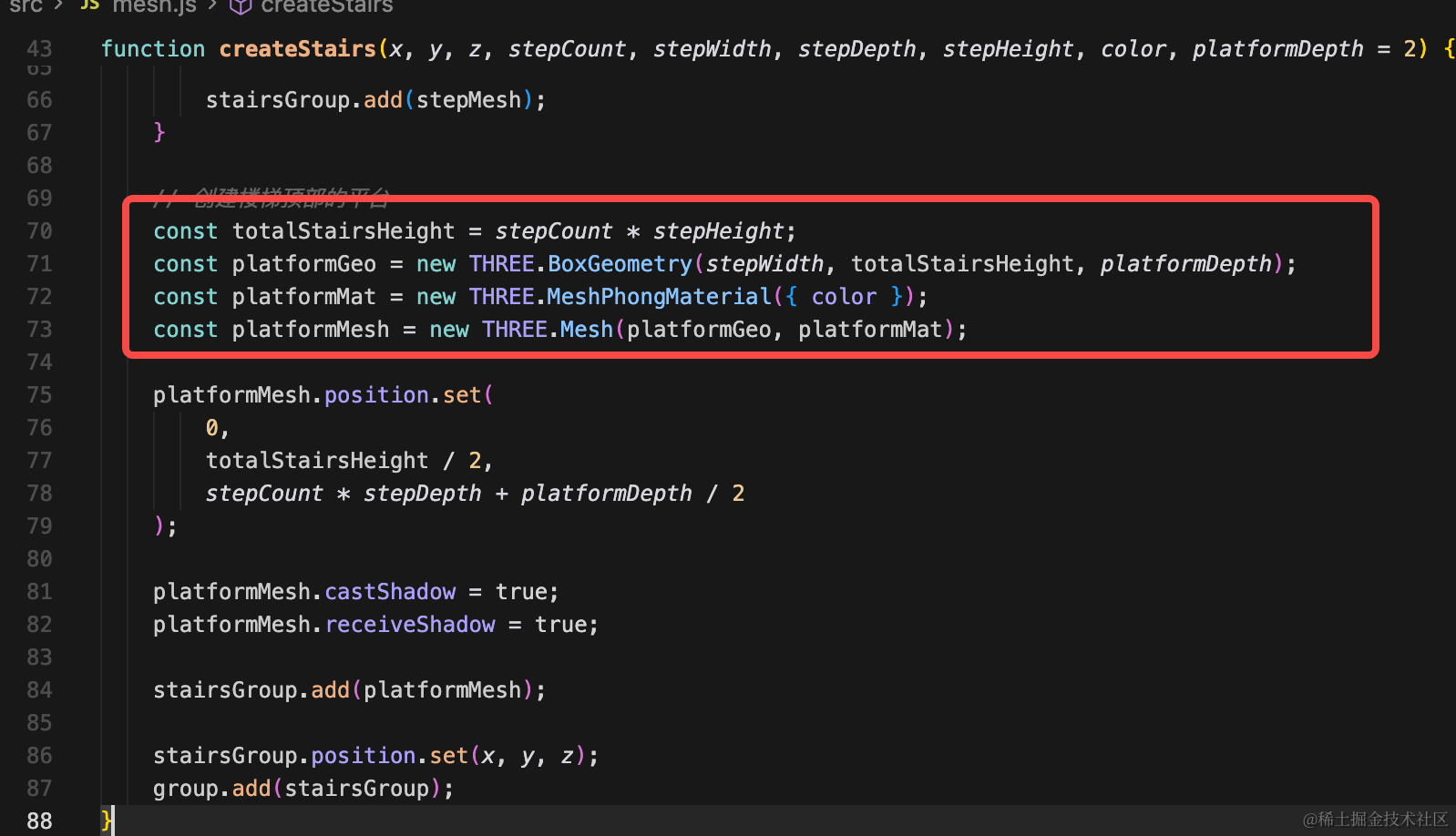
然后画上面那个平台:
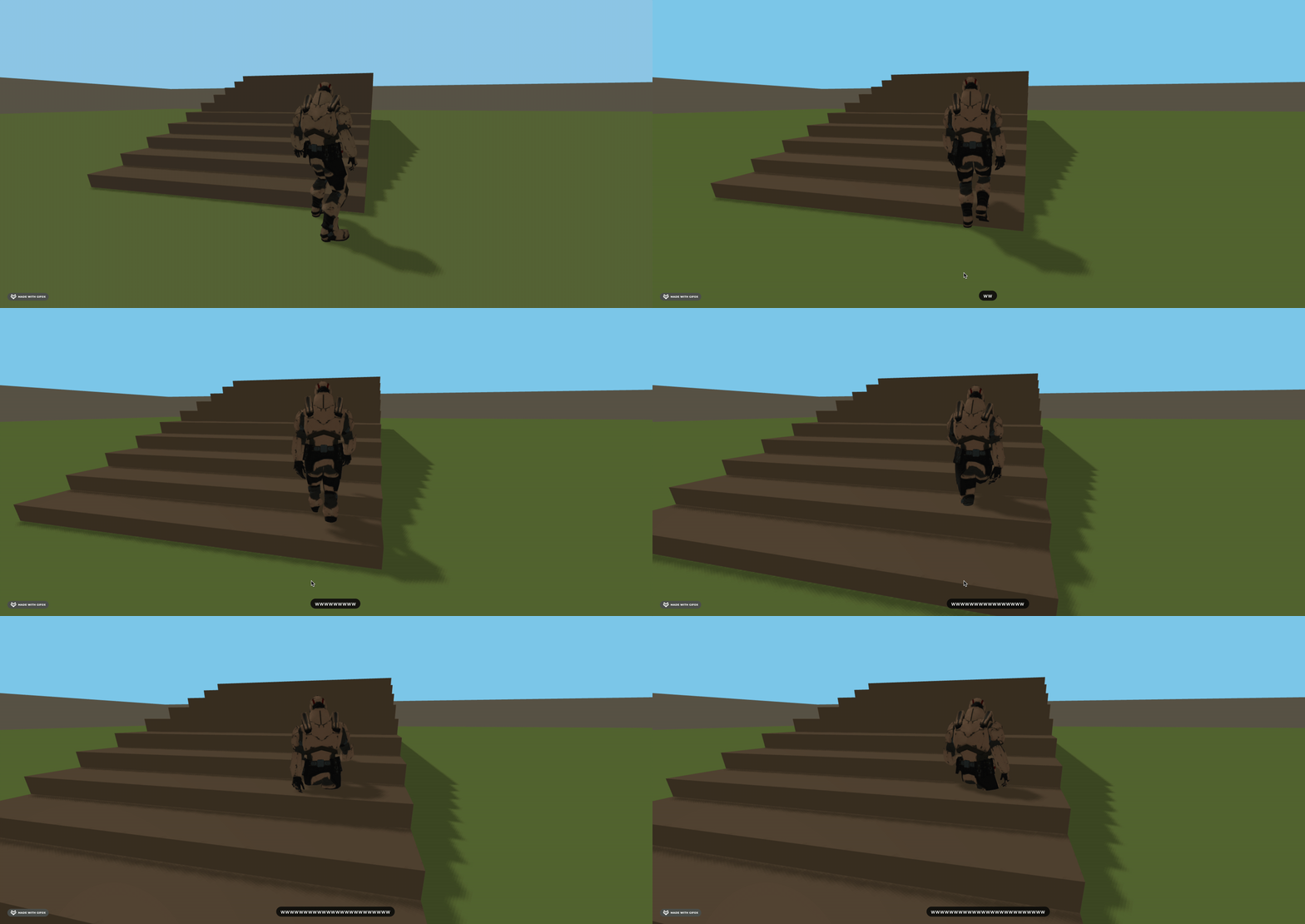
现在只有视觉效果,物理世界里是没有的。
所以人现在可以穿过它:
接下来在物理世界添加台阶和平台的刚体。
我们直接用斜坡来做:
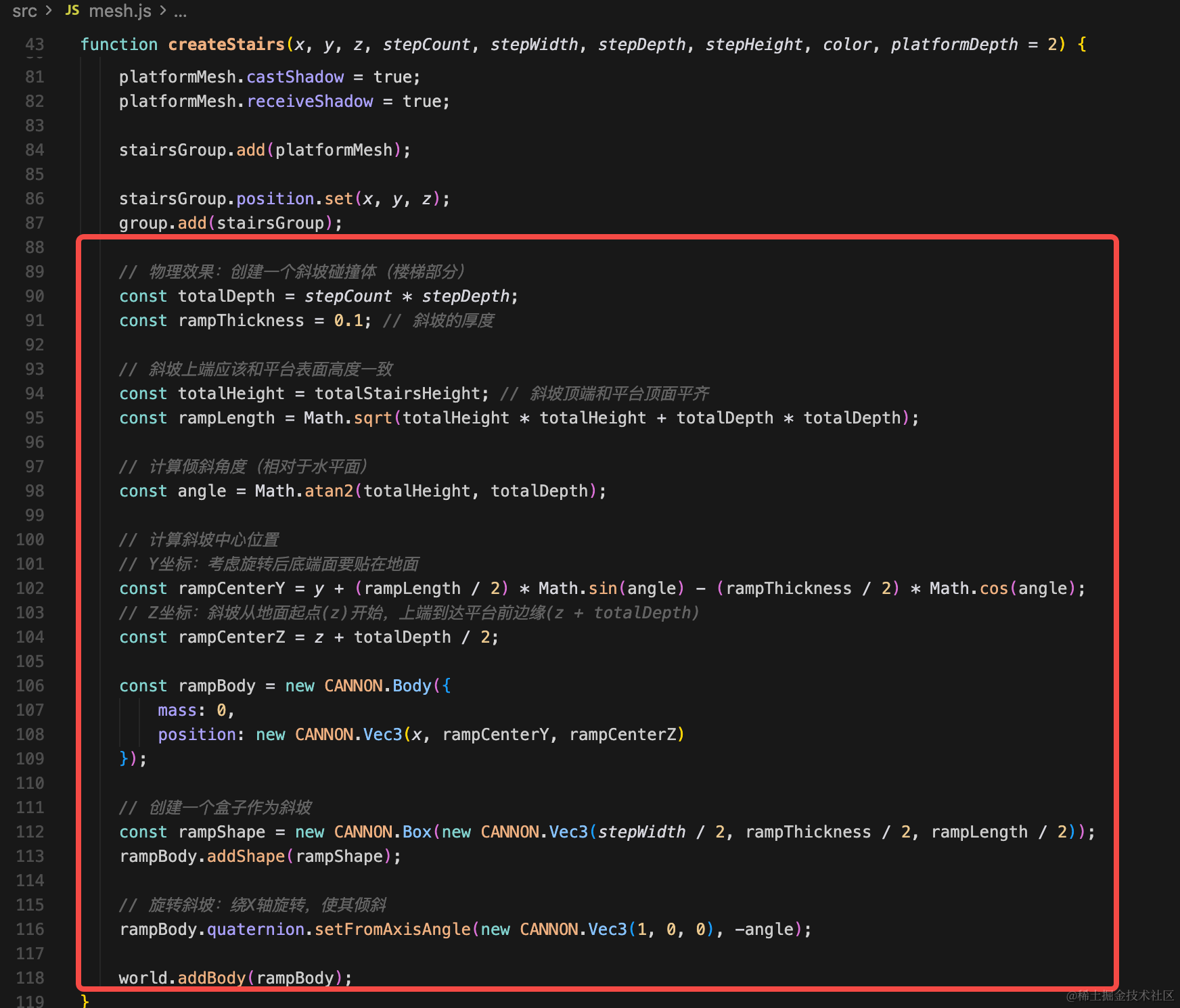
其实核心就是一个 Box,然后旋转下。
厚度很小,0.1
上面的高度就是台阶的数量 * 台阶高度。
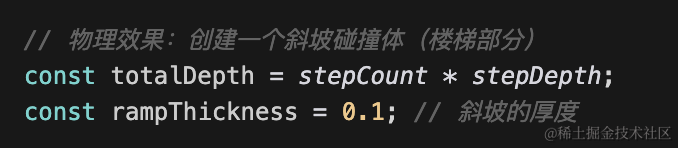
平台的高度,就是台阶顶部的高度。
这里求斜边长度用到了勾股定理:
斜边² = 竖直边² + 水平边²
也就是这样:

求角度用反正切:

之后用这些算一下位置:
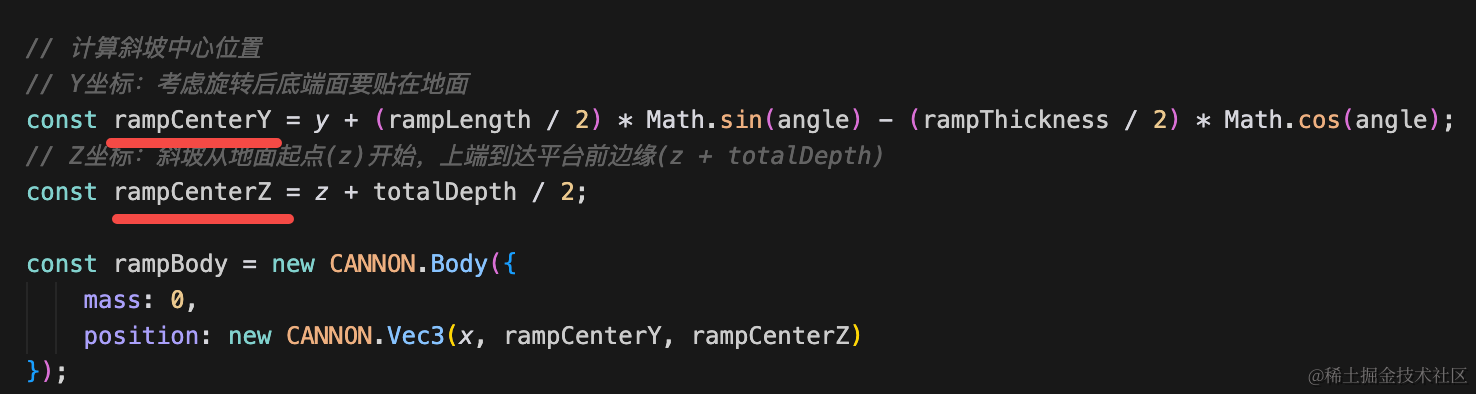
z 比较好理解,中心就是深度的一半。
y 需要计算斜坡长度在 Y 方向的投影的一半:
(rampLength / 2) * Math.sin(angle)
减去斜坡厚度在 Y 方向的投影的一半
(rampThickness / 2) * Math.cos(angle)
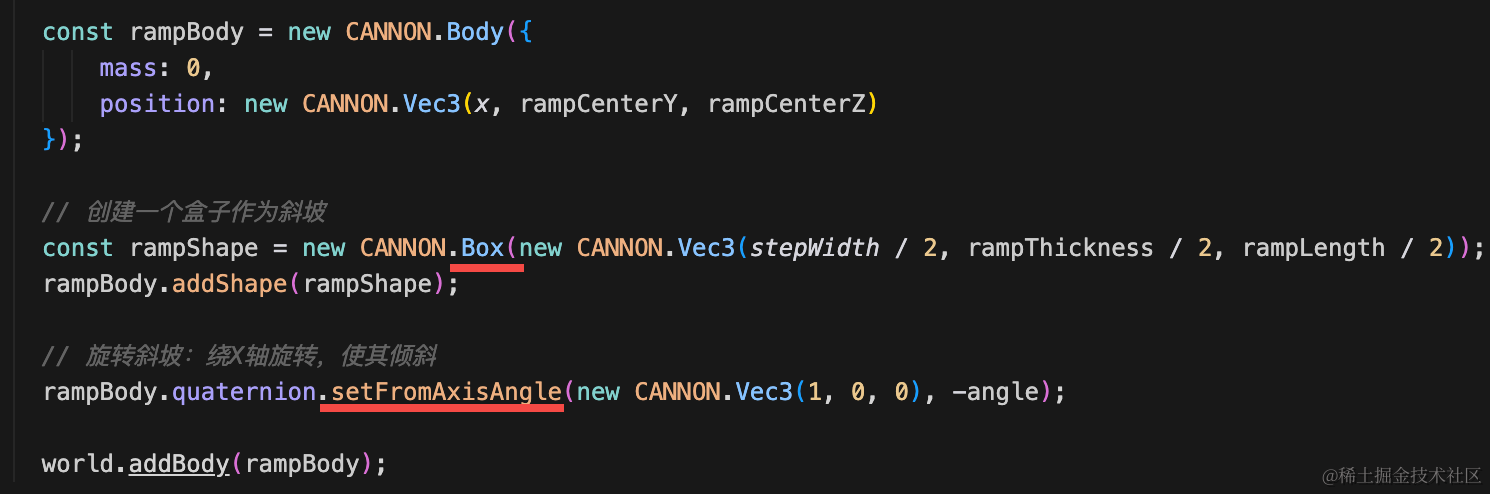
最后把这个 Box 画出来,旋转下:
// 物理效果:创建一个斜坡碰撞体(楼梯部分)
const totalDepth = stepCount * stepDepth;
const rampThickness = 0.1; // 斜坡的厚度

// 斜坡上端应该和平台表面高度一致
const totalHeight = totalStairsHeight; // 斜坡顶端和平台顶面平齐
const rampLength = Math.sqrt(totalHeight * totalHeight + totalDepth * totalDepth);

// 计算倾斜角度(相对于水平面)
const angle = Math.atan2(totalHeight, totalDepth);

// 计算斜坡中心位置
// Y坐标:考虑旋转后底端面要贴在地面
const rampCenterY = y + (rampLength / 2) * Math.sin(angle) - (rampThickness / 2) * Math.cos(angle);
// Z坐标:斜坡从地面起点(z)开始,上端到达平台前边缘(z + totalDepth)
const rampCenterZ = z + totalDepth / 2;

const rampBody = new CANNON.Body({
    mass: 0,
    position: new CANNON.Vec3(x, rampCenterY, rampCenterZ)
});

// 创建一个盒子作为斜坡
const rampShape = new CANNON.Box(new CANNON.Vec3(stepWidth / 2, rampThickness / 2, rampLength / 2));
rampBody.addShape(rampShape);

// 旋转斜坡:绕X轴旋转,使其倾斜
rampBody.quaternion.setFromAxisAngle(new CANNON.Vec3(1, 0, 0), -angle);

world.addBody(rampBody);
试下效果:
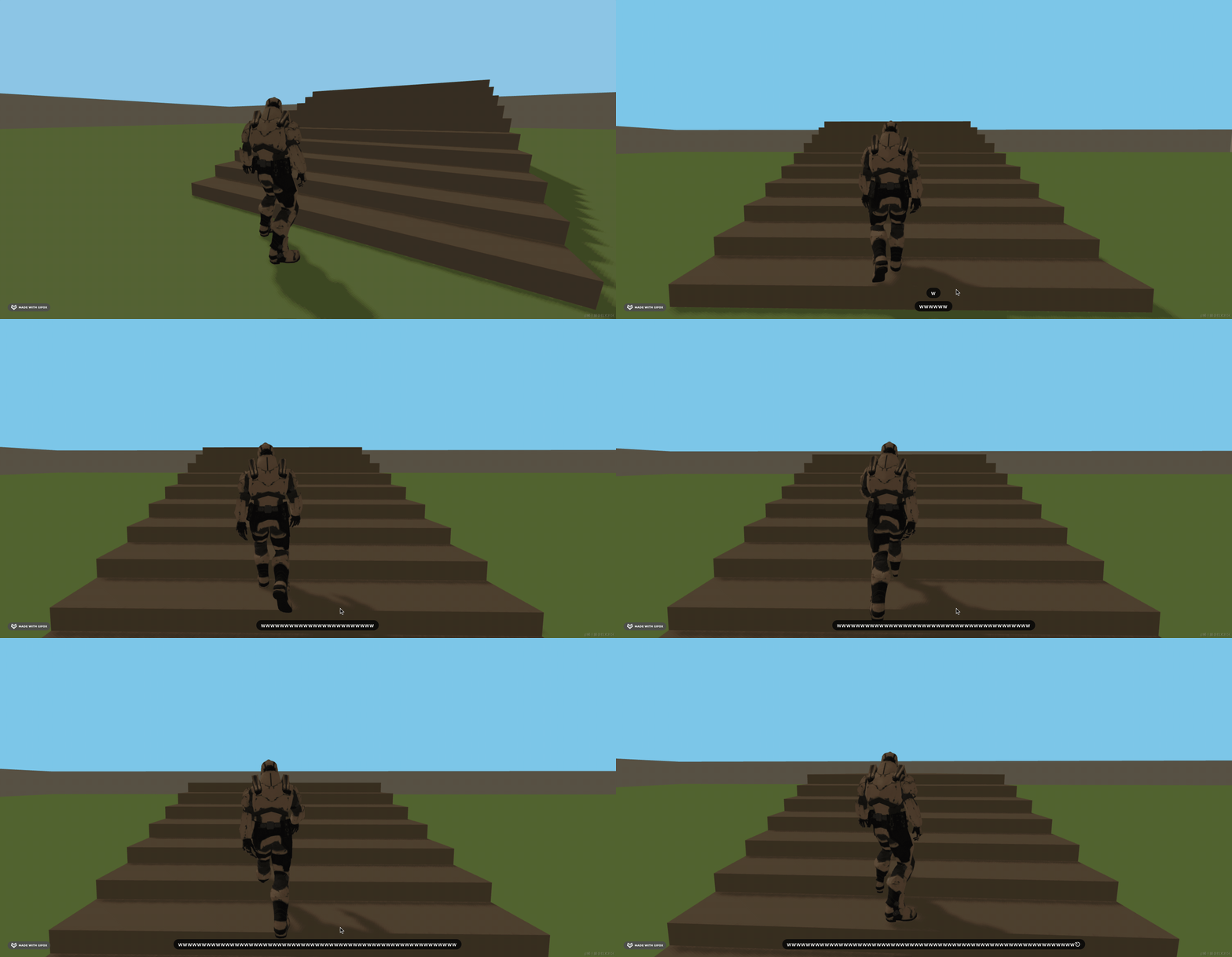
这样,就能上台阶了。
当然,因为视觉上是台阶,但物理世界里是一个斜坡,所以效果不会特别真实,但是还行。
有同学说,这些三角函数的计算太麻烦了,那怎么办?
其实不用计算也行,还记得我们之前都怎么做么?
用 gui 可视化的调!
你可以把它可视化出来:
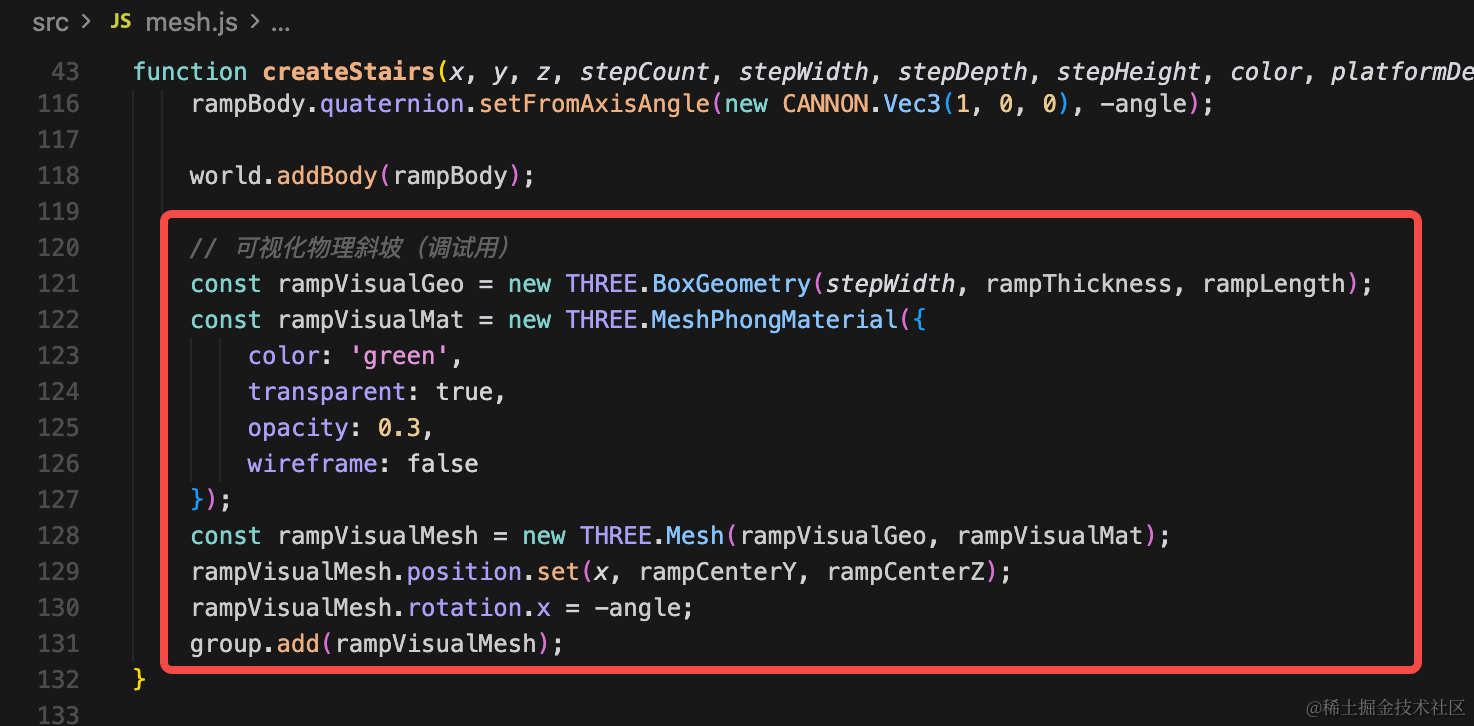
// 可视化物理斜坡(调试用)
const rampVisualGeo = new THREE.BoxGeometry(stepWidth, rampThickness, rampLength);
const rampVisualMat = new THREE.MeshPhongMaterial({
color: 'green',
transparent: true,
opacity: 0.3,
wireframe: false
});
const rampVisualMesh = new THREE.Mesh(rampVisualGeo, rampVisualMat);
rampVisualMesh.position.set(x, rampCenterY, rampCenterZ);
rampVisualMesh.rotation.x = -angle;
group.add(rampVisualMesh);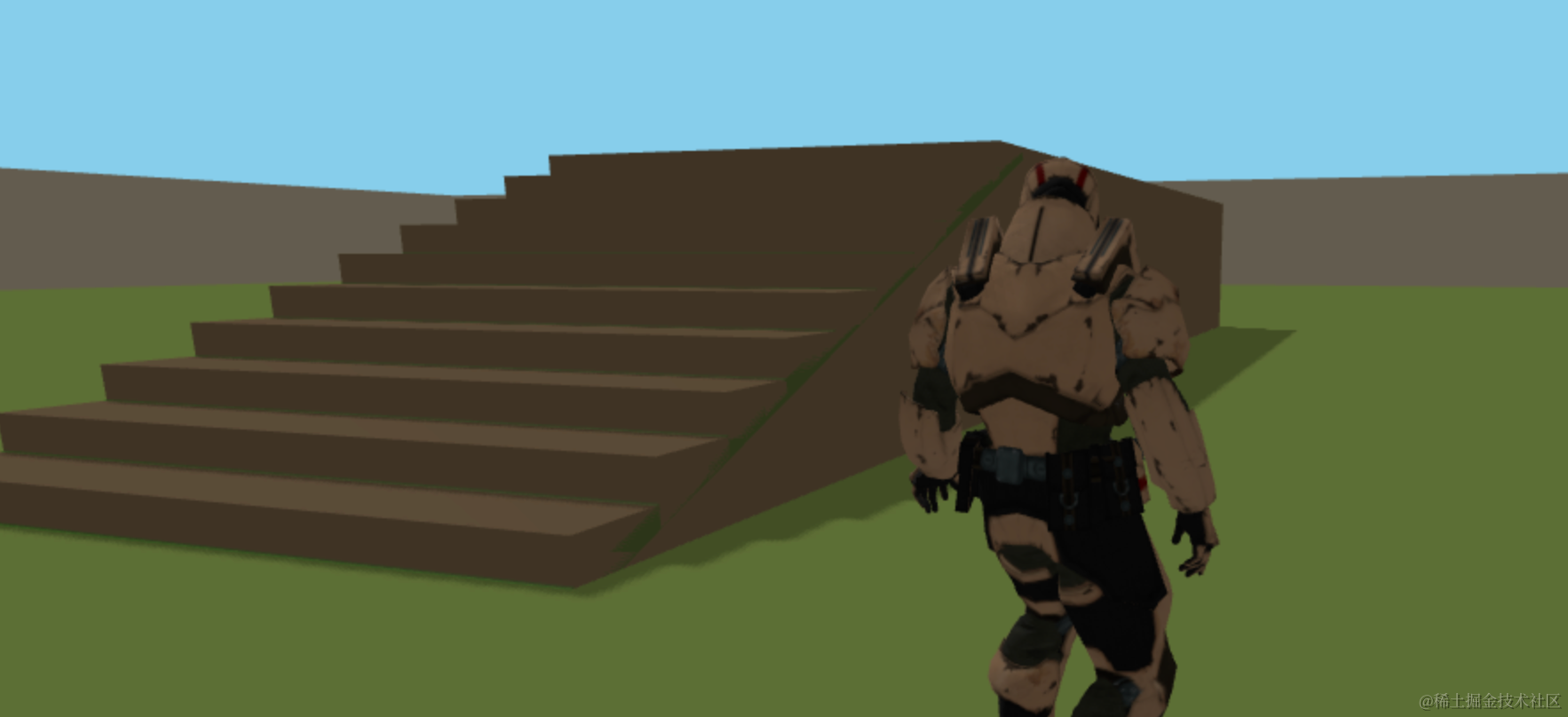 看到那个绿色立方体了么?
直接可视化调数值就行,比如位置、高度、斜坡长度,如果你不会算,就直接调数值!
案例代码上传了小册仓库
总结
这节我们实现了上楼梯的物理效果。
我们是用斜坡的方式来模拟实现的,就是一个 Box,倾斜一下。
整体还是比较真实。
但是数值计算会涉及到比较多三角函数,如果不理解,直接可视化调也可以。