上节标出了国家名字,加上了光圈:
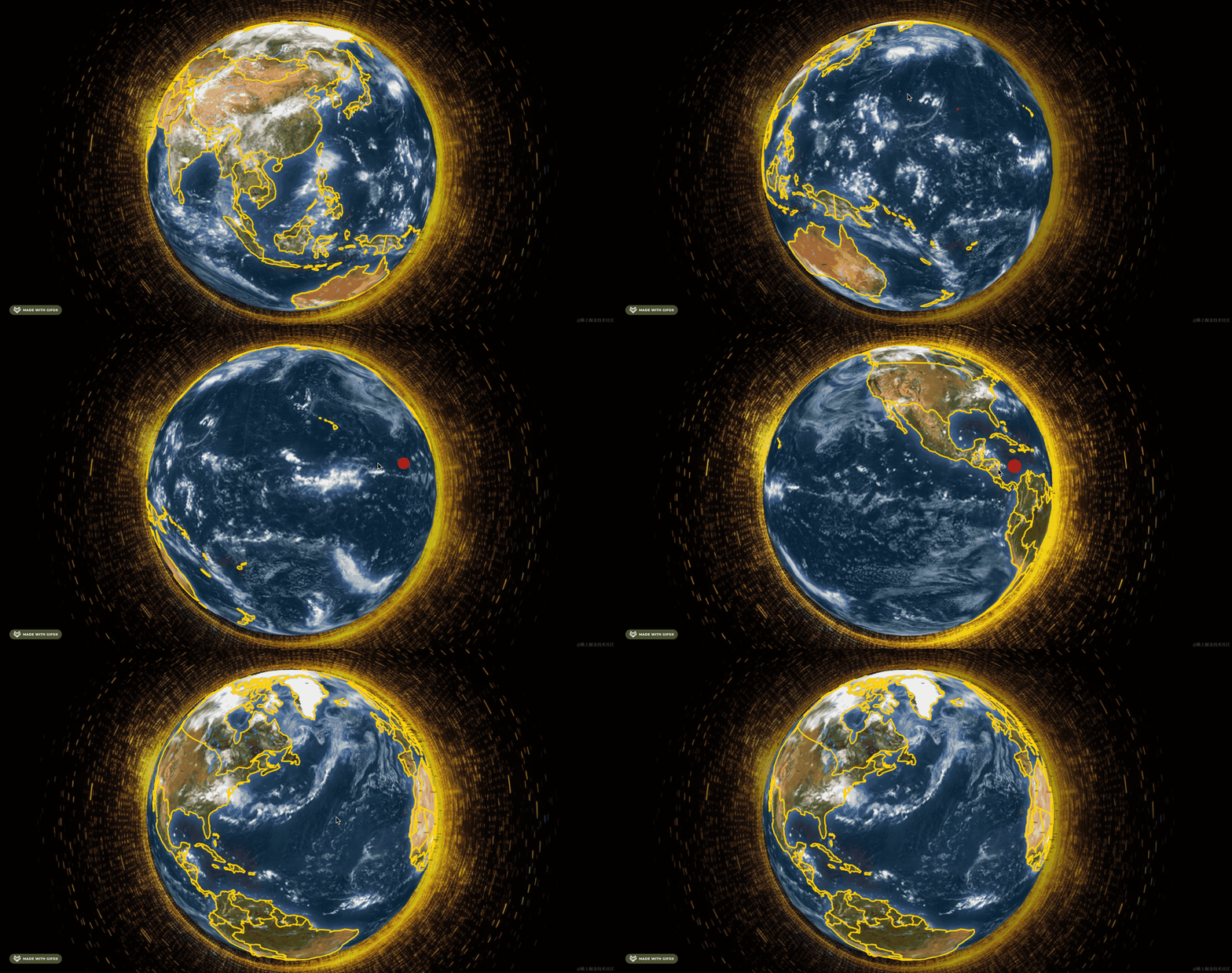
这节我们做一下国家的列表和搜索:
这部分肯定是 div + css 来做。
首先加一下这部分:
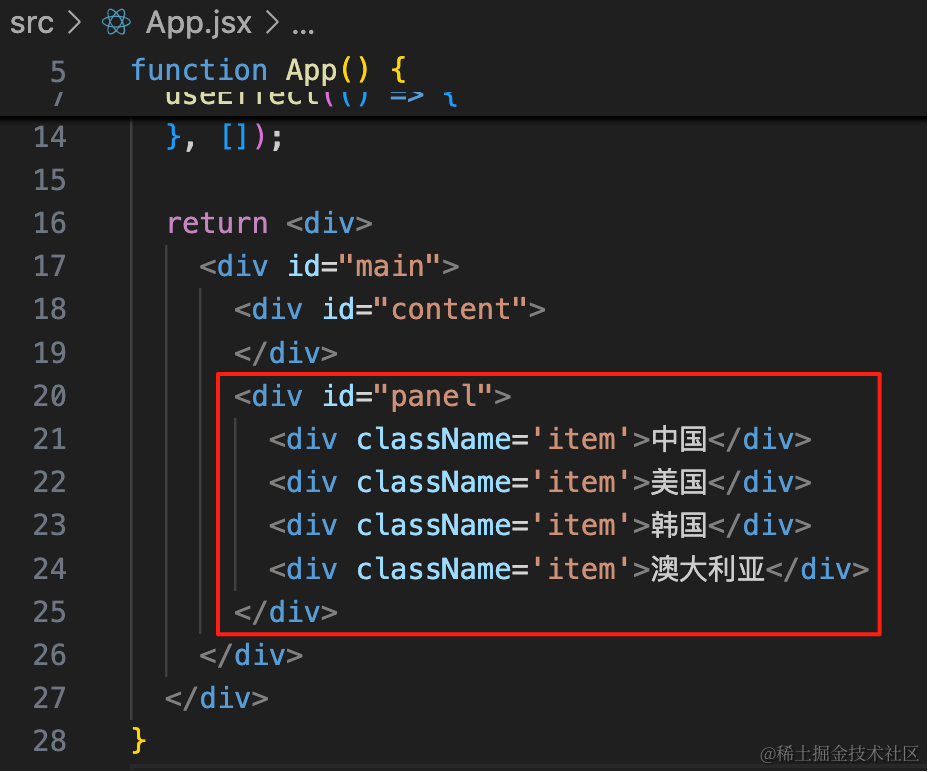
<div id="panel">
    <div className='item'>中国</div>
    <div className='item'>美国</div>
    <div className='item'>韩国</div>
    <div className='item'>澳大利亚</div>
</div>
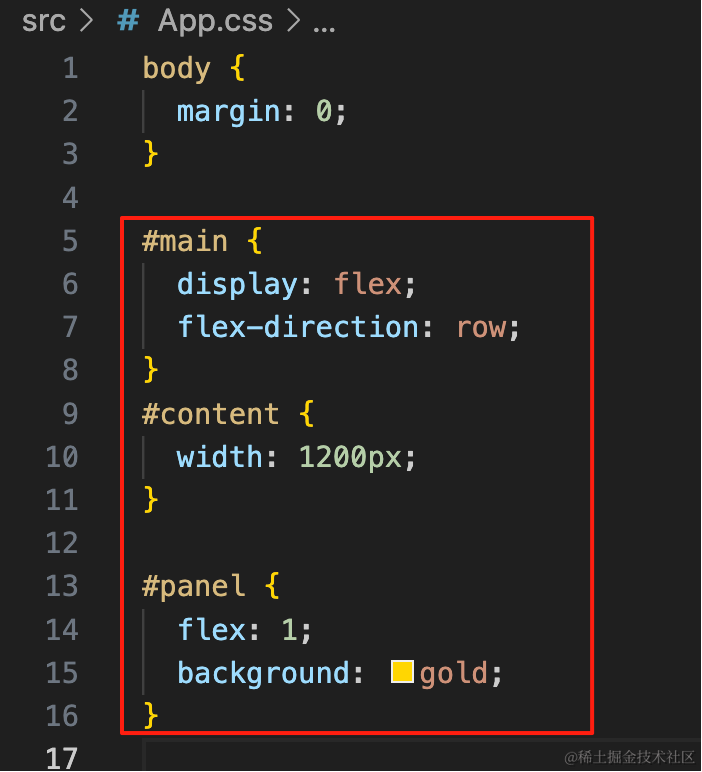
#main {
display: flex;
flex-direction: row;
}
#content {
width: 1200px;
}
#panel {
flex: 1;
background: gold;
}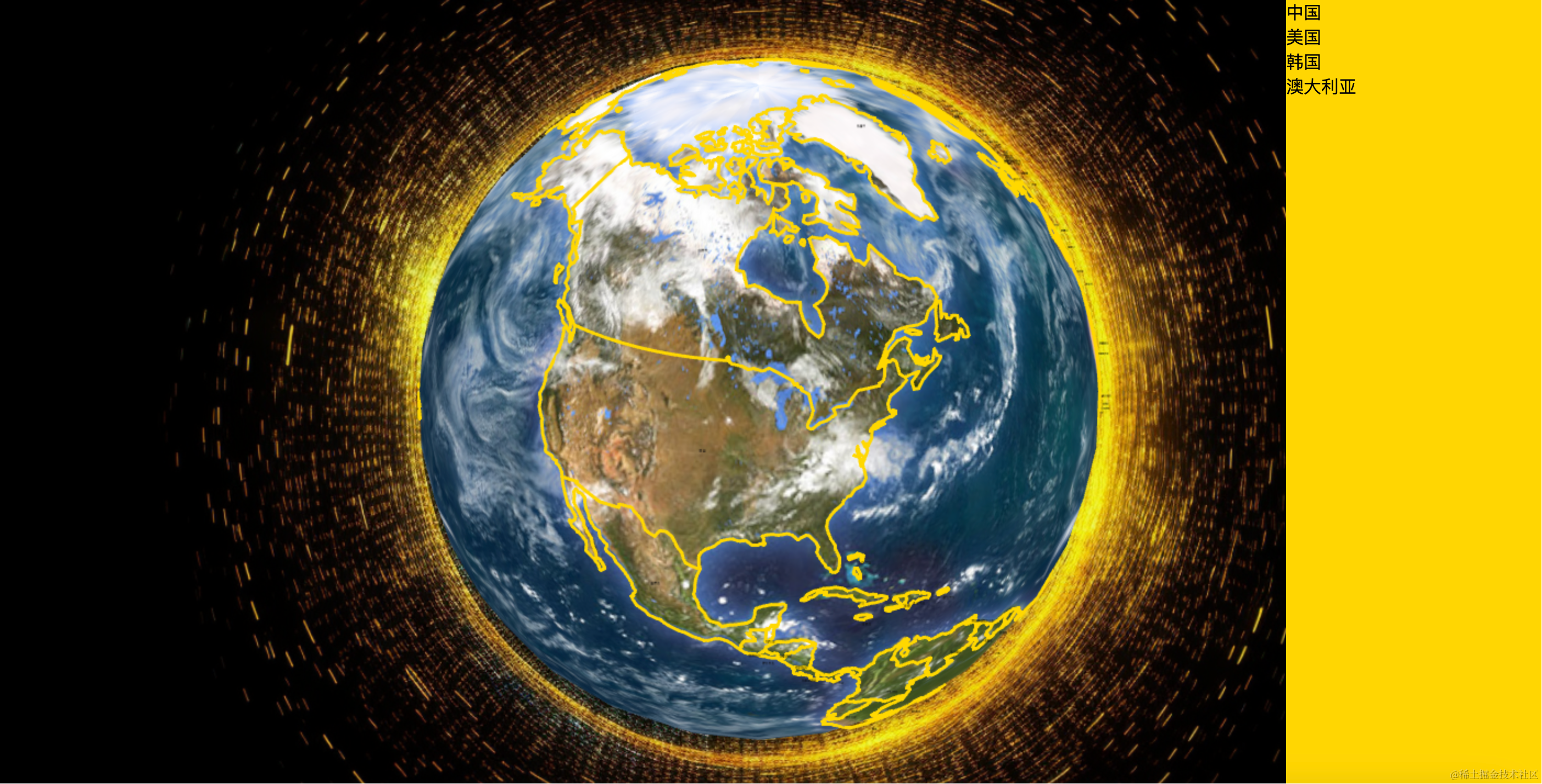
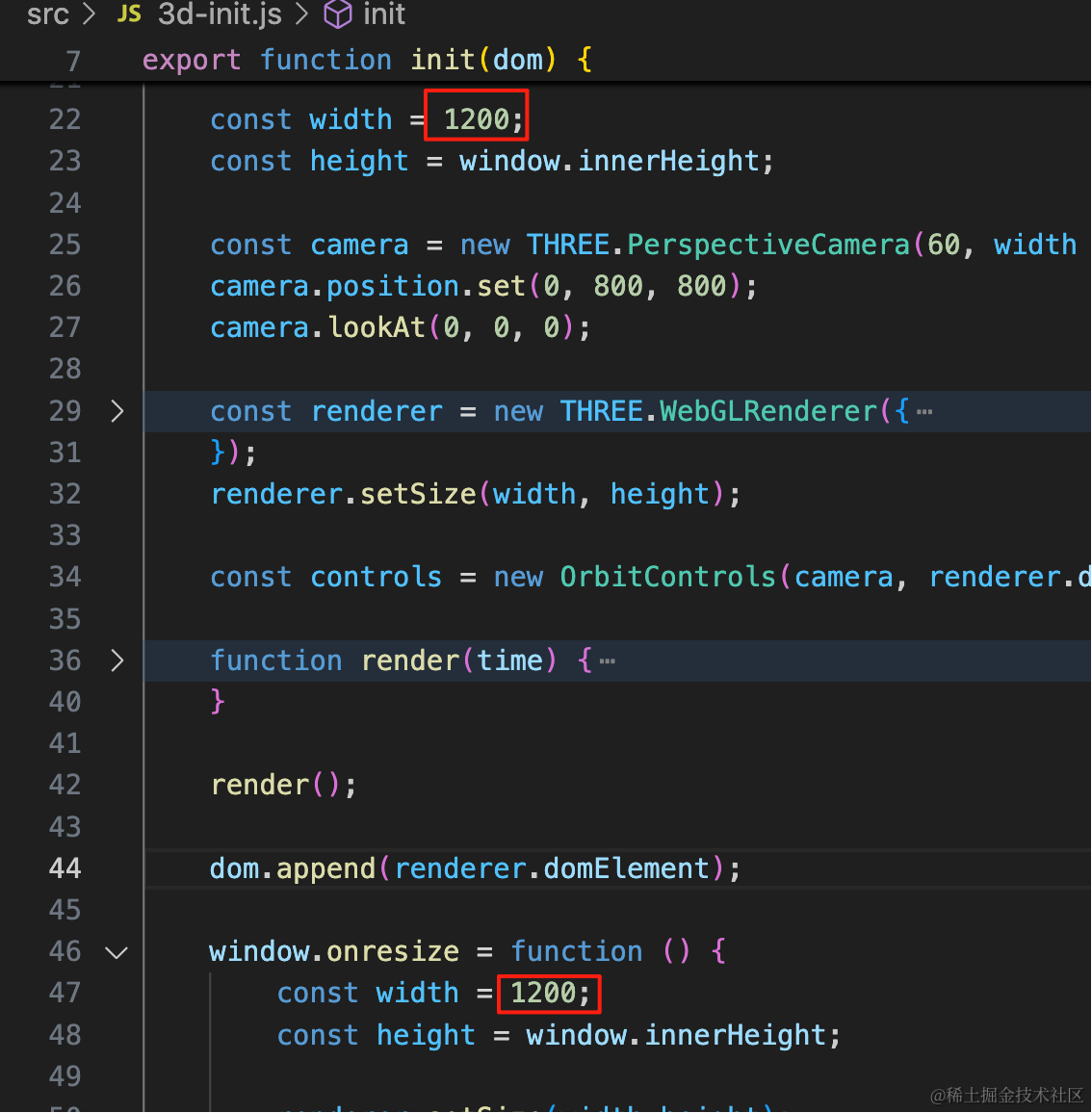
改一下左边的画布宽度:
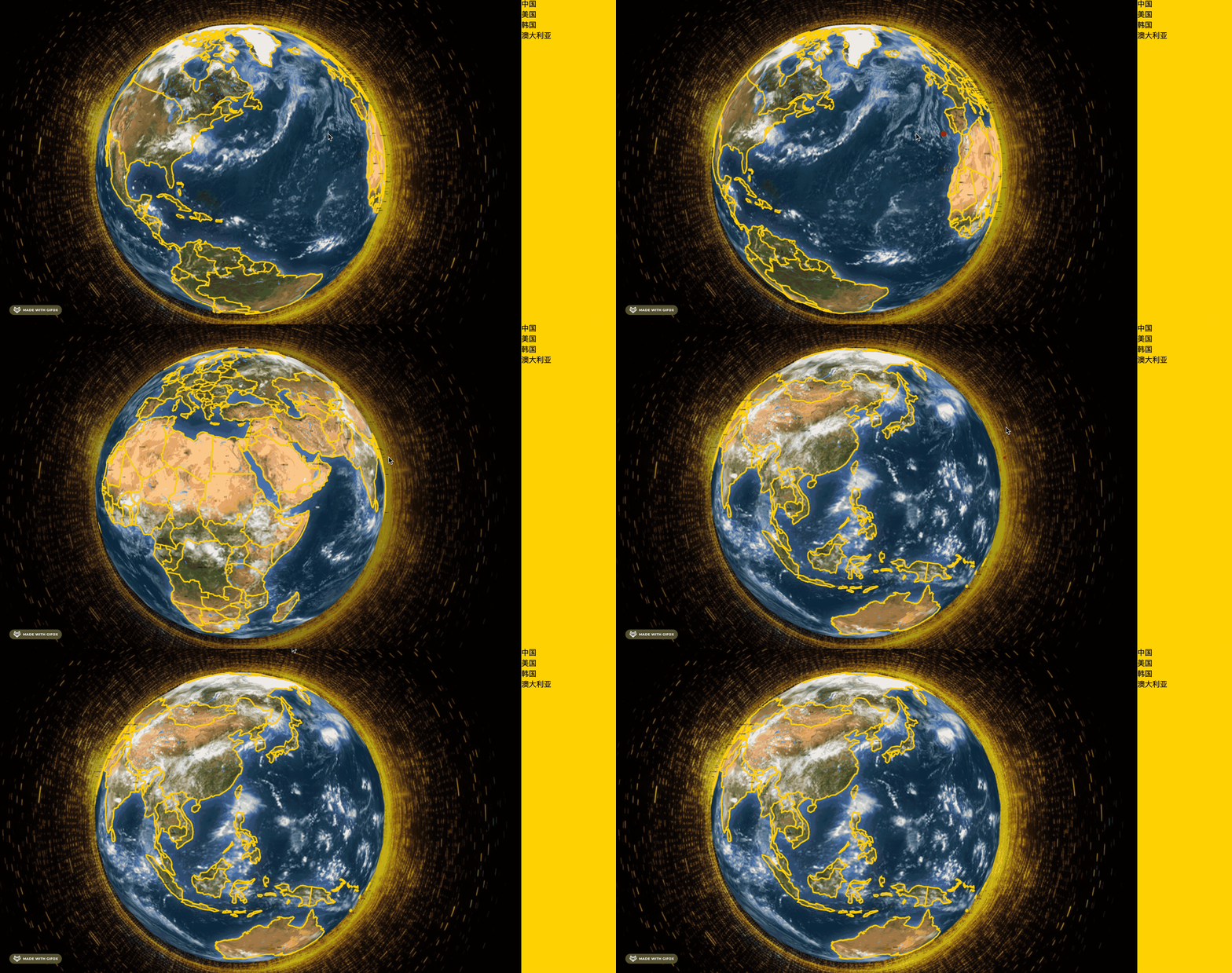
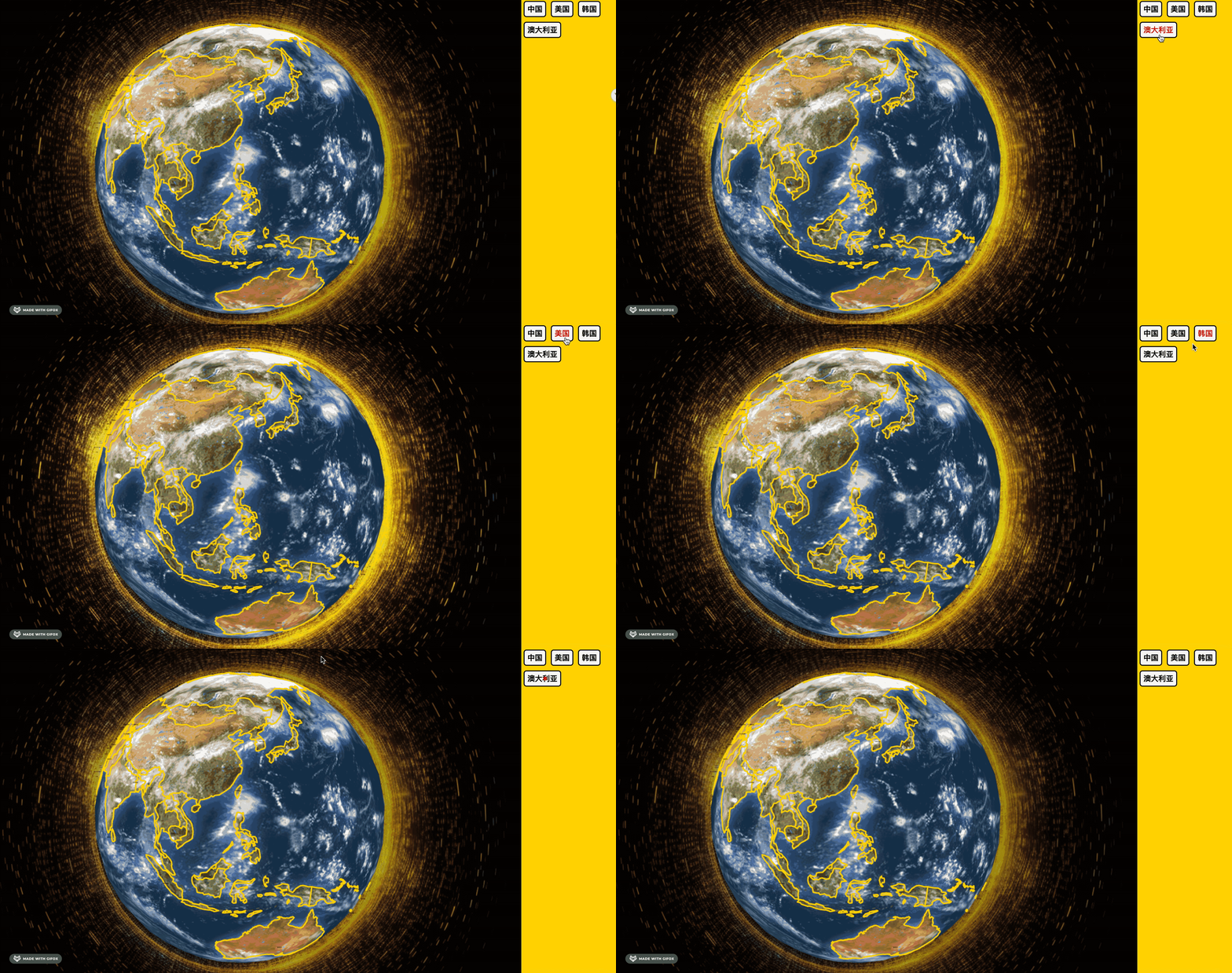
然后改下国家名的样式:
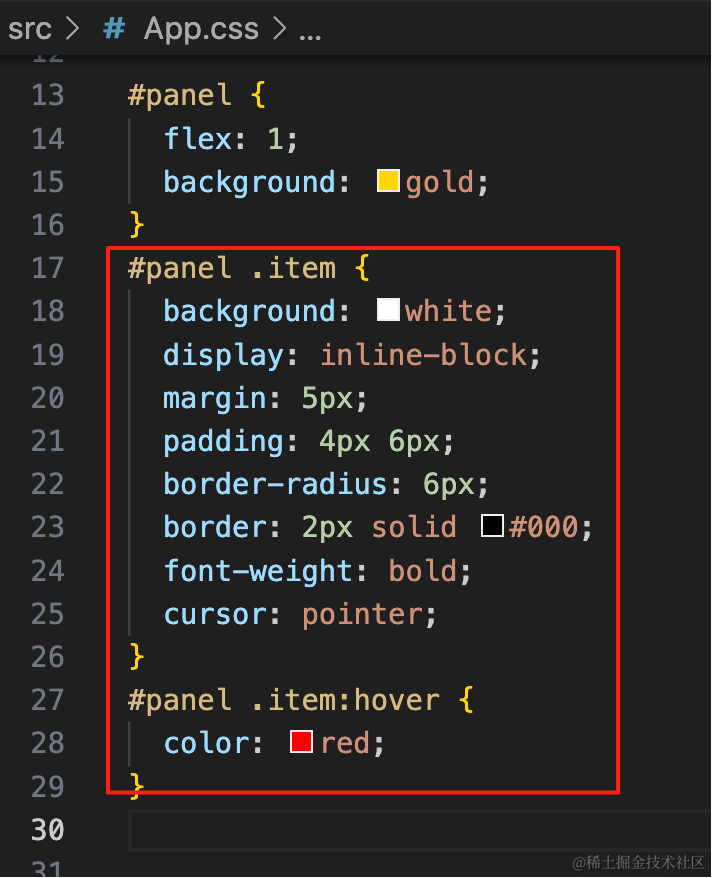
#panel .item {
  background: white;
  display: inline-block;
  margin: 5px;
  padding: 4px 6px;
  border-radius: 6px;
  border: 2px solid #000;
  font-weight: bold;
  cursor: pointer;
}
#panel .item:hover {
  color: red;
}
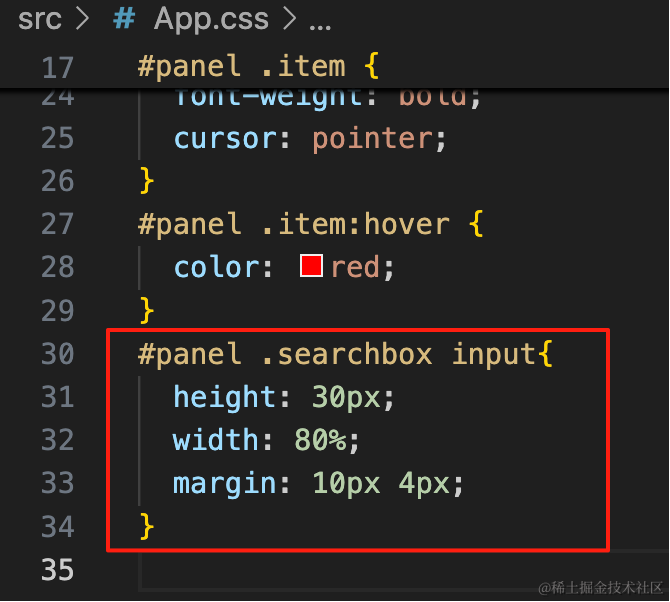
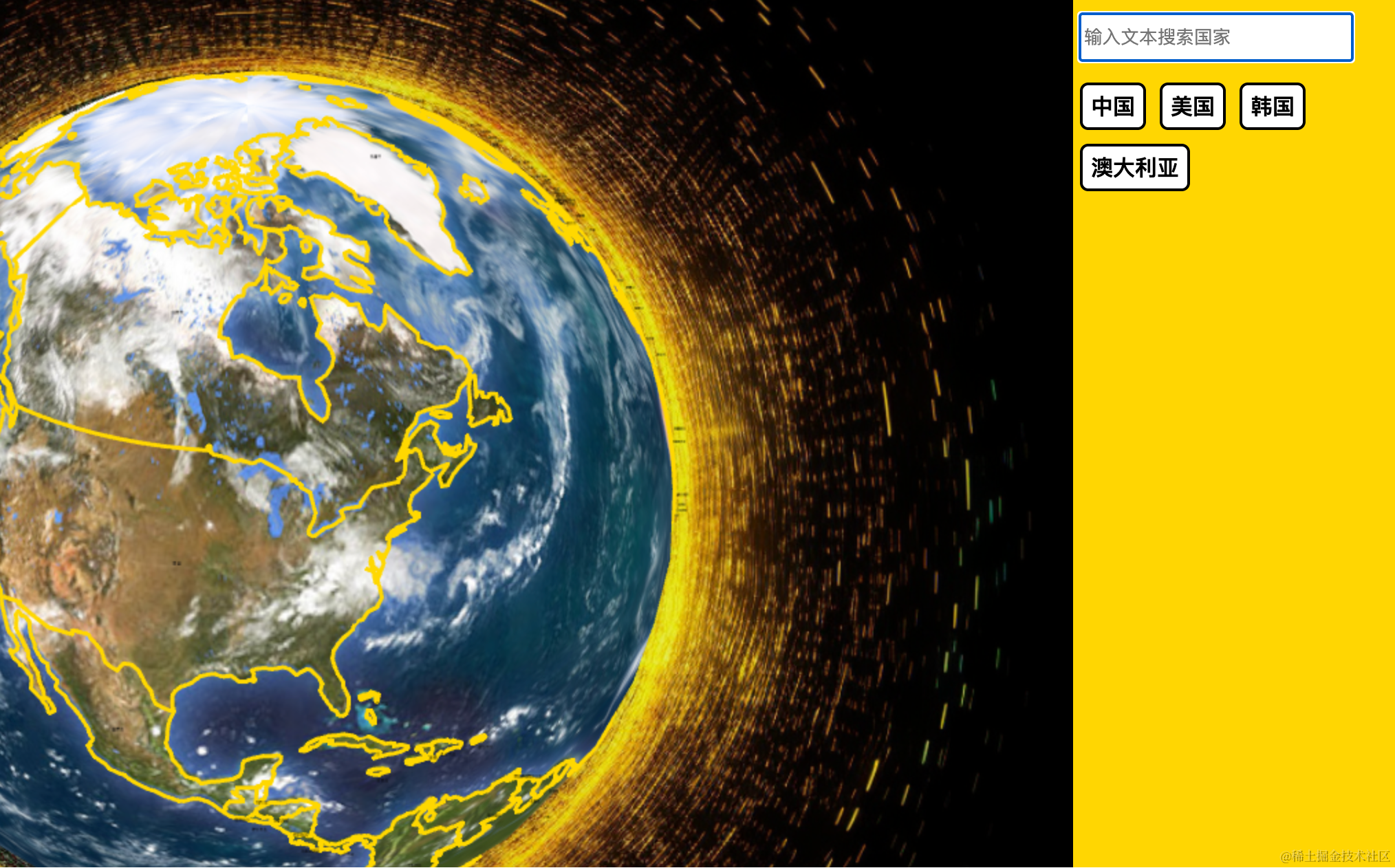
在上面加一个搜索框:
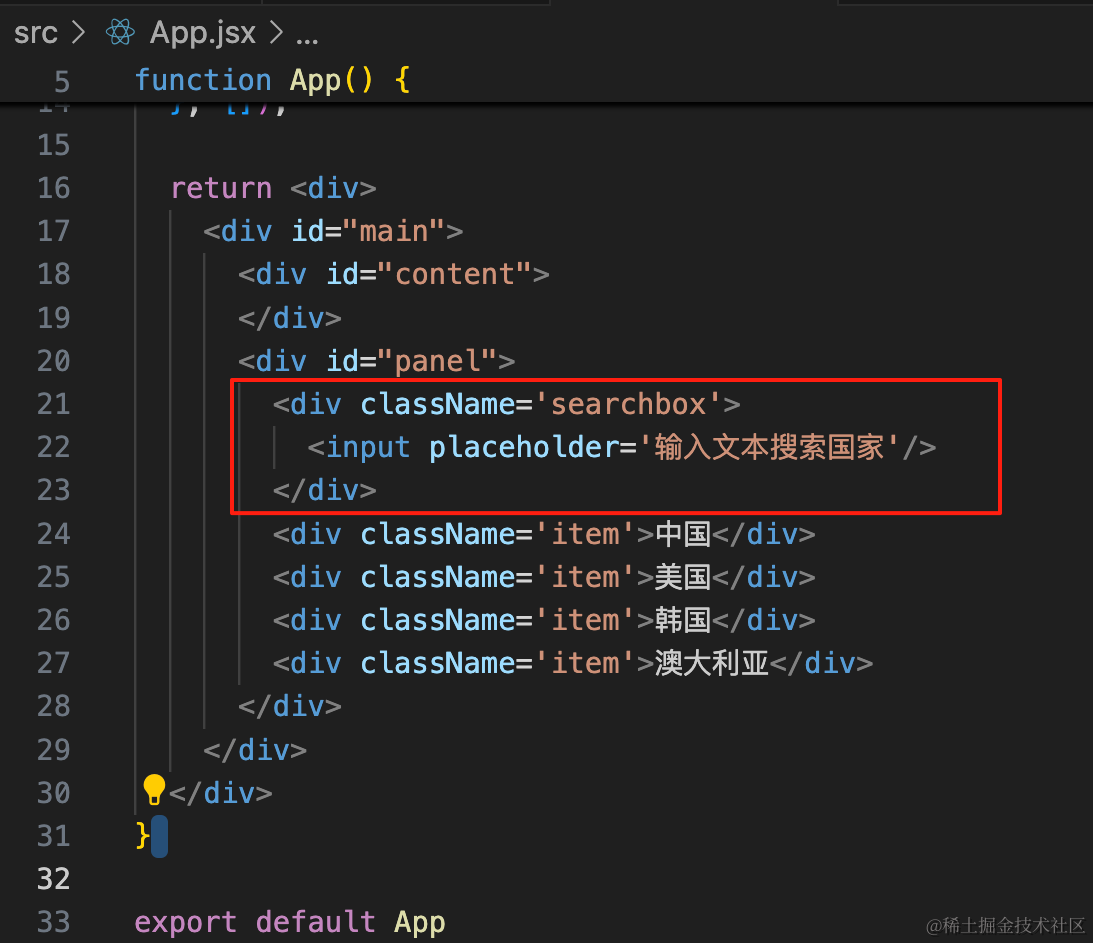
<div className='searchbox'>
  <input placeholder='输入文本搜索国家'/>
</div>
#panel .searchbox input{
height: 30px;
width: 80%;
margin: 10px 4px;
}
样式写完,接下来改成真实的数据:
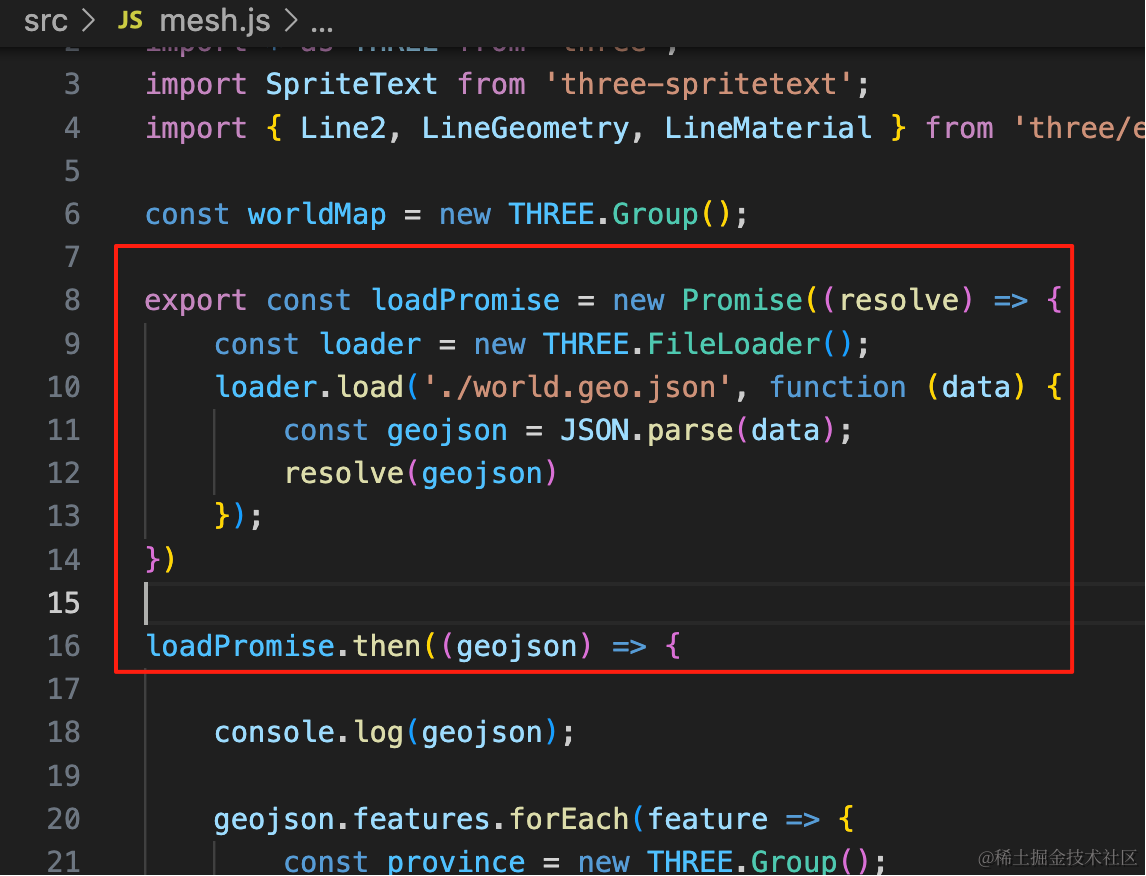
首先改一下加载数据的方式,改成 promise,并把它暴露出去:
export const loadPromise = new Promise((resolve) => {
    const loader = new THREE.FileLoader();
    loader.load('./world.geo.json', function (data) {
        const geojson = JSON.parse(data);
        resolve(geojson)
    });
})

loadPromise.then((geojson) => {
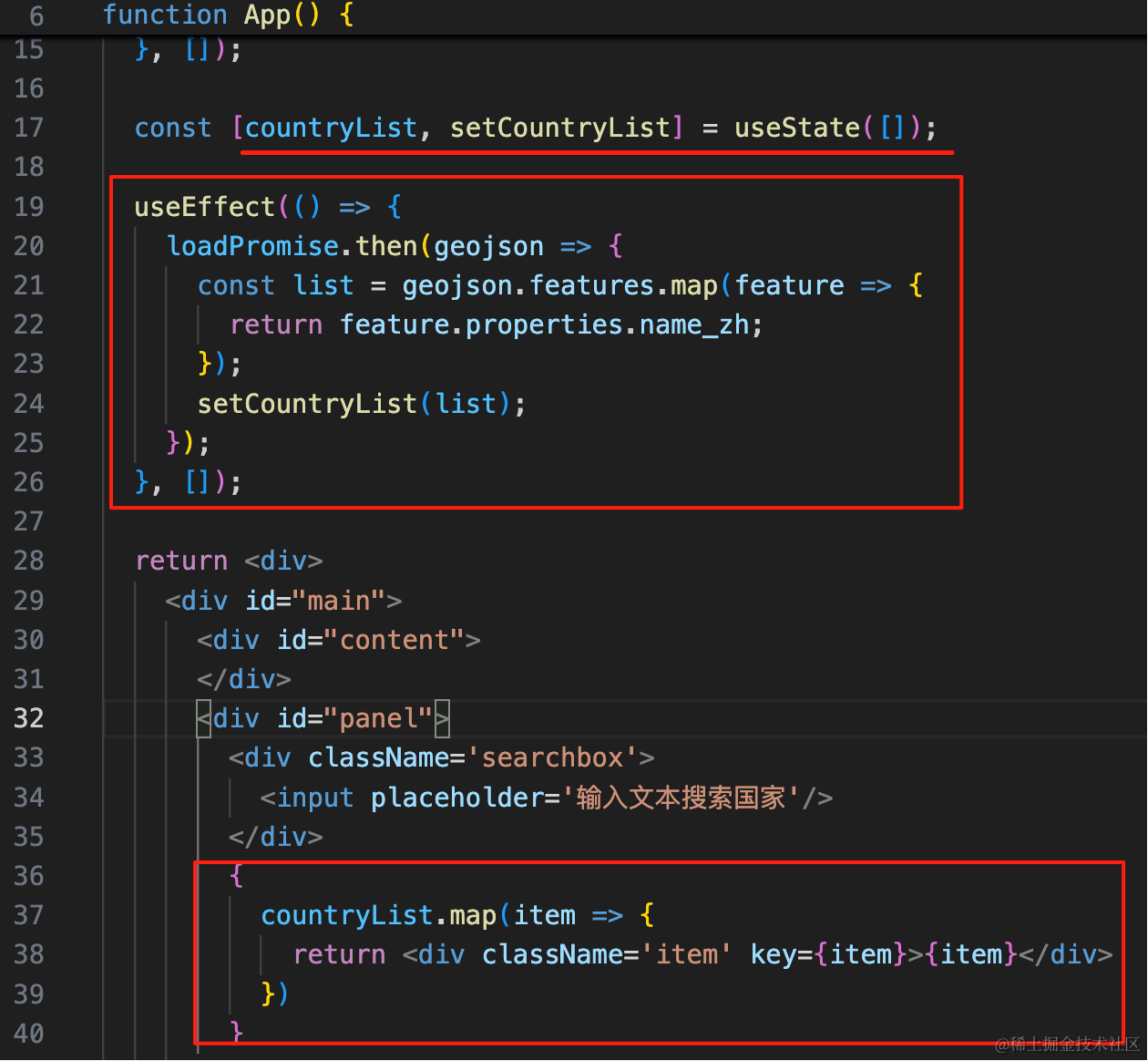
这样在另一个模块里也可以通过这个 promise 拿到数据:
const [countryList, setCountryList] = useState([]);

useEffect(() => {
    loadPromise.then(geojson => {
      const list = geojson.features.map(feature => {
        return feature.properties.name_zh;
      });
      setCountryList(list);
    });
}, []);
{
countryList.map(item => {
return <div className='item' key={item}>{item}</div>
})
}在 promise 里拿到数据,设置到 state 里,然后用用它来渲染列表。
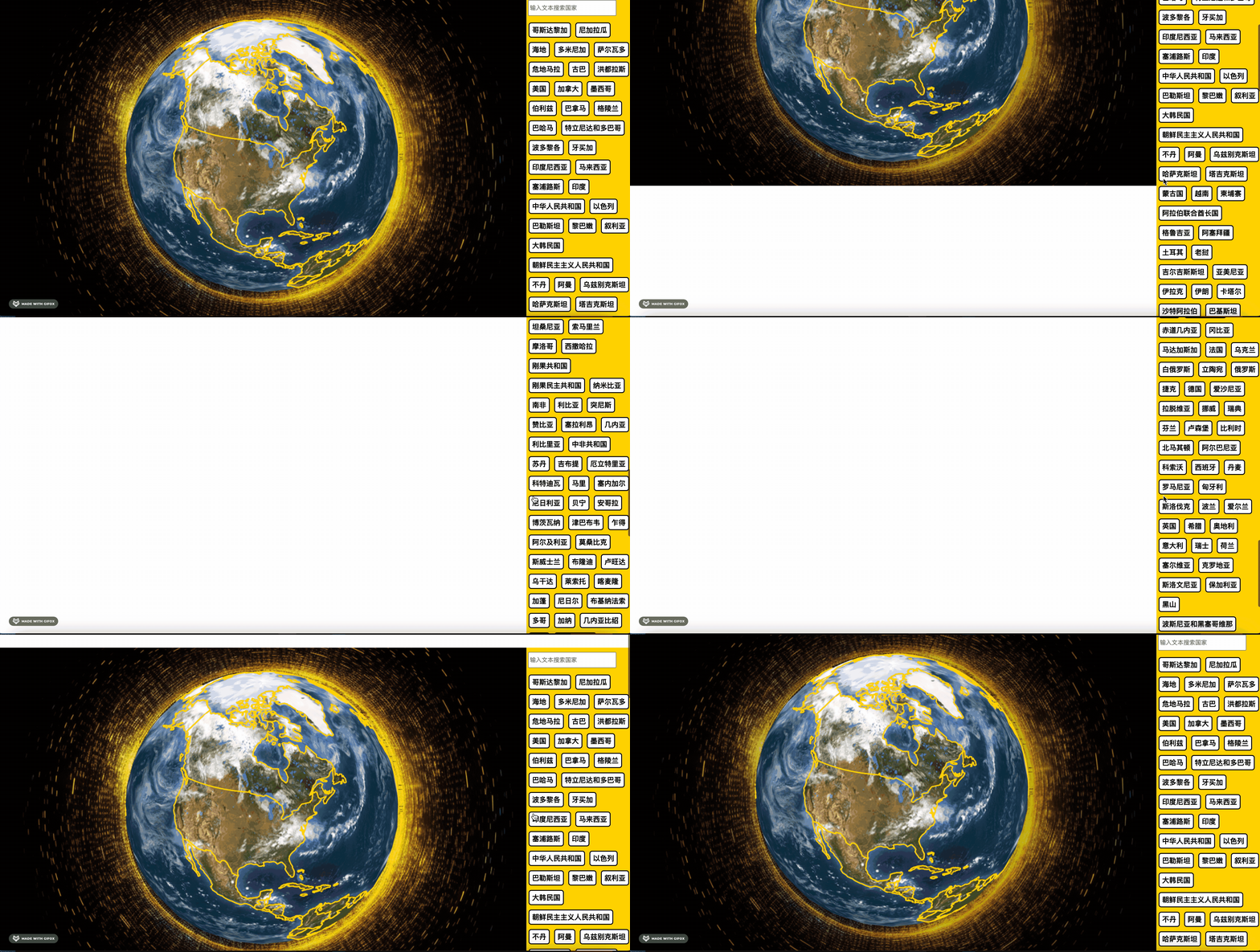
现在所有的国家都渲染出来了。
我们加一下溢出的滚动条:
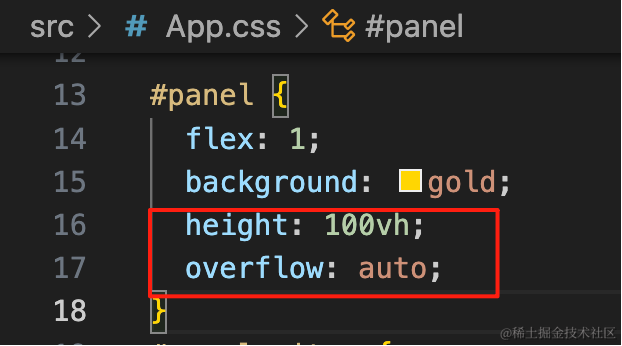
height: 100vh;
overflow: auto;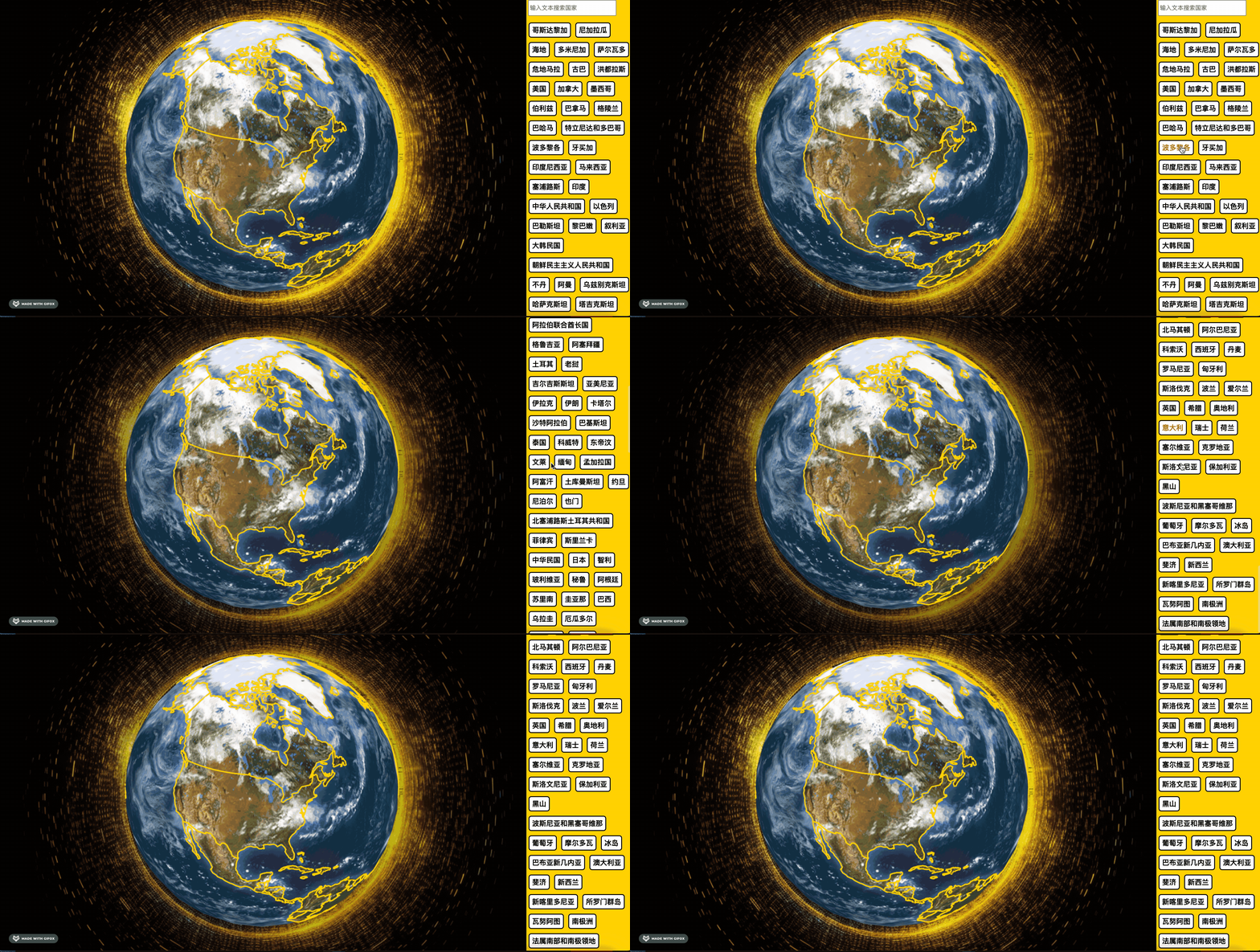
搜索框要固定在上面,改下样式:
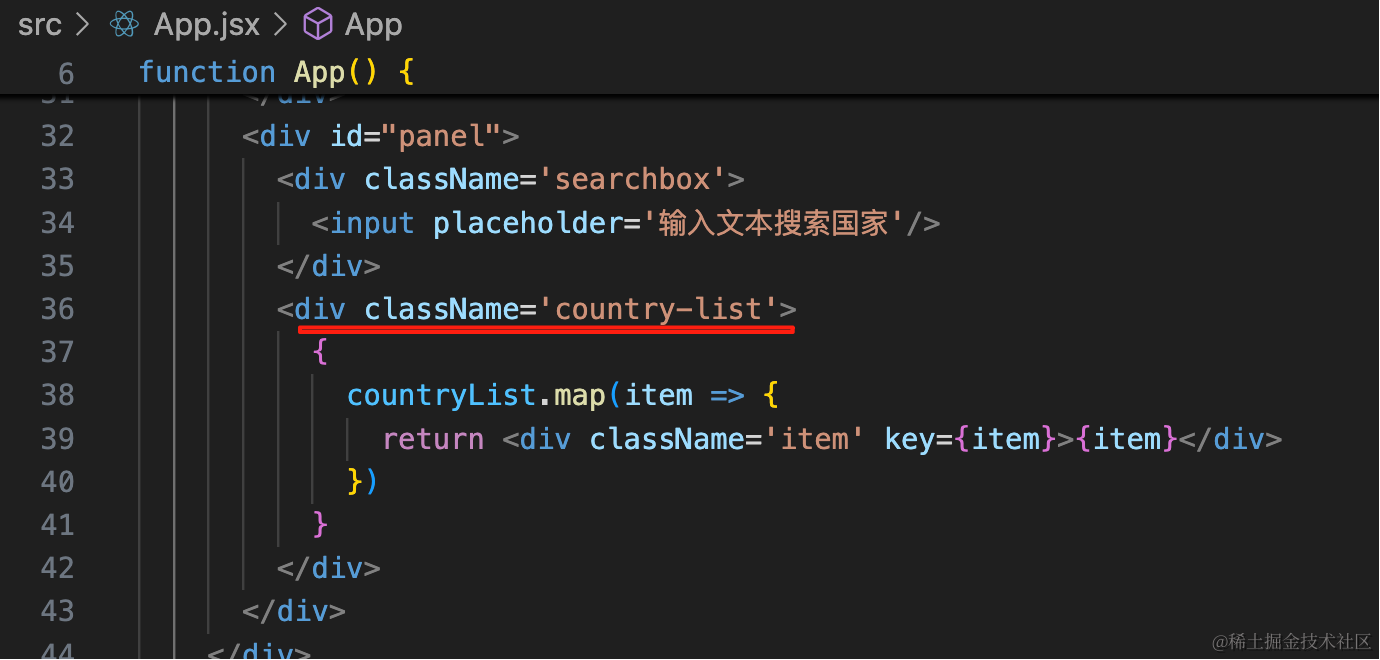
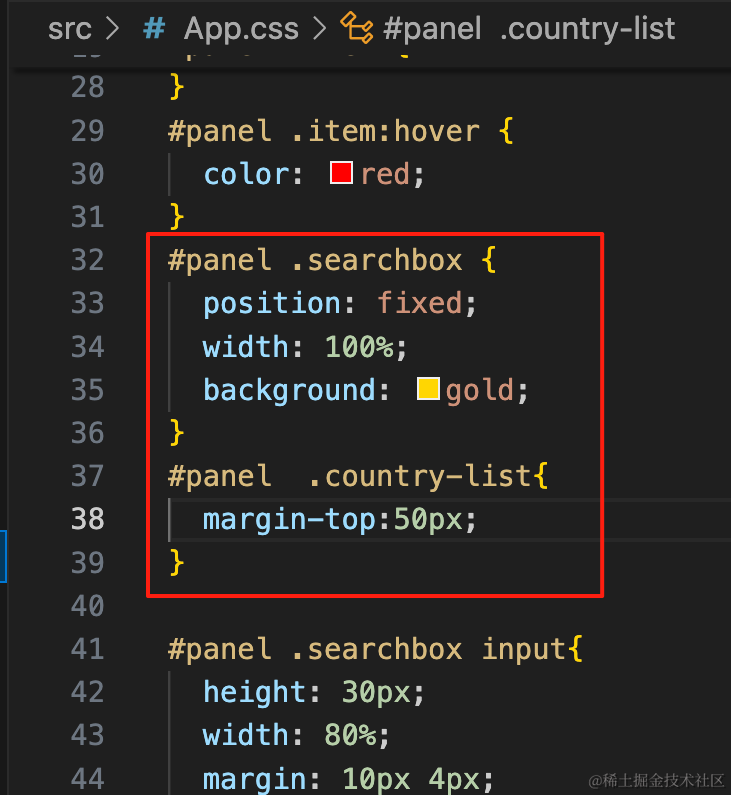
<div className='country-list'>#panel .searchbox {
position: fixed;
width: 100%;
background: gold;
}
#panel .country-list{
margin-top:50px;
}搜索框固定在上面,国家列表加一点 margin
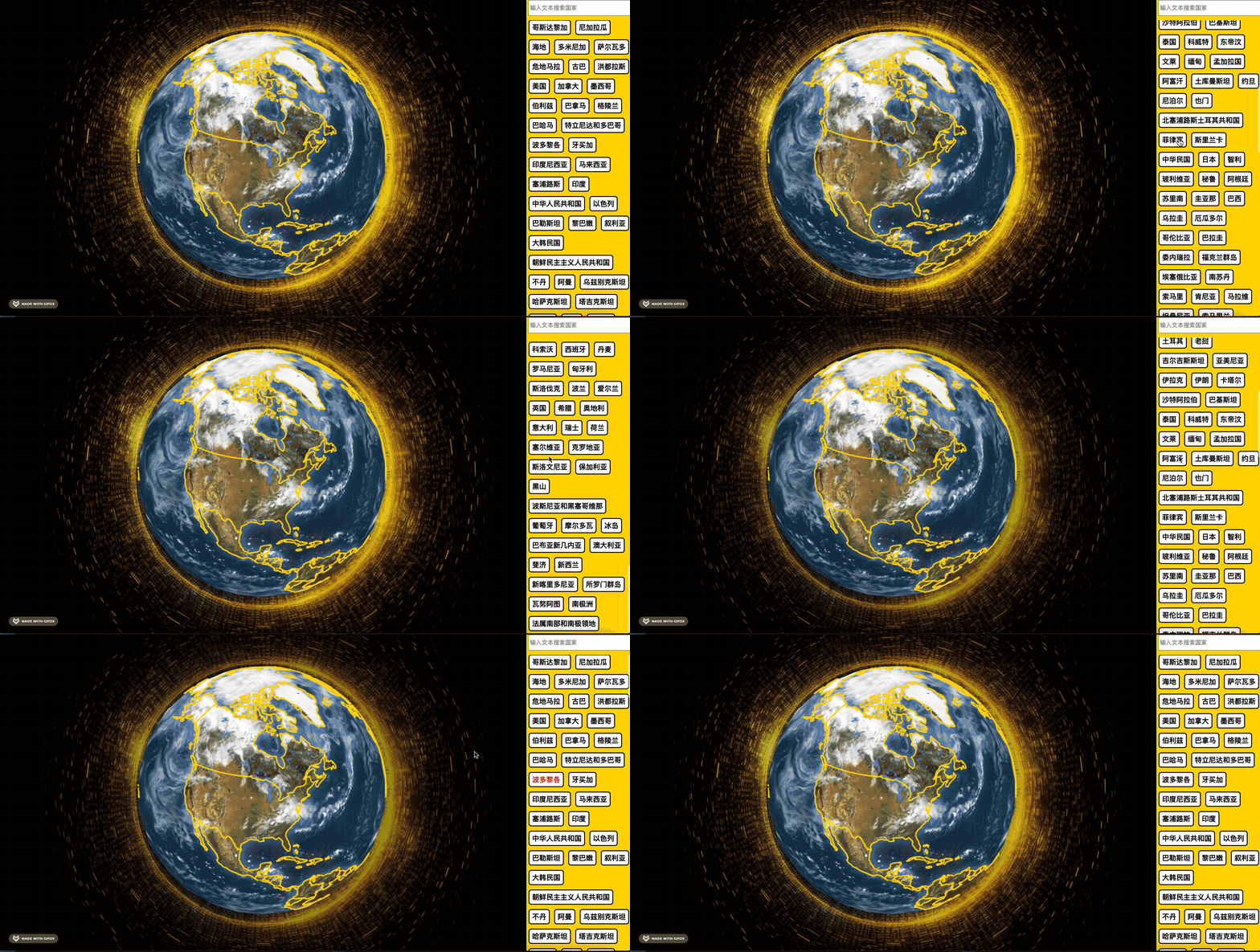
然后来实现下搜索:
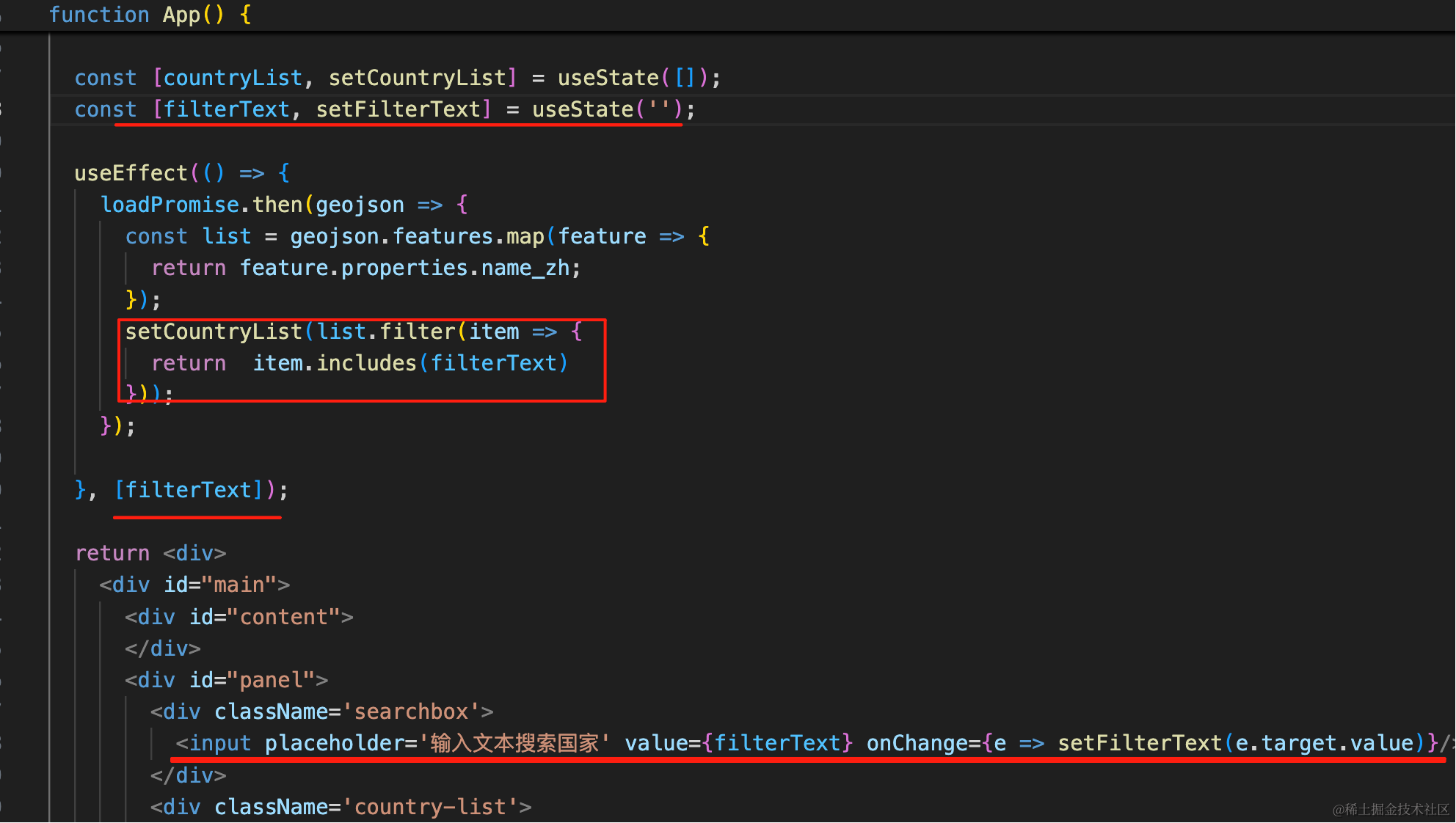
const [filterText, setFilterText] = useState('');useEffect(() => {
loadPromise.then(geojson => {
const list = geojson.features.map(feature => {
return feature.properties.name_zh;
});
setCountryList(list.filter(item => {
return item.includes(filterText)
}));
});
}, [filterText]);<input placeholder='输入文本搜索国家' value={filterText} onChange={e => setFilterText(e.target.value)}/>加一个 state 来记录输入的值。
当输入的值改变的时候,过滤一下,重新设置 countryList
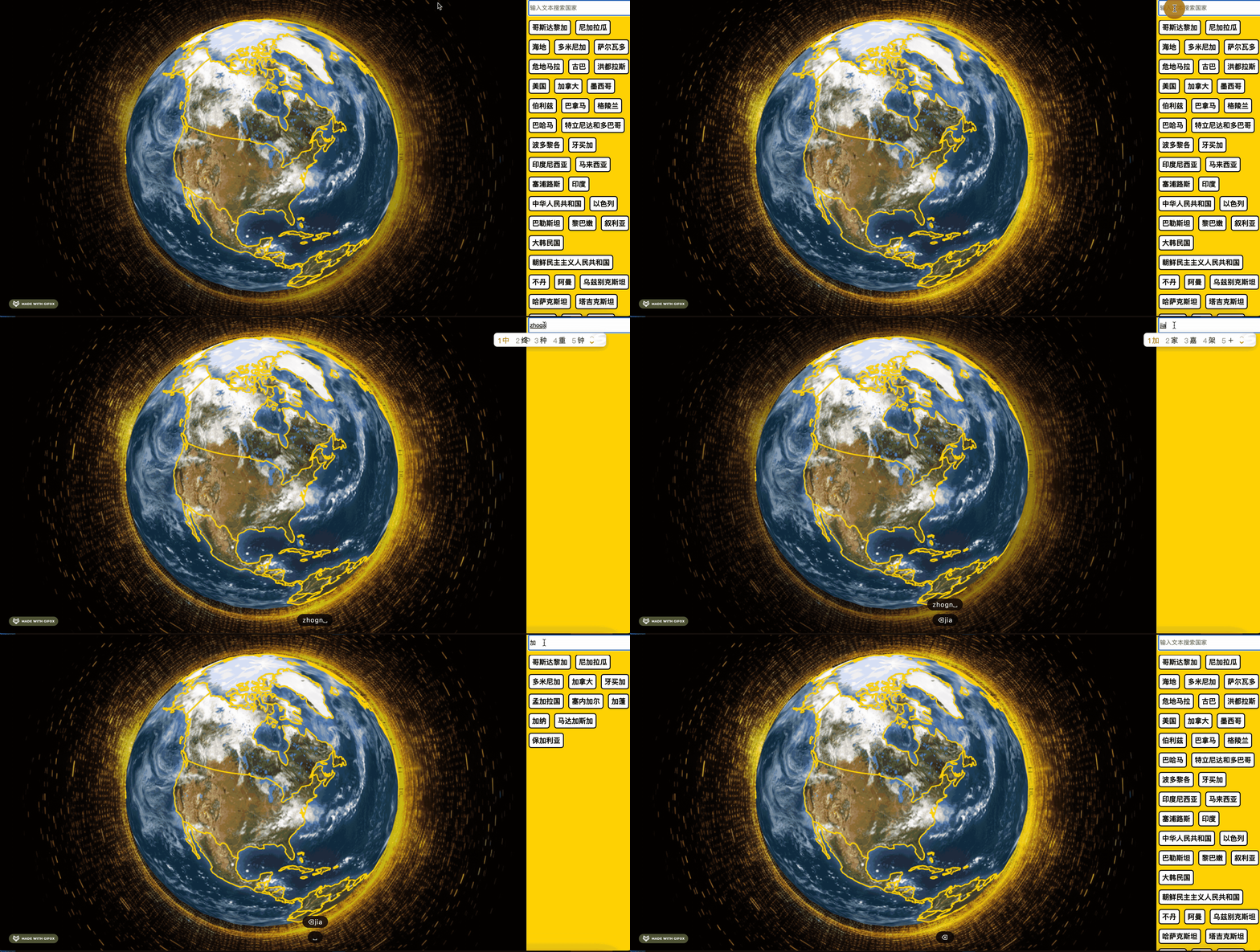 这样,国家列表、搜索就实现了。
案例代码上传了小册仓库
总结
这节实现了国家的列表、搜索,这部分主要是 div、css 和前端框架 react 的知识。
搜索出国家之后,下一步就是根据选中的国家名在左侧定位到对应的国家。