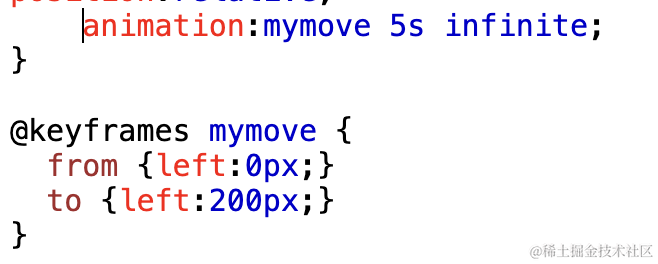
大家应该写过 css 里的关键帧动画:
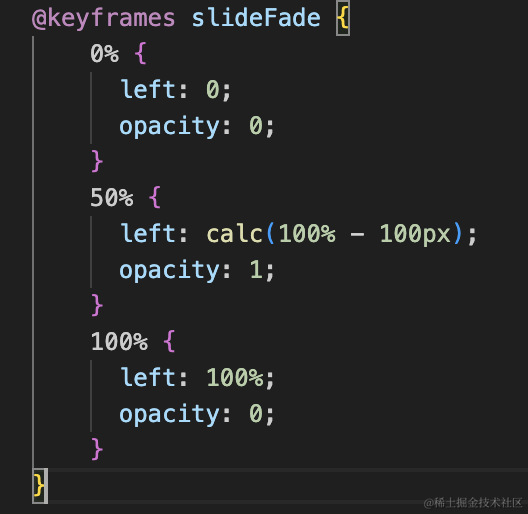
定义几个关键帧,每个关键帧的 css 样式,然后就可以实现属性变化的动画。
Three.js 也支持关键帧动画,只要定义某个属性的几个时间对应的几个值,就可以实现一段时间内这些值的变化。
有的同学可能会说,直接用 Tween.js 做数值变化不就好了,那个还支持缓动效果。
确实,如果只是一般的单个数值变化的动画,直接用 Tween.js 就好了。
但很多复杂的模型动画,属性会有很多不同的变化,都是基于关键帧动画的。
比如之前我们加载的马的 gltf 模型,它有一些动画效果:
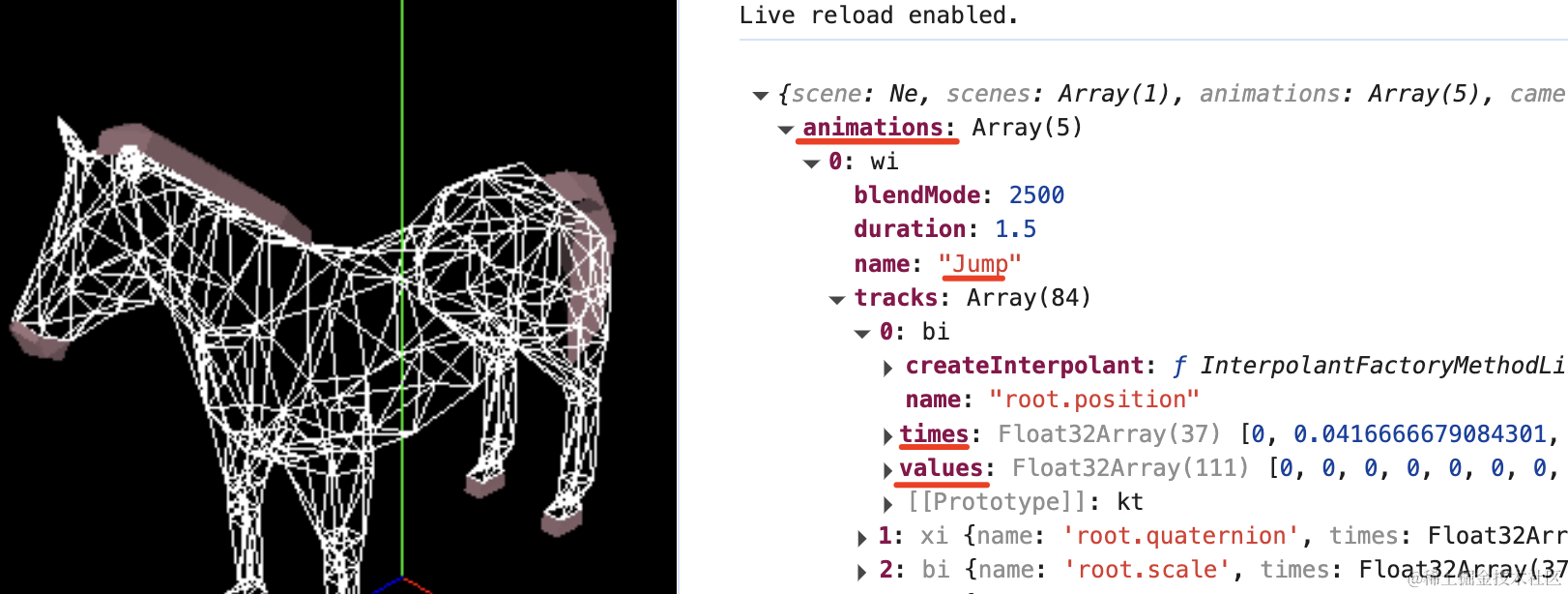
这就是关键帧动画,如图 root.position 的值在 times 时间对应的值为 values。
要实现这种关键帧动画的播放,就得学一下 Three.js 的关键帧动画的 api。
创建项目:
npx create-vite keyframes-animation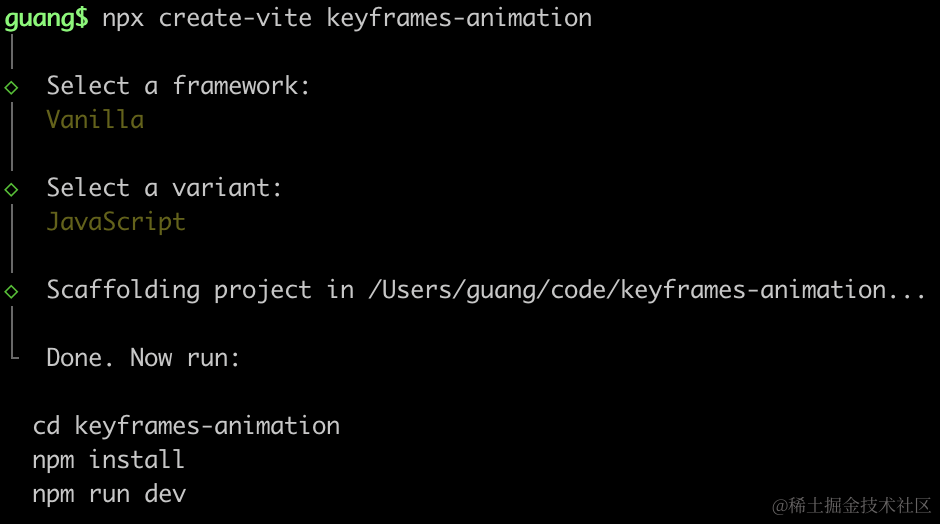
进入项目,安装依赖:
npm install
npm install --save three
npm install --save-dev @types/three
改下 src/main.js
import './style.css';
import * as THREE from 'three';
import {
    OrbitControls
} from 'three/addons/controls/OrbitControls.js';
import mesh from './mesh.js';

const scene = new THREE.Scene();

scene.add(mesh);

const directionLight = new THREE.DirectionalLight(0xffffff, 2);
directionLight.position.set(500, 400, 300);
scene.add(directionLight);

const ambientLight = new THREE.AmbientLight();
scene.add(ambientLight);

const width = window.innerWidth;
const height = window.innerHeight;

const helper = new THREE.AxesHelper(500);
scene.add(helper);

const camera = new THREE.PerspectiveCamera(60, width / height, 0.1, 1000);
camera.position.set(300, 300, 500);
camera.lookAt(0, 0, 0);

const renderer = new THREE.WebGLRenderer();
renderer.setSize(width, height)

function render() {
    renderer.render(scene, camera);
    requestAnimationFrame(render);
}

render();

document.body.append(renderer.domElement);

const controls = new OrbitControls(camera, renderer.domElement);
创建 Scene、Light、Camera、Renderer。
改下 style.css
body {
  margin: 0;
}
然后创建 mesh.js
import * as THREE from 'three';

const geometry = new THREE.BoxGeometry(100, 100, 100);
const material = new THREE.MeshLambertMaterial({
  color: 'orange',
});
const mesh = new THREE.Mesh(geometry, material);

export default mesh;
画了一个立方体。
跑一下:
npm run dev
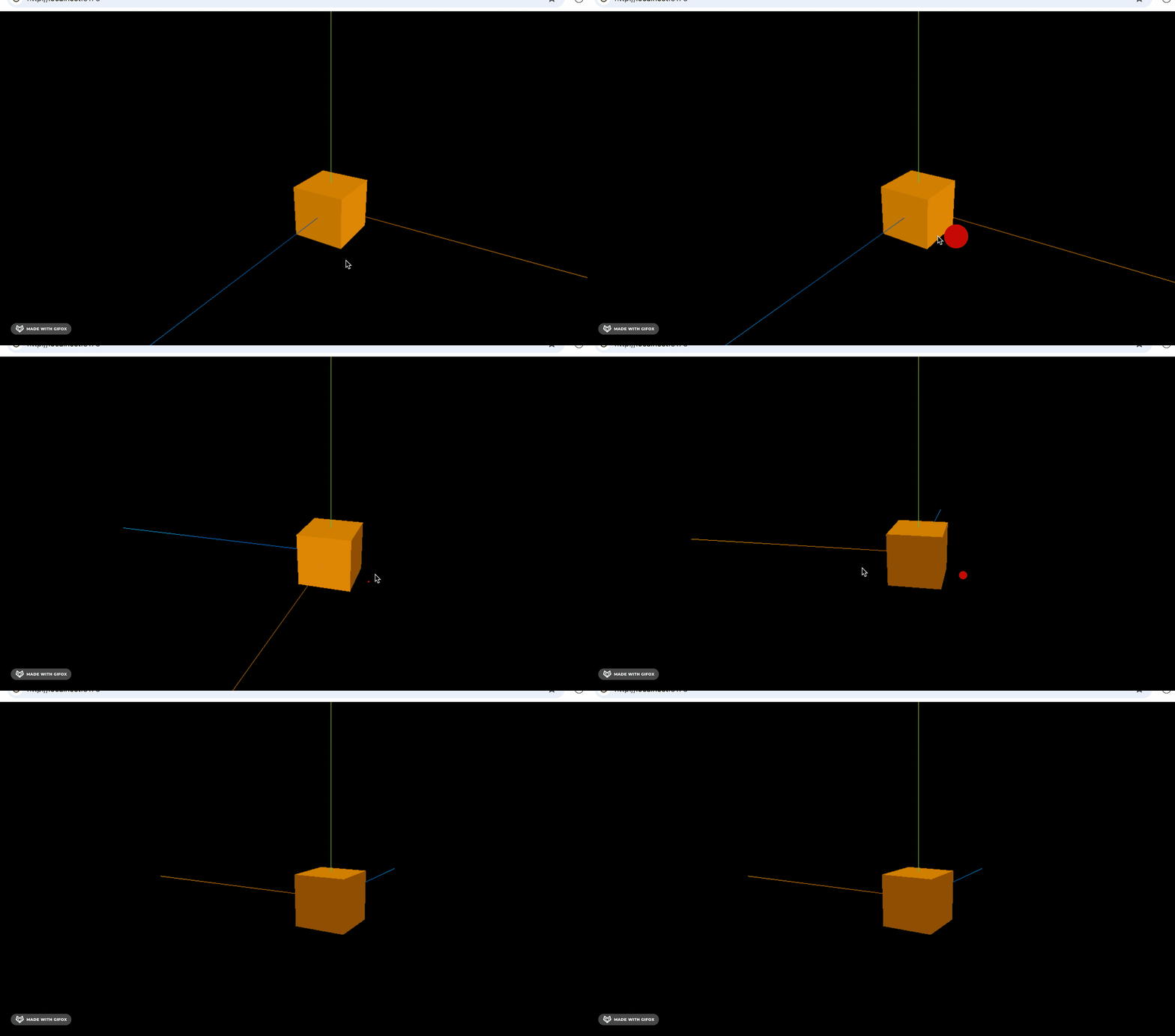
我们让它位置做一些变化:
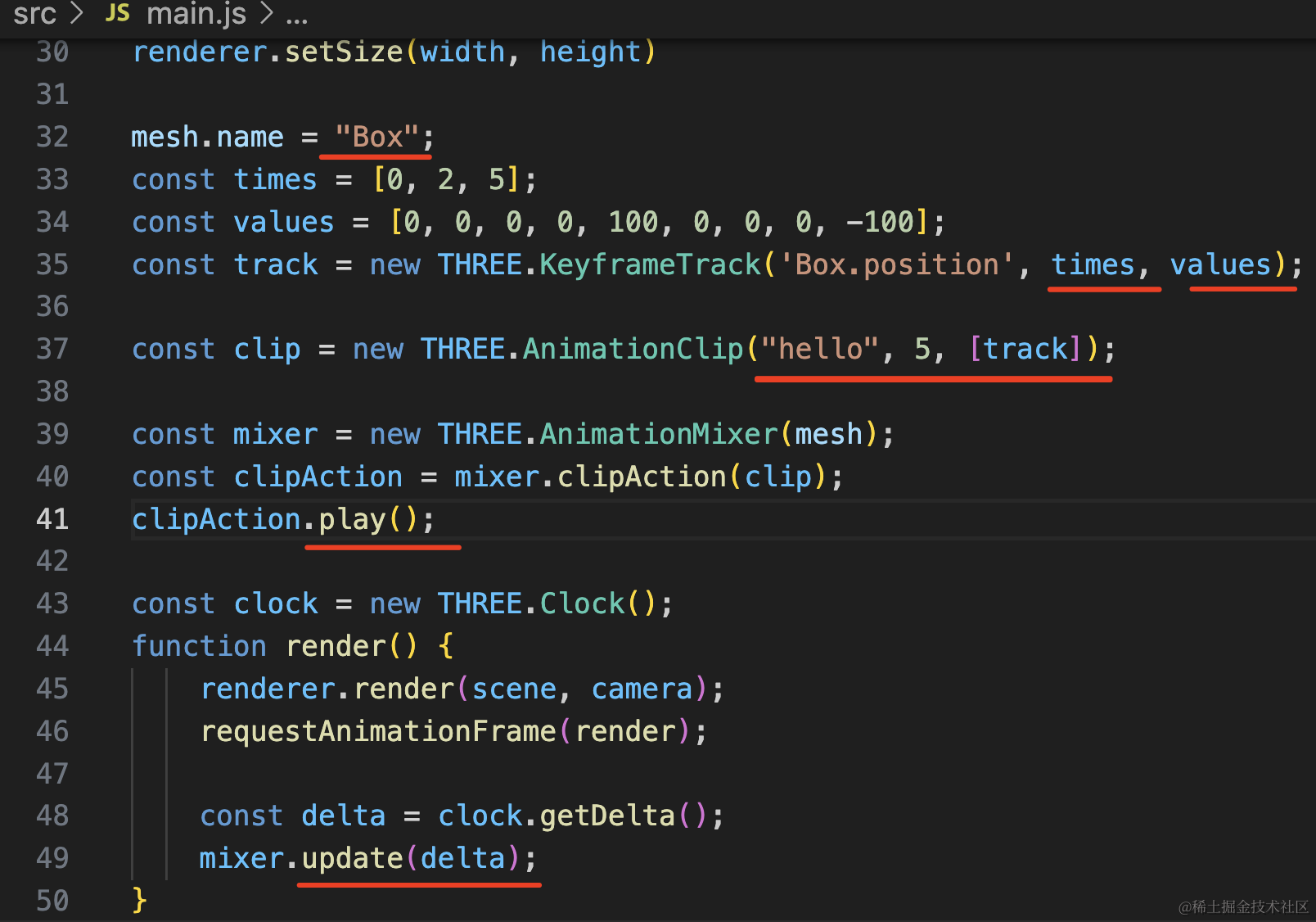
给 mesh 加上 name 属性,然后定义它在 0、2、5 秒的值,创建 KeyframeTrack,也就是一个属性变化的关键帧。
之后用 AnimationClip 定义这个动画的名字、持续时间,有哪些 KeyframeTrack(也就是有哪些属性变化)
之后用动画播放器 AnimationMixer 播放 mesh 上的动画,调用 play 方法,并且每次 render 的时候根据时间 update 一下。
虽然看起来代码挺多,但不难理解,和 css 定义关键帧动画一样:
mesh.name = "Box";
const times = [0, 2, 5];
const values = [0, 0, 0, 0, 100, 0, 0, 0, -100];
const track = new THREE.KeyframeTrack('Box.position', times, values);

const clip = new THREE.AnimationClip("hello", 5, [track]);

const mixer = new THREE.AnimationMixer(mesh);
const clipAction = mixer.clipAction(clip);
clipAction.play();

const clock = new THREE.Clock();
function render() {
    renderer.render(scene, camera);
    requestAnimationFrame(render);

    const delta = clock.getDelta();
    mixer.update(delta);
}
试一下:
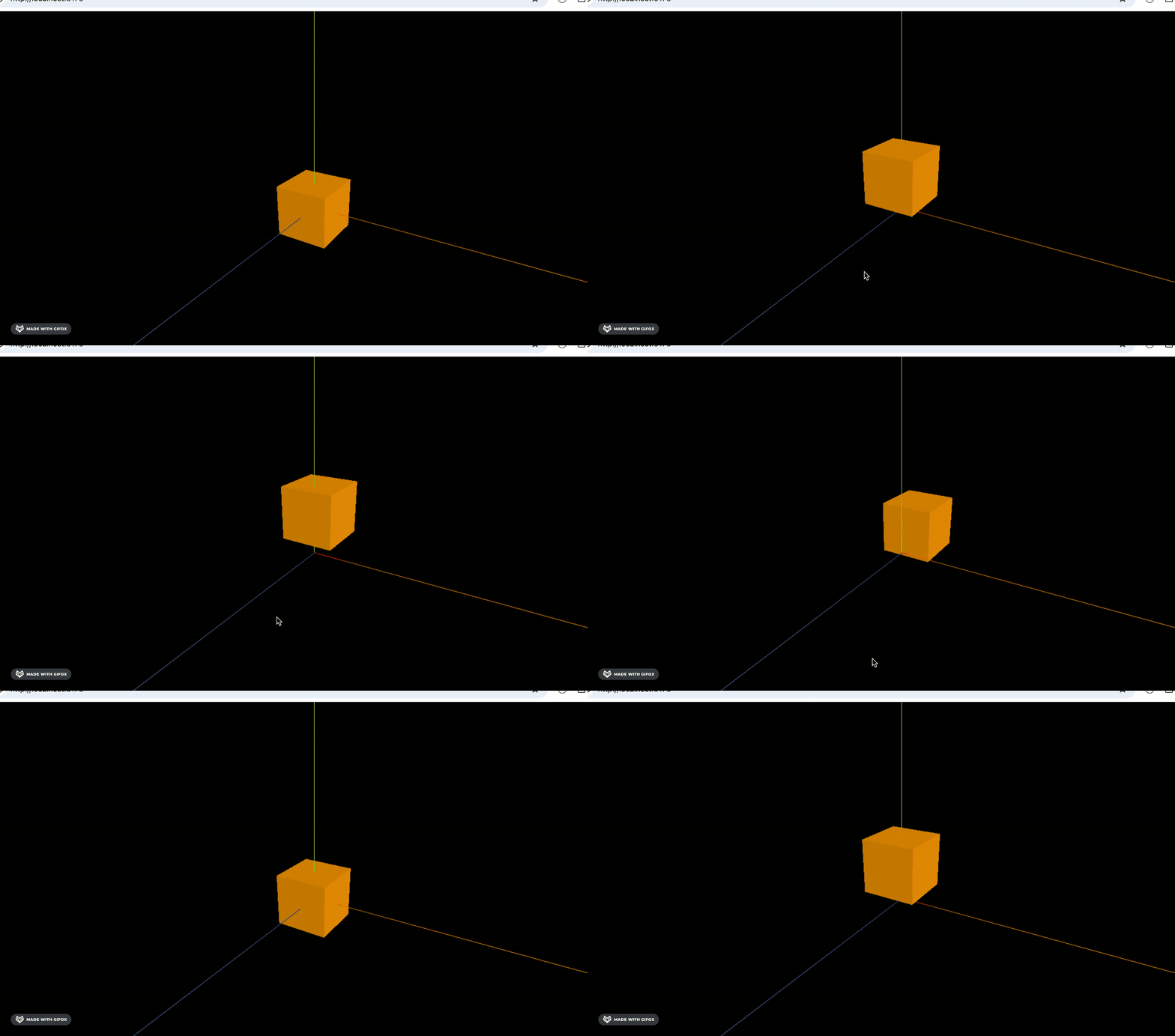
可以看到,我们成功创建并且执行了一个关键帧动画。
我们再加一个属性变化的关键帧:
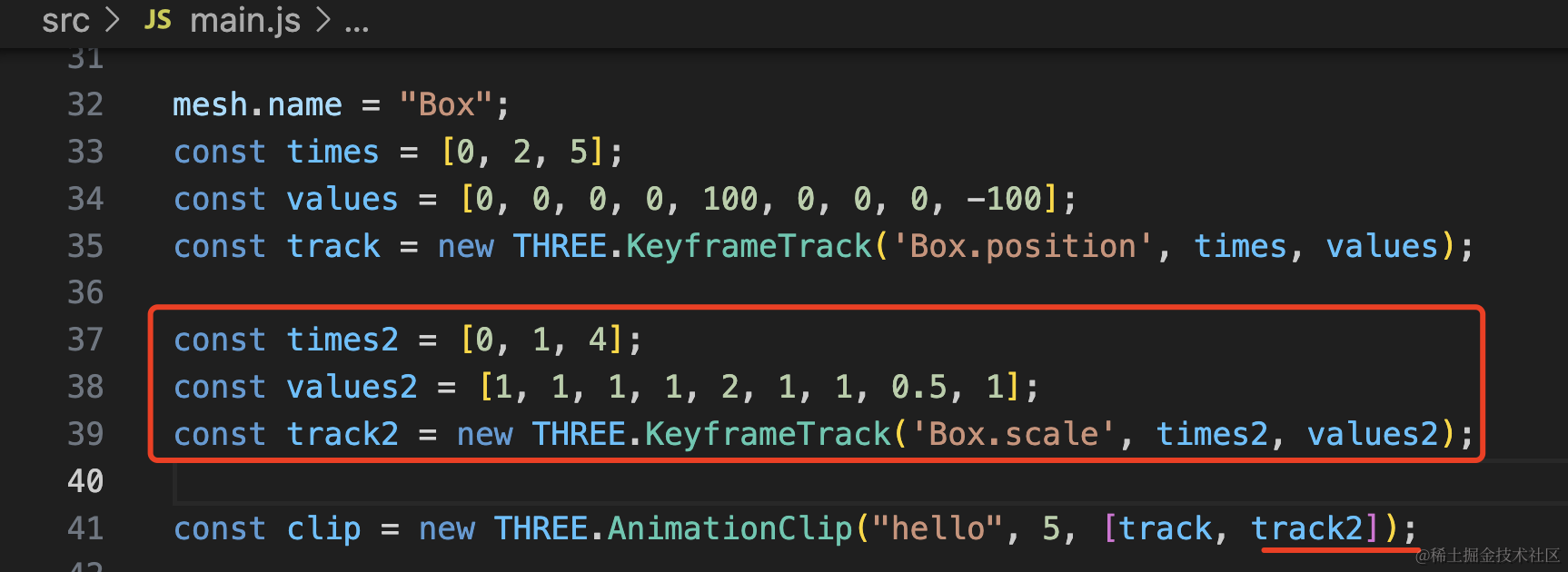
const times2 = [0, 1, 4];
const values2 = [1, 1, 1, 1, 2, 1, 1, 0.5, 1];
const track2 = new THREE.KeyframeTrack('Box.scale', times2, values2);

const clip = new THREE.AnimationClip("hello", 5, [track, track2]);
加一个 scale 变化的关键帧,在 1 秒的时候 scale.y 为 2,在 4 秒的时候为 0.5。
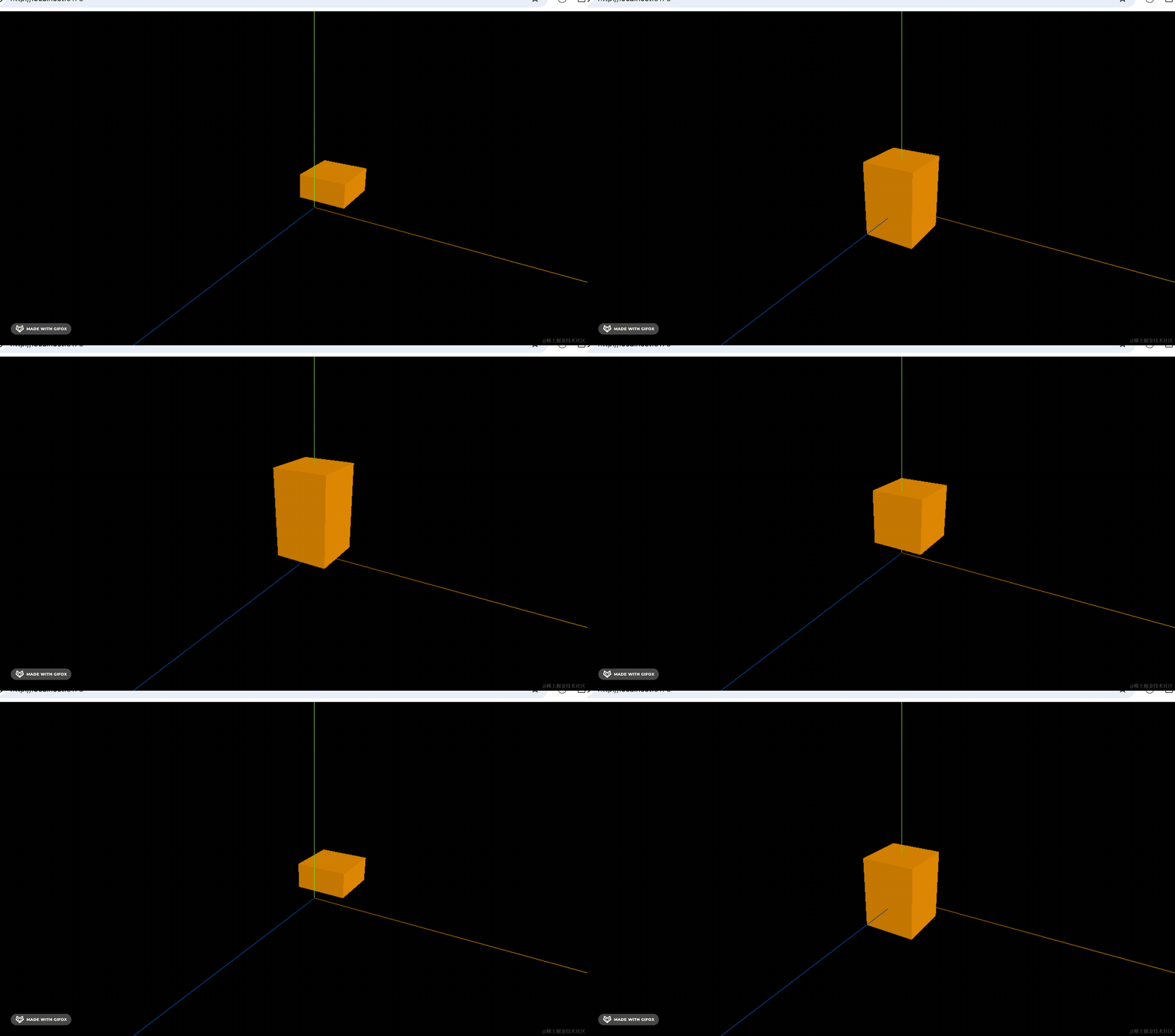
可以看到 position 和 scale 都在变。
这样就可以组合出复杂的关键帧动画。
它还可以调整播放速度 timeScale 和暂停 paused:
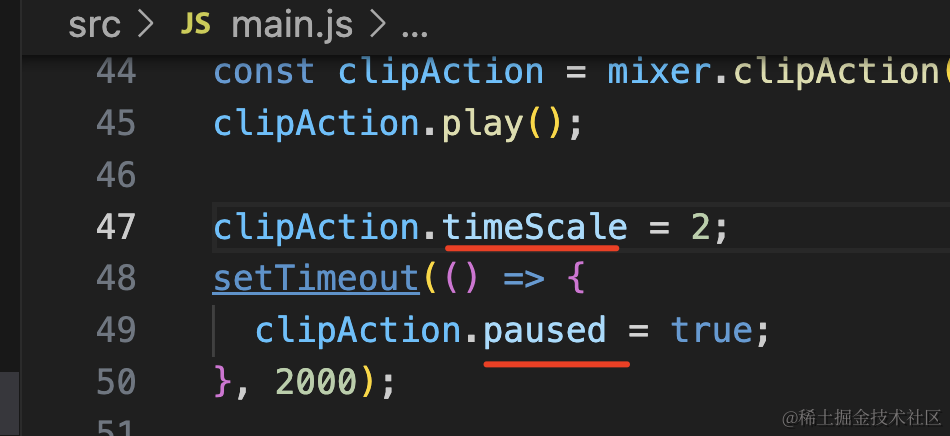 我们设置播放速度为 2 倍,那 2s 后停止的时候,高度应该是 4s 时的 0.5
clipAction.timeScale = 2;
setTimeout(() => {
  clipAction.paused = true;
}, 2000);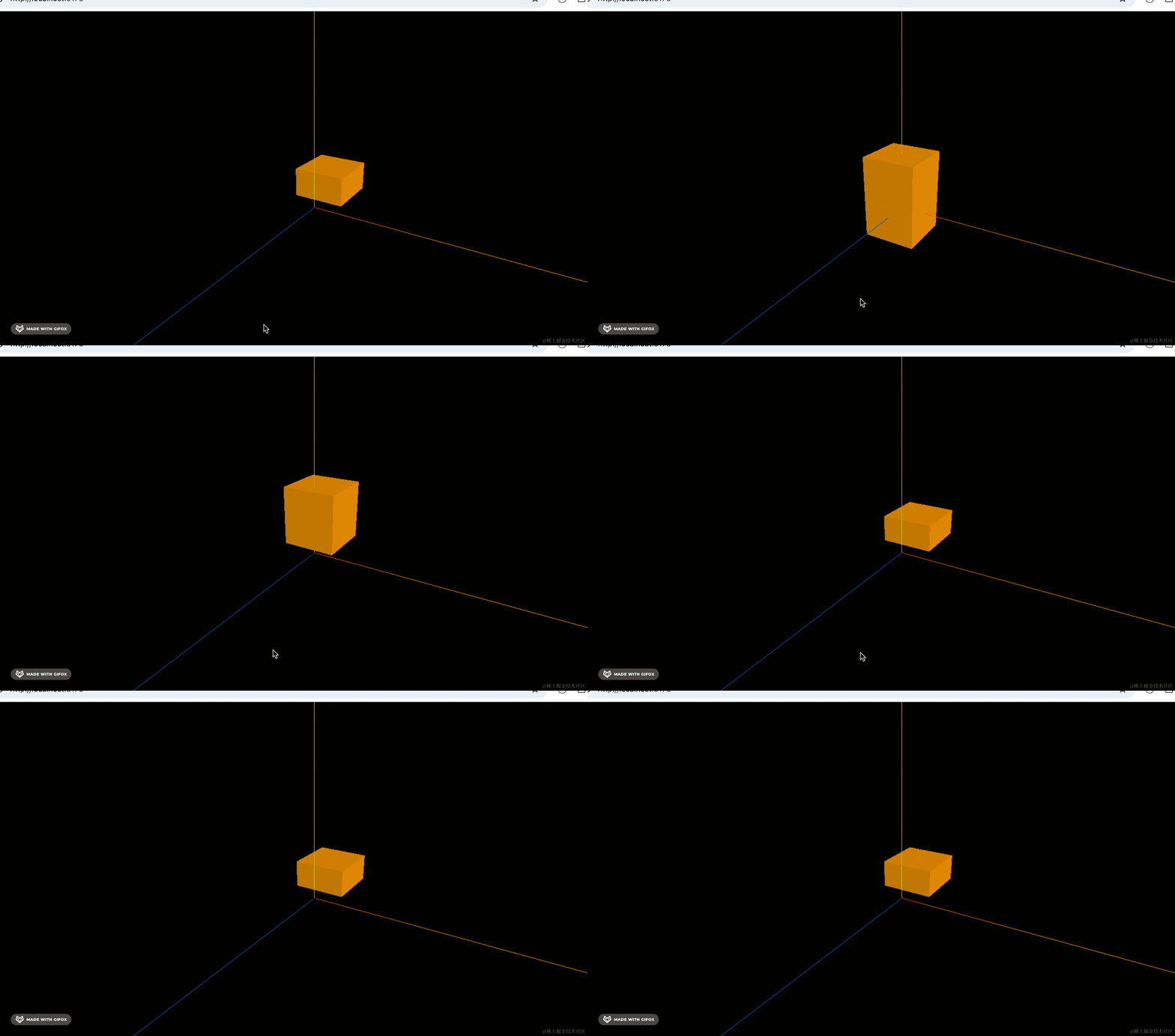
可以看到,它确实是以两倍速播放,并且停在了 4s 时的数值。
这样,学完关键帧动画后,我们就可以播放之前那个马的动画了:
把之前马的模型复制过来,放到 public 目录下:
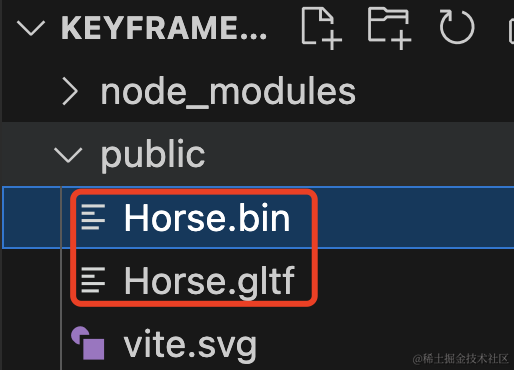
你也可以重新从Three.js 的源码仓库下载:
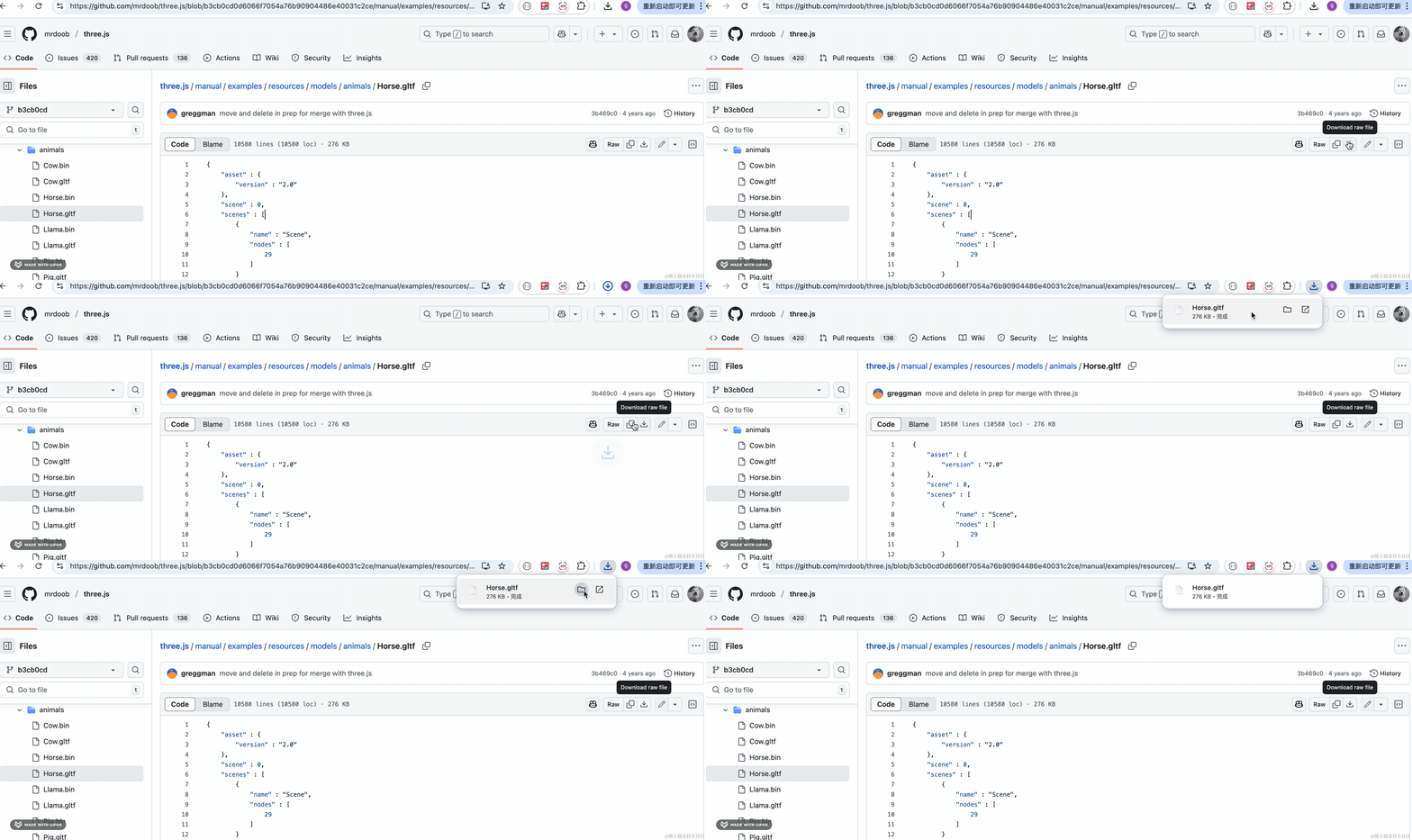
然后创建 src/mesh2.js
import * as THREE from 'three';
import { GLTFLoader } from 'three/addons/loaders/GLTFLoader.js';

const loader = new GLTFLoader();

const mesh = new THREE.Group();

loader.load("./Horse.gltf", function (gltf) {
    console.log(gltf);
    mesh.add(gltf.scene);
    gltf.scene.scale.set(30, 30,30);

    gltf.scene.traverse(obj => {
        if(obj.isMesh) {
            console.log('mesh', obj);
            if(obj.name === 'Cylinder') {
                obj.material.color = new THREE.Color('white');
            } else if(obj.name === 'Cylinder_1') {
                obj.material.color = new THREE.Color('pink');
            }
        }
    });
})

export default mesh;
加载 gltf 模型,遍历所有 mesh,改一下颜色。
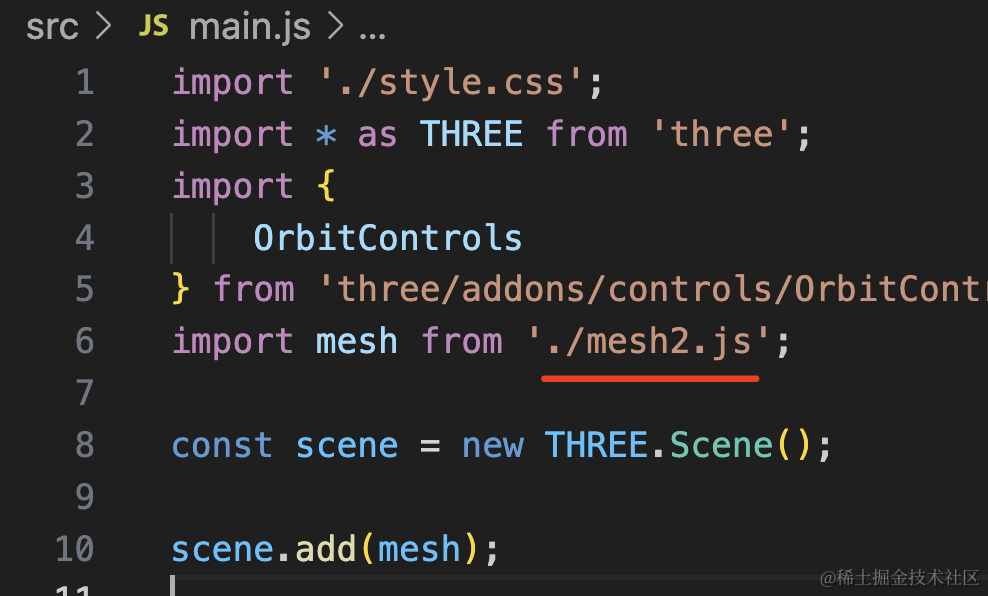
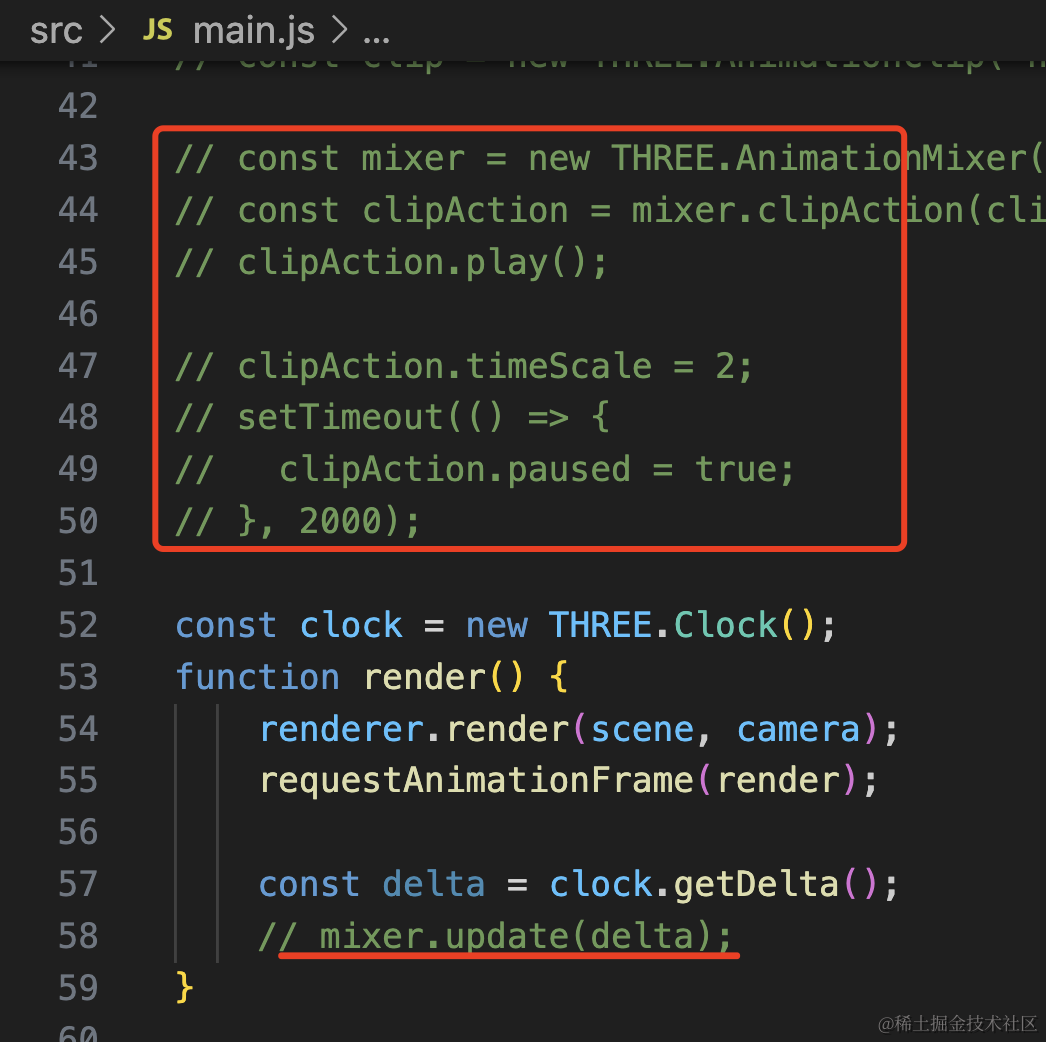
引入 mesh2.js 并且把刚才的动画代码注释掉。
看下效果:
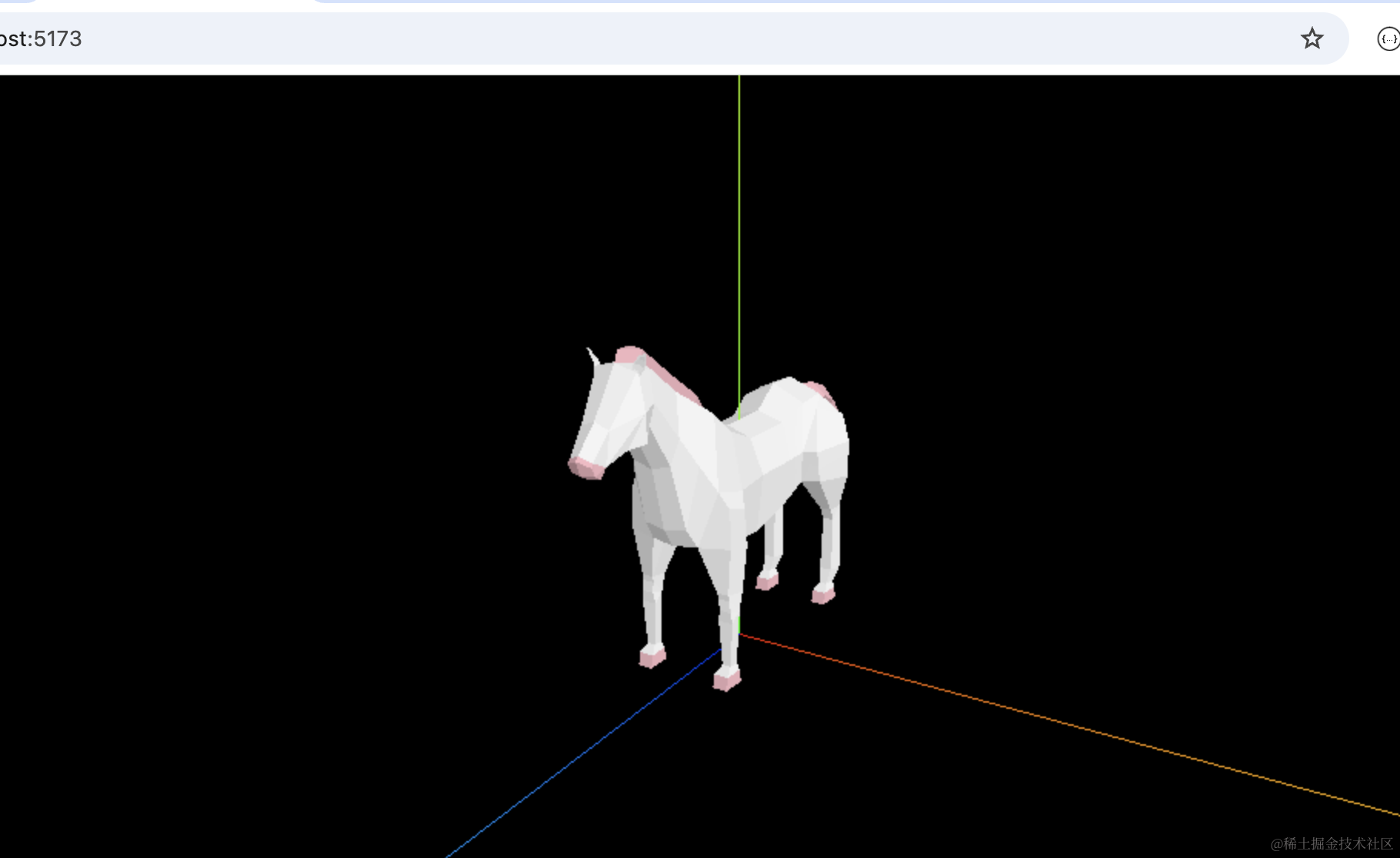
马加载出来了。
它 gltf 模型的 animations 数组里有 5 个动画:
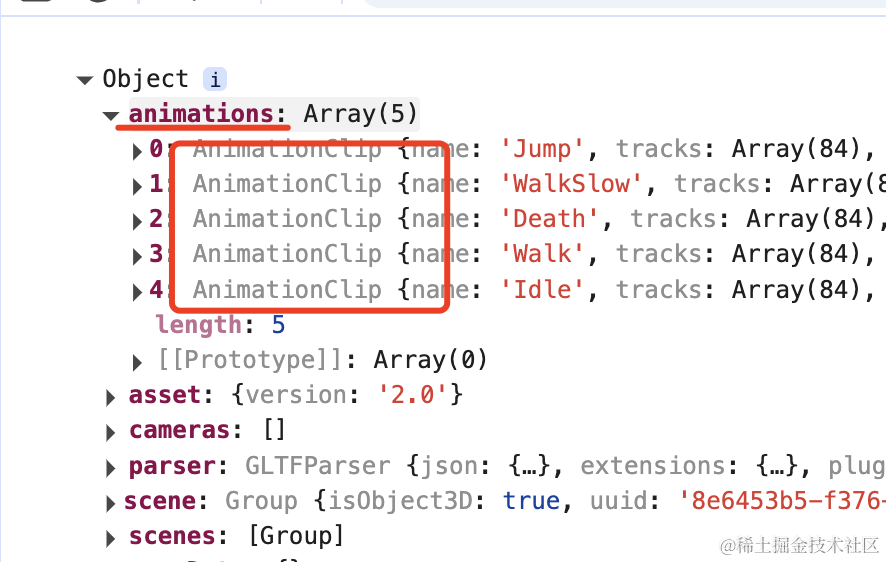
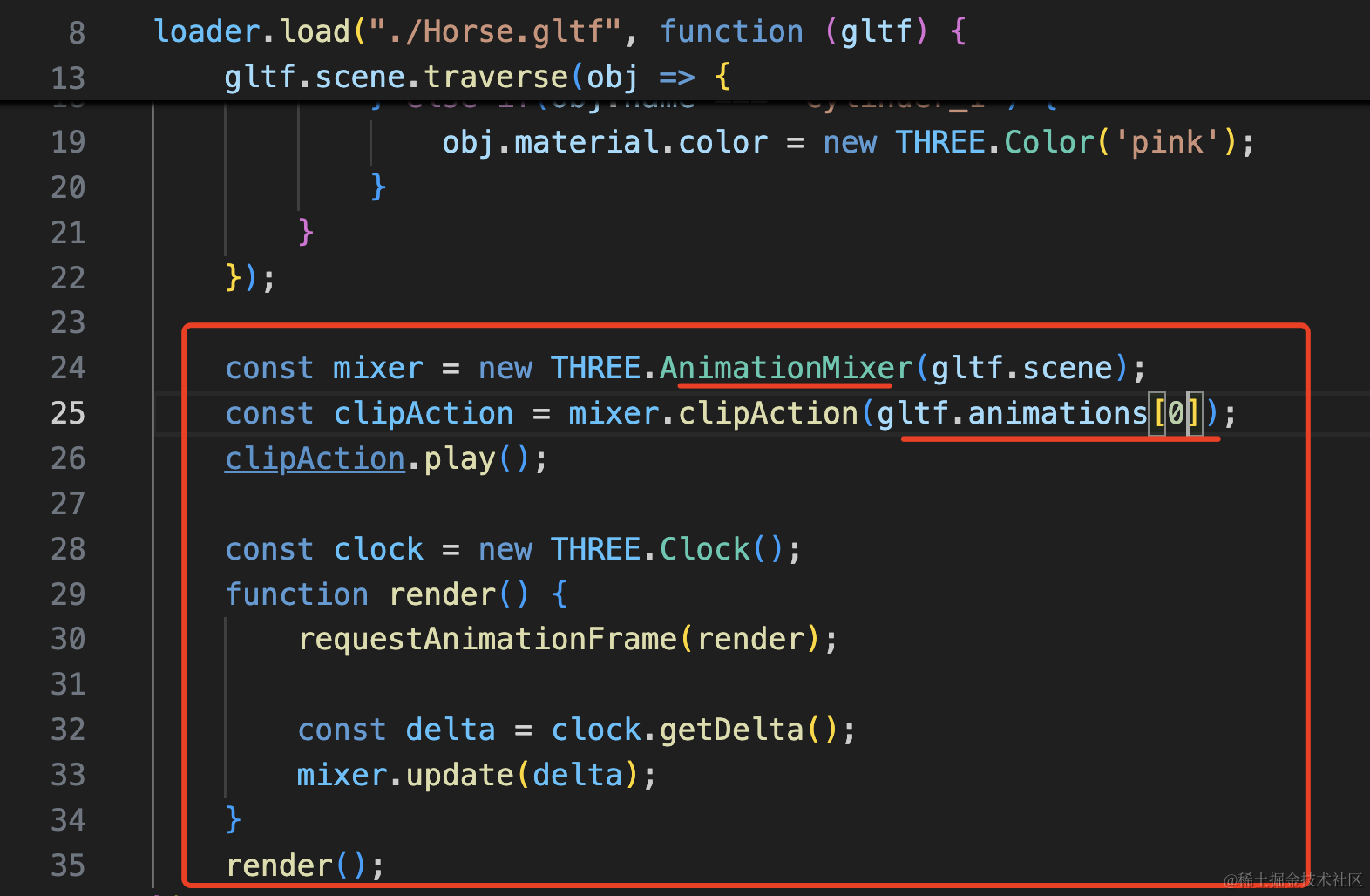
我们可以用刚才学的 AnimationMixer 播放一下:
const mixer = new THREE.AnimationMixer(gltf.scene);
const clipAction = mixer.clipAction(gltf.animations[0]);
clipAction.play();

const clock = new THREE.Clock();
function render() {
    requestAnimationFrame(render);

    const delta = clock.getDelta();
    mixer.update(delta);
}
render();
把 animations[0] 取出来,用 AnimationMixer 播放一下。
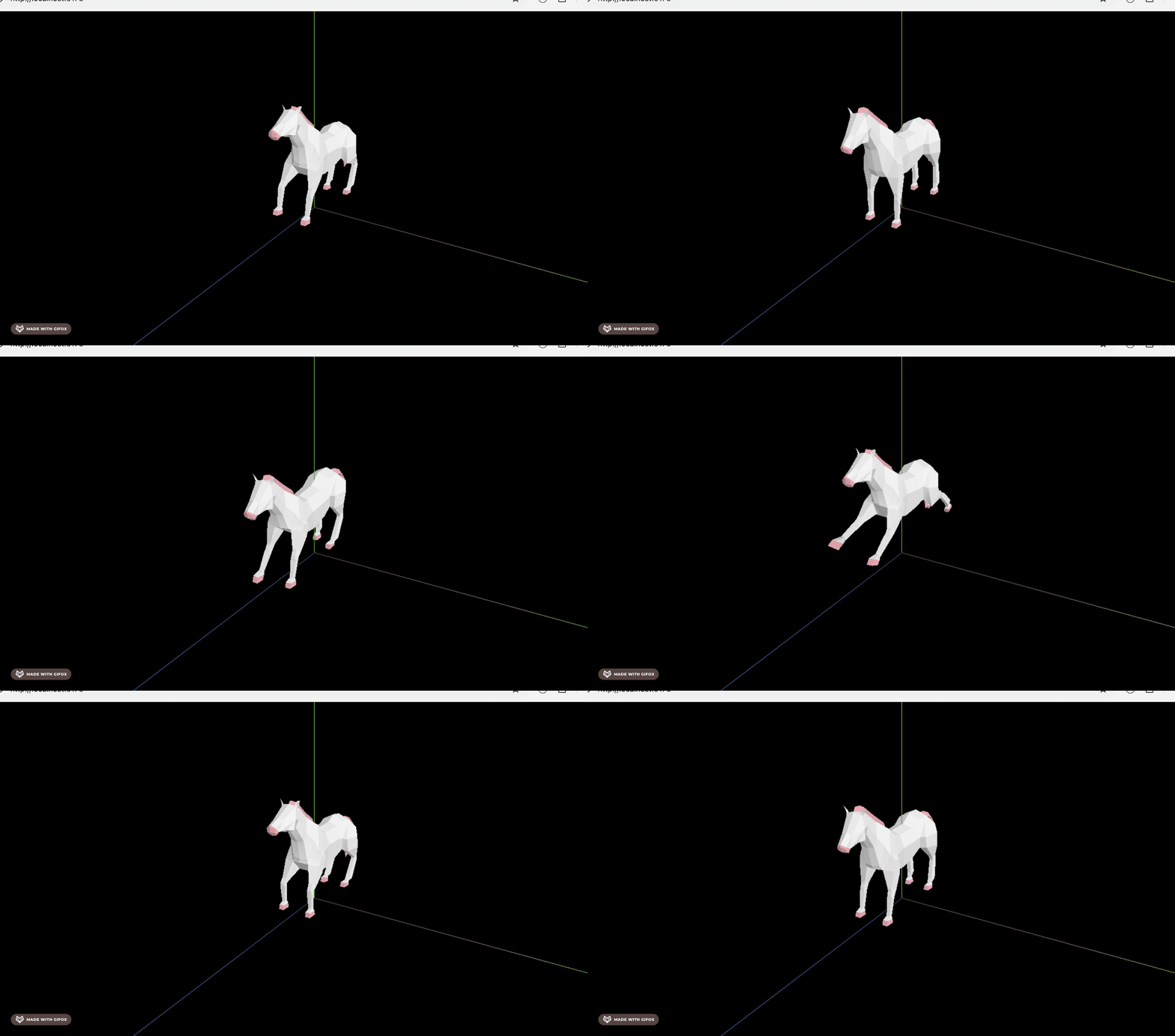
再试下别的:
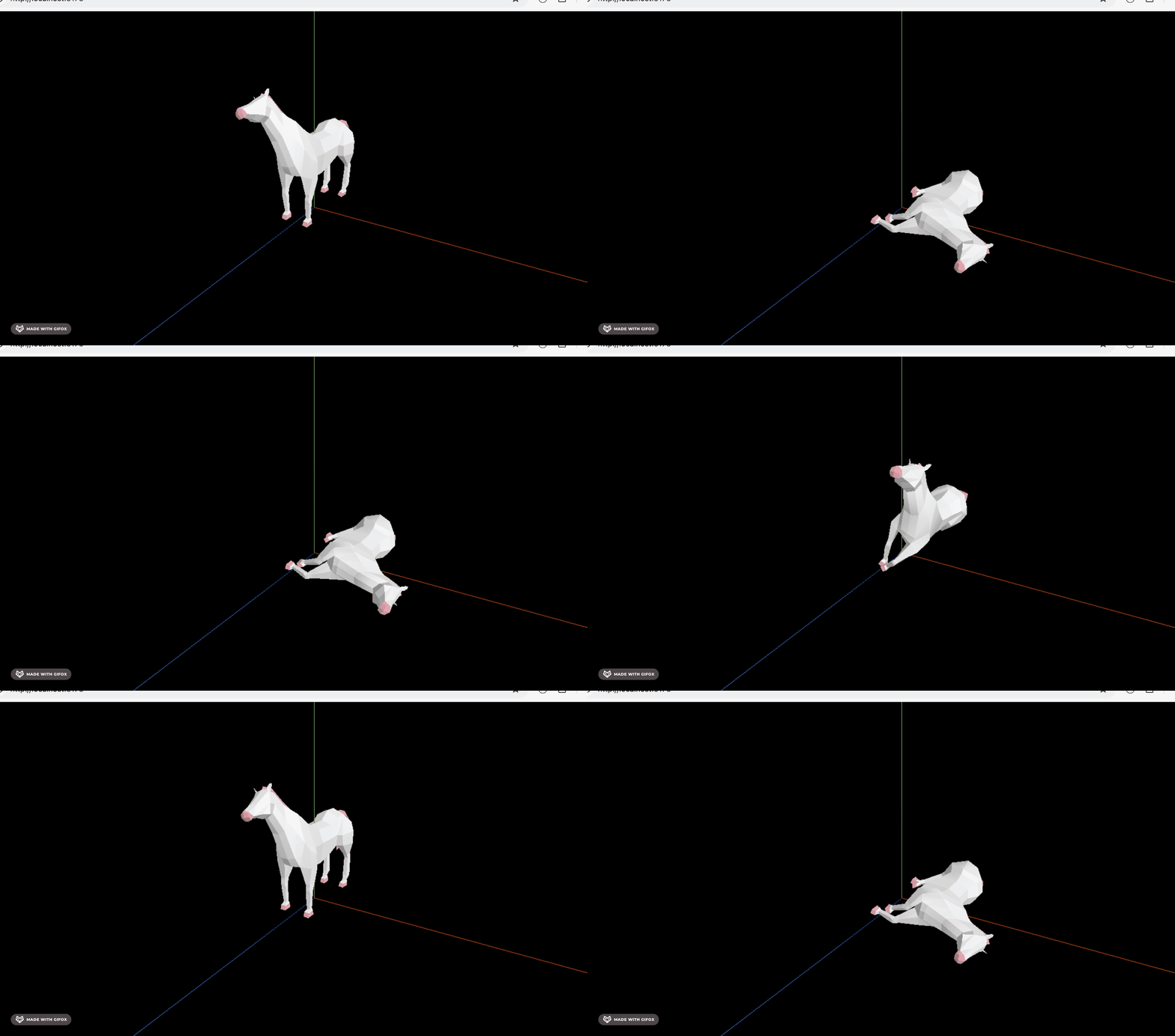
这样,就实现了模型的关键帧动画的播放。
案例代码上传了小册仓库。
总结
这节我们学了 Three.js 的关键帧动画。
它和 css 的关键帧动画一样,定义一些属性变化的关键帧 KeyframeTrack,每个属性都有 times、values 的变化数组。
然后定义这个关键帧动画 AnimationClip 的名字、持续时间等。
最后用 AnimationMixer 播放就好了,可以 play、paused、也可以控制 timeScale 播放速率。
gltf 模型上自带的 animations 关键帧动画,同样是用 AnimationMixer 来播放。
关键帧动画用的还是很多的,后面用的 gltf 模型的动画都是关键帧动画。